

Scolah Compass
Scolah Compass is a platform for NGOs and government agencies: beneficiary intake and registries, programme and service delivery, caseworker workflows, and monitoring and reporting. This catalog entry runs Scolah Compass on your own server, managed through Scolah Compass Platform.
Scolah Compass is proprietary software. Billed per active installation-day.
What gets installed
Section titled “What gets installed”- Compass services: sign-in, users, media, case management, notifications and the API gateway.
- Admin portal and caseworker app: the two Scolah Compass web interfaces.
- Databases and supporting services: PostgreSQL, MongoDB, Redis, MinIO file storage and a Solace message broker, all used only by this installation.
- AI module (optional): the Scolah Compass AI service and a Qdrant vector database. Installed only when you turn on AI module.
Scolah Compass is served from four web addresses once you give it a domain:
| Address | What it serves |
|---|---|
| Main address | The caseworker app, with the admin portal under /admin and the API under /api |
app. |
The caseworker app |
admin. |
The admin portal |
api. |
The Scolah Compass API |
Without a domain, use the server’s IP address and the installation’s port: / opens the caseworker app, /admin the admin portal.
Before you install
Section titled “Before you install”- Deployment size:
smallruns on a single node with at least 8 GiB of RAM, 4 CPU cores and 20 GiB of disk, gives each Scolah Compass service 1 GiB of memory, and the AI module isn’t available.mediumneeds at least 16 GiB of RAM, 8 CPU cores and 40 GiB of disk, gives each service 2 GiB, and the AI module is optional.largeneeds at least 32 GiB of RAM, 12 CPU cores and 100 GiB of disk, gives each service 4 GiB, and the AI module is optional.meganeeds at least 64 GiB of RAM, 16 CPU cores and 200 GiB of disk, gives each service 8 GiB, and the AI module is optional. The wizard’s Server fit check tells you whether your server is big enough. - Image registry: Scolah Compass images come from the Scolah private registry. The wizard’s Private image registry card shows Automatic (Scolah private registry): the platform pulls the images with managed credentials, so you don’t need to set anything up. Tick Override registry only to pull from your own registry instead.
- AI with Scolah-hosted models (only if you choose
SCOLAH_MANAGED): the server needs outbound HTTPS access toai.scolah.com.
Options
Section titled “Options”| Field | What it does |
|---|---|
| Tenant slug | Identifies this installation’s Scolah Compass tenant. Lowercase letters and digits only: no spaces, hyphens or underscores. Defaults to the installation name with those characters removed. It can’t be changed after the installation is created. |
| Deployment size | small, medium, large or mega, as above. |
| AI module | Turns on Scolah Compass AI features. Needs the medium size or larger. |
| AI provider | Shown when AI module is on. Which AI provider the installation starts with. LITELLM_SELF_HOSTED (the default) uses a LiteLLM installation on the same server, connected from the Connections tab, so AI traffic and provider billing stay on your own infrastructure. BYO leaves AI unconfigured until you enter a key. SCOLAH_MANAGED uses Scolah’s hosted models: AI requests, including the case and document text needed to answer them, leave your server for Scolah and its model providers (details). You can change the provider and key later in the Scolah Compass admin portal without redeploying. |
| Default language | The default interface language: en, fr or pt. |
| Organisation name | The name of the organisation Scolah Compass creates on first start. It’s filled in with your organisation’s name; click Change to use a different one. |
| First administrator’s email | The email address of the first Scolah Compass administrator. It’s filled in with your own email address; click Change to use a different one. |
Scolah Compass sends email through Scolah, and text messages and push notifications always go through Scolah. To send email through your own mail server instead, register it as a mail relay under the server’s External services, then turn on Use existing mail relay (SMTP) under Advanced. Email through your own mail server is not billed. Advanced also offers the option to use PostgreSQL, MongoDB, Redis, Solace or S3-compatible storage you already run instead of the bundled services. See external services.
First sign-in
Section titled “First sign-in”On first start, Scolah Compass creates your organisation and its first administrator:
- Email: the address in First administrator’s email.
- Password: generated by the platform.
When you click Create, the portal shows the password once, under First login credentials, labelled Compass bootstrap admin password. Copy it before you leave the page: it can’t be shown again.
Sign in to the admin portal, at the admin. address or under /admin on the main address, with that email address and password.
Every other password and key (databases, file storage, message broker, internal service keys) is generated by the platform and sealed. You never need to type them.
Mobile app
Section titled “Mobile app”Caseworkers connect the Scolah Compass mobile app to this installation by scanning a QR code. The installation’s Domains tab has a Mobile app card with that code, the server address it points to, and Copy link. Caseworkers also find the same code on their My Profile page in Scolah Compass, and administrators can print it as a poster.
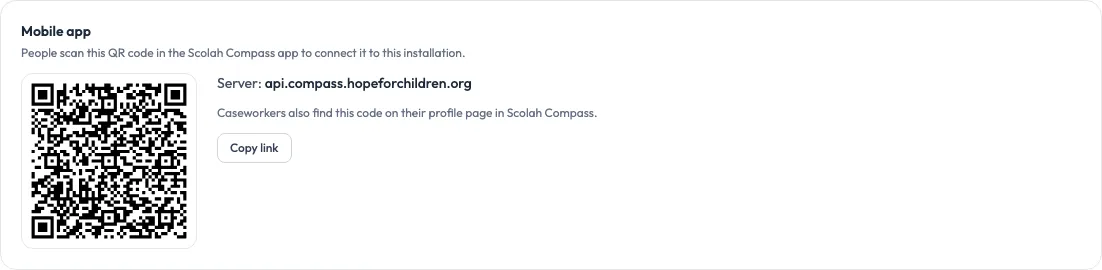
The app connects only over HTTPS, so the code appears once:
- the installation has a domain on the main address or the
api.address (a custom domain must be verified first), and - that domain is served over HTTPS: Let’s Encrypt (automatic HTTPS), your own certificate, or your own gateway.
Until then, the card says what is missing and how to fix it. For example, with only an IP address and port:

People can also type the server address in the app’s Organisation code or server address field instead of scanning. Either way, the app uses this installation’s Tenant slug as the workspace, so they only enter their email and password. New users sign in with the temporary password you give them, then choose their own.
Connections
Section titled “Connections”Scolah Compass can offer another installation on the same server:
- Compass service databases (read-only): read-only access to the Scolah Compass user and notification databases. Tables holding tokens, secrets and API keys are left out.
- Compass case data (read-only): read-only access to Scolah Compass case data and media records.
Metabase can use either of these as an Analytics data source, to build dashboards on your programme data.
It also offers:
- Notifications: Scolah Compass emails alerts that other apps publish: gives a Scolah Compass Resources installation its own client on the Scolah Compass message broker. It may publish Resources alerts and nothing else, and Scolah Compass emails each alert to the person it is for. The platform deletes the client when you remove the connection. If Scolah Compass borrows its broker from a Scolah Compass Resources installation on the server, the client is created on that broker instead.
It can use, from another installation or a service registered on the server:
- External identity provider: lets people sign in to Scolah Compass through your single sign-on provider, such as a Keycloak installation. Optional.
- LLM proxy: the AI models the AI module uses, such as a LiteLLM installation. Optional.
- Scolah Compass Resources budget: a Scolah Compass Resources installation’s Budget module. Optional.
- Scolah Compass Resources stock: the same installation’s Stock module. Optional.
See connections.