

Getting Started
Sign in
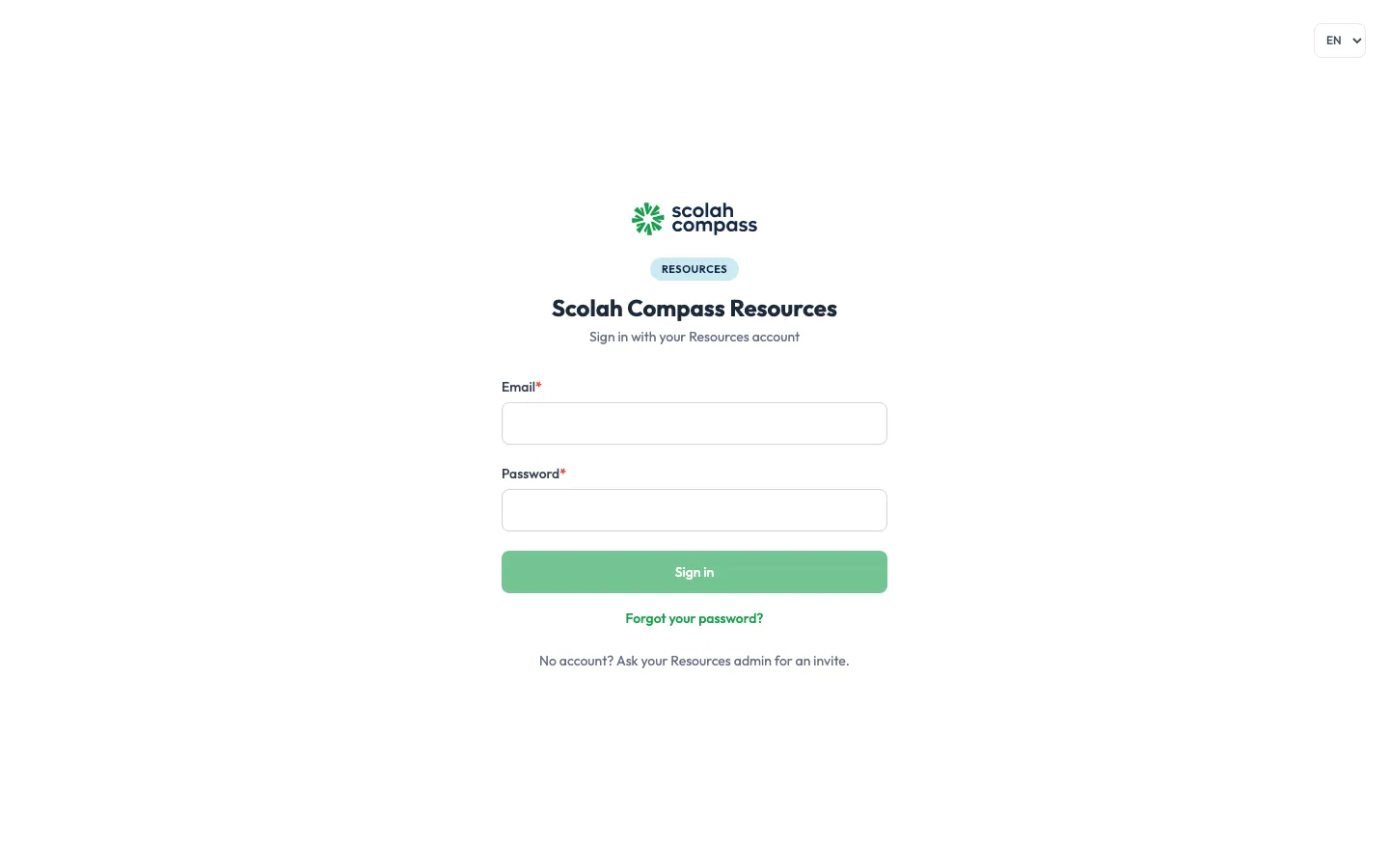
Section titled “Sign in”- Open the address your administrator gave you for Resources.
- Enter your Email and Password, then click Sign in.
If you don’t have an account, ask your Resources admin to add you. People don’t sign up on their own.
One account for Scolah Compass
Section titled “One account for Scolah Compass”Your sign-in is your Scolah identity account: the same email and password work in every Scolah Compass product your organisation has added you to. If you already use Scolah Compass, an admin’s invitation to Resources asks you to accept it when you sign in; you keep your password. Until you’ve been added, Resources says you haven’t been added yet.
If your account uses two-step verification, Resources asks for the code from your authenticator app after your password.
Set your own password
Section titled “Set your own password”The first time you sign in with a temporary password, you’re asked to Set your password before you can do anything else. It becomes your Scolah identity password, so it changes for Scolah Compass too.
- Enter the temporary password as your Current password.
- Enter a New password, and type it again under Confirm new password. It needs at least 8 characters, with a capital, a small letter, a digit and one of
!@#$%^&*. - Click Change password.
To change it later, open the menu under your initials at the top right and choose Change password. Forgot it? Click Forgot your password? on the sign-in page and you’ll get an email with a reset link.
The same menu has Mobile app, with the QR code that sets up the Resources mobile app on your phone.
Workspaces
Section titled “Workspaces”Everything in Resources lives in a workspace: usually one per organisation or country office. A workspace has its own base currency, time zone, fiscal year, budgets and stock. Your role is the same in every workspace you can open.
Create the first workspace
Section titled “Create the first workspace”Creating workspaces needs the Settings Write permission, which the Admin role has.
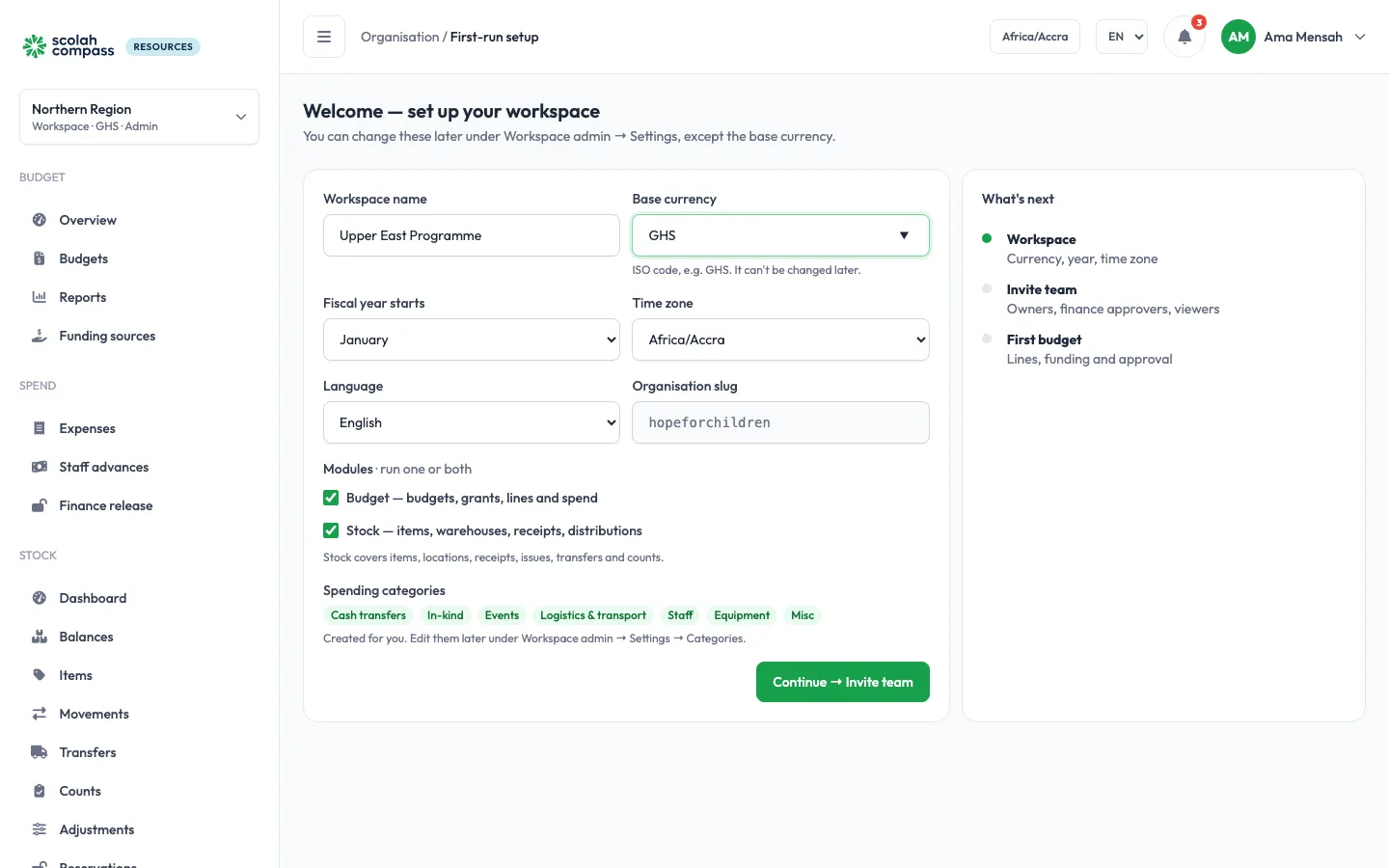
- On first sign-in, the primary admin (the person who set up Resources) lands on Welcome — set up your workspace.
- Fill in:
| Field | What to enter |
|---|---|
| Workspace name | For example, your organisation’s name |
| Base currency | The ISO code, for example GHS. It can’t be changed later. |
| Fiscal year starts | The month your financial year begins |
| Time zone | Used for dates, expiries and reminders |
| Modules | Budget, Stock, or both. You can switch modules on or off later; nothing is deleted. |
- Click Continue → Invite team.
New workspaces start with spending categories (cash transfers, in-kind, events, logistics and transport, staff, equipment, misc). You can edit them later under Settings → Categories.
Switch workspace
Section titled “Switch workspace”If you can open more than one workspace, click the workspace name at the top of the sidebar and pick another. The switcher shows each workspace’s currency. Admins also find + New workspace there.
How many workspaces your organisation can have
Section titled “How many workspaces your organisation can have”Each organisation can have a fixed number of workspaces, usually 2. Workspaces that Scolah Compass creates when it connects count too. When all of them are in use, + New workspace is replaced by a message saying so, and creating another is refused. Ask your Scolah contact if you need more.
Find your way around
Section titled “Find your way around”The sidebar shows only what your role’s permissions and the workspace’s modules allow:
| Section | Pages |
|---|---|
| Budget | Overview, Budgets, Reports, Funding sources |
| Spend | Expenses, Staff advances, Finance release |
| Stock | Dashboard, Balances, Items, Movements, Transfers, Counts, Adjustments, Reservations, Locations, Stock reports |
| Procurement | Purchase orders, Direct purchases, Suppliers (when Budget and Stock are both on) |
| Inbox | Approvals: everything waiting for your decision, with a count; My changes: what you made that waits for approval |
| Admin | Settings, Approval config (for this workspace) |
| Organisation | Users, Roles, Audit logs, Integrations: for the whole organisation, outside any workspace |
The bell at the top right shows your unread alerts.
Change the language
Section titled “Change the language”Resources is available in English, French and Portuguese. Choose your language on the setup screen, or from the language menu in the header.