

Sign in
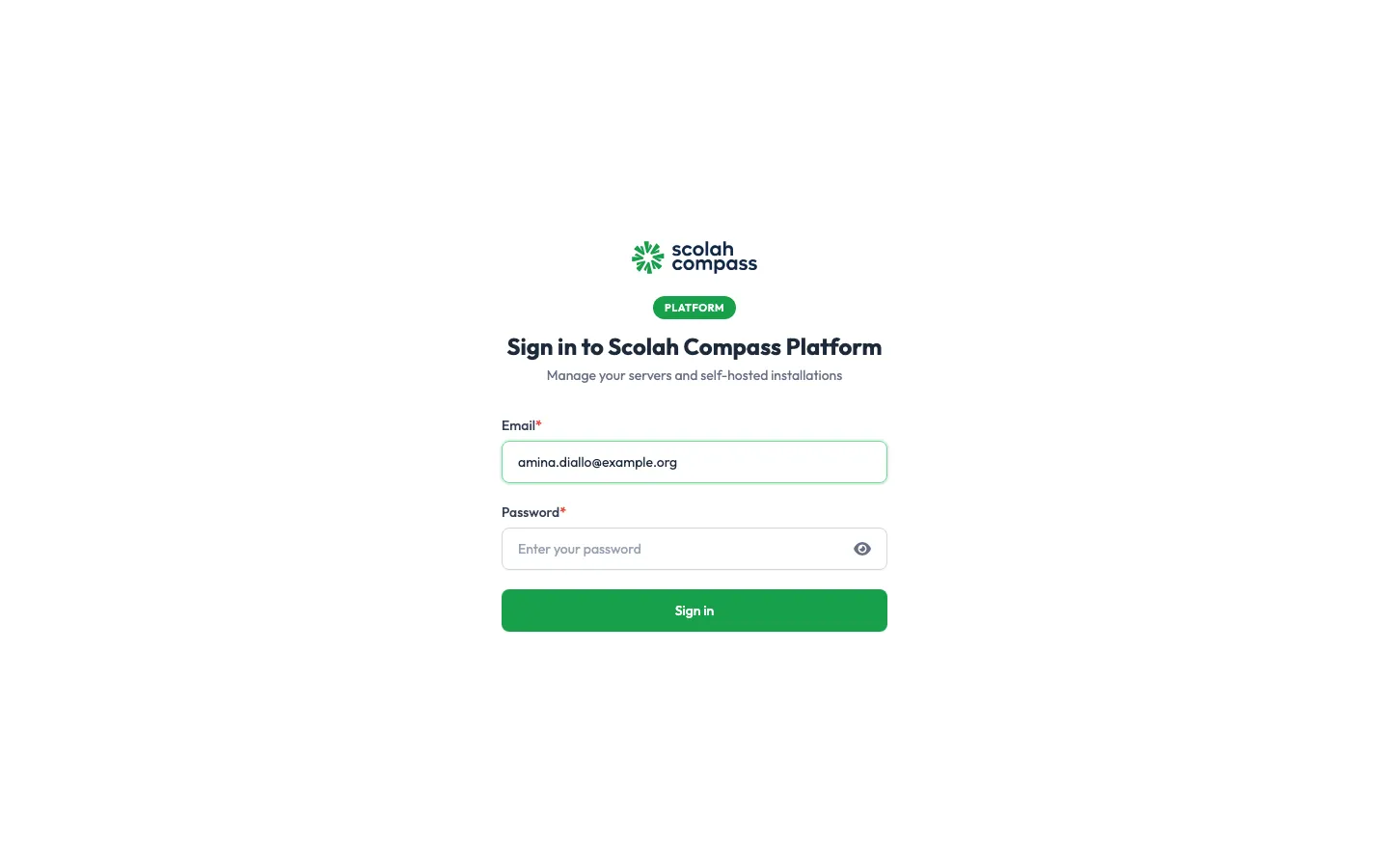
The portal is a web application at platform.scolah.com. You don’t need to install anything to use it.
Getting an account
Section titled “Getting an account”You can’t sign up to the platform yourself. When your organisation joins, Scolah creates an account for your first Organization admin. That admin can then add the rest of your team.
Sign in
Section titled “Sign in”- Open the portal and enter your Email and Password.
- Click Sign in.
First sign-in
Section titled “First sign-in”If an admin added you, they gave you a temporary password. You must choose a new one the first time you sign in:
- Sign in with your email and the temporary password.
- On Change password, enter the temporary password as the Current password, then choose and confirm a New password.
- Click Update password.
Two-factor authentication
Section titled “Two-factor authentication”We strongly recommend turning on two-factor authentication (2FA). Anyone who can sign in to the portal can change or remove applications running on your servers.
To turn it on:
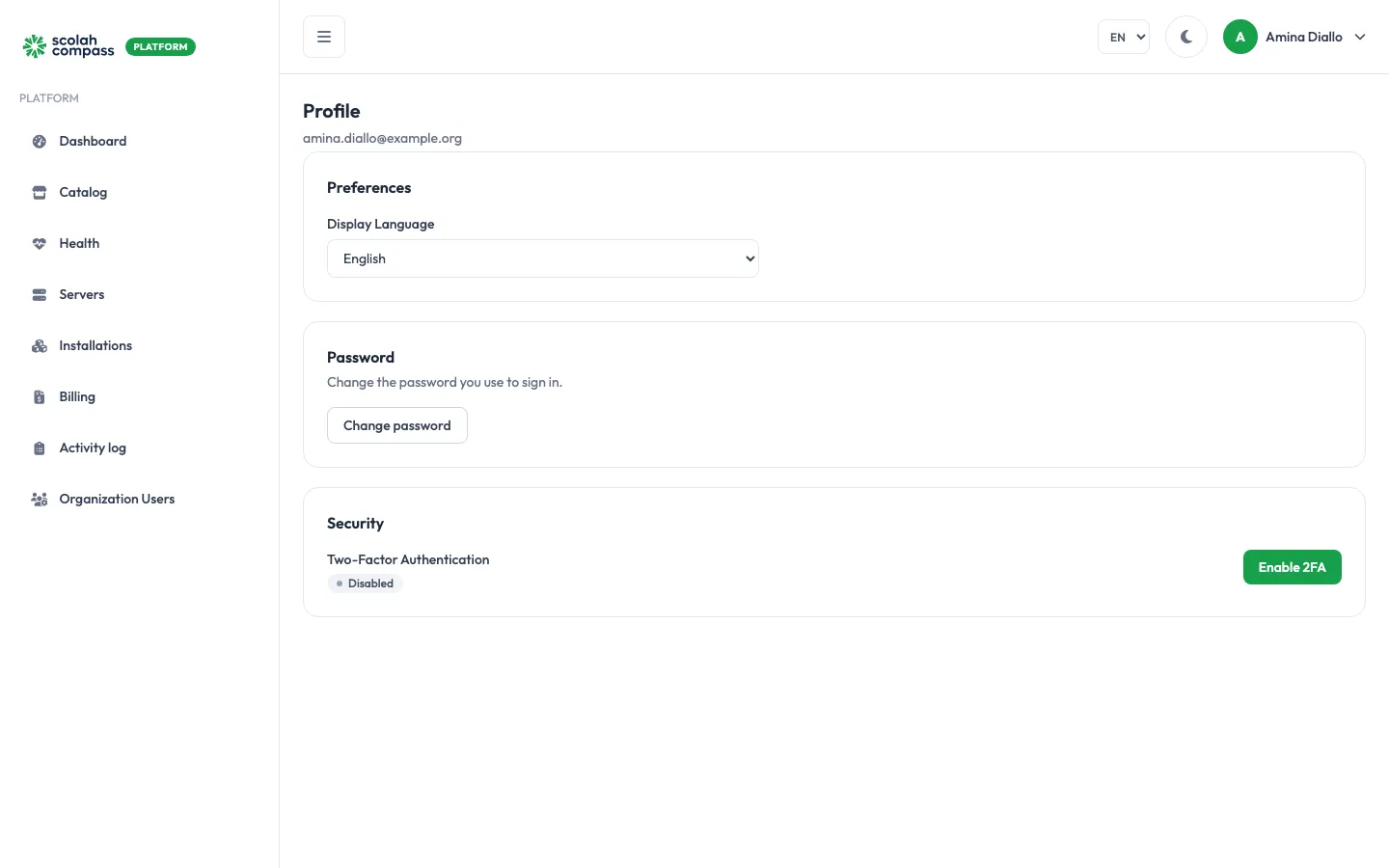
- Open the menu under your name (top right) and choose Profile.
- Under Security, click Enable 2FA.
- Scan the QR code with any authenticator app that supports 6-digit codes (TOTP).
- Enter the 6-digit code from the app and click Confirm & Enable.
- Save the Backup codes somewhere safe. Each one works once, if you lose your phone.
From then on, the portal asks for a code from your app after your password. If you don’t have your phone, click Use a backup code instead.
Change your password or language
Section titled “Change your password or language”Both are on your Profile page:
- Change password: enter your current password, then the new one twice.
- Display Language: English, Français or Português. You can also switch language with the EN / FR / PT selector at the top of every page.