

Items and Categories
Items are the things your organisation stocks and hands out: food baskets, kits, nets, tablets. You name them yourselves; there are no built-in item types.
Add an item
Section titled “Add an item”Stock managers and admins add and edit items; storekeepers and viewers see the list without the + New item, Edit and Minimums buttons.
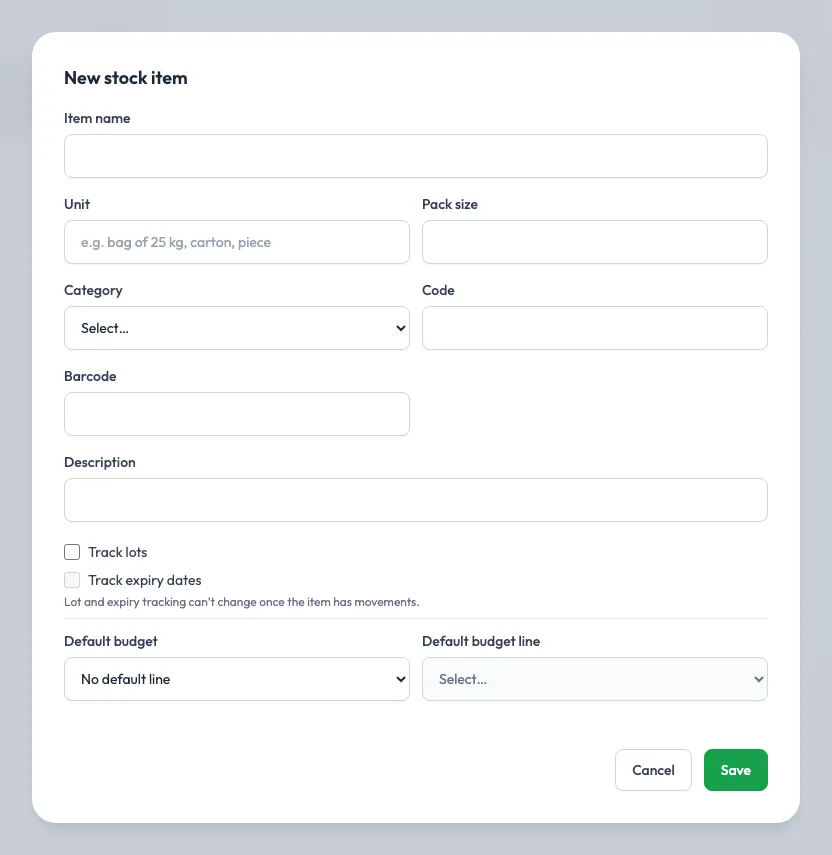
- Go to Stock → Items and click + New item.
- Fill in:
| Field | What to enter |
|---|---|
| Code, Item name | For example RICE-25, “Rice 25kg” |
| Unit | How you count it: bag, carton, piece, kit |
| Category | One of your stock categories |
| Pack size | Optional, for example “25 kg” |
| Barcode | Optional |
| Track lots | Each receipt has a lot number, and you can see who received each lot |
| Track expiry dates | Each lot has an expiry date. Needs lot tracking. |
| Default budget line | Optional: the line a direct purchase of this item is charged to |
- Click Save.
Lot and expiry tracking can’t change once the item has movements. Deactivate hides an item you no longer stock; Show inactive brings it back into view.
Minimums and low-stock alerts
Section titled “Minimums and low-stock alerts”Click Minimums on an item to set the lowest acceptable stock at each location. When available stock drops below a minimum, stock managers and that location’s storekeepers get a low-stock alert, and the item appears under Low stock on the dashboard. Leave it empty for no minimum.
Categories and adjustment reasons
Section titled “Categories and adjustment reasons”Item categories, and the reasons used for stock adjustments (damage, loss, wastage, found stock and your own), are managed under Settings → Stock categories. See Settings.
Bring in items from elsewhere
Section titled “Bring in items from elsewhere”- Import from Compass on the Items page creates stock items from Scolah Compass’s in-kind list, or links them to items you already have. See Import from Scolah Compass.
- CSV imports loads items, opening balances and offline distributions from a spreadsheet. See CSV imports.