

Portal tour
Dashboard
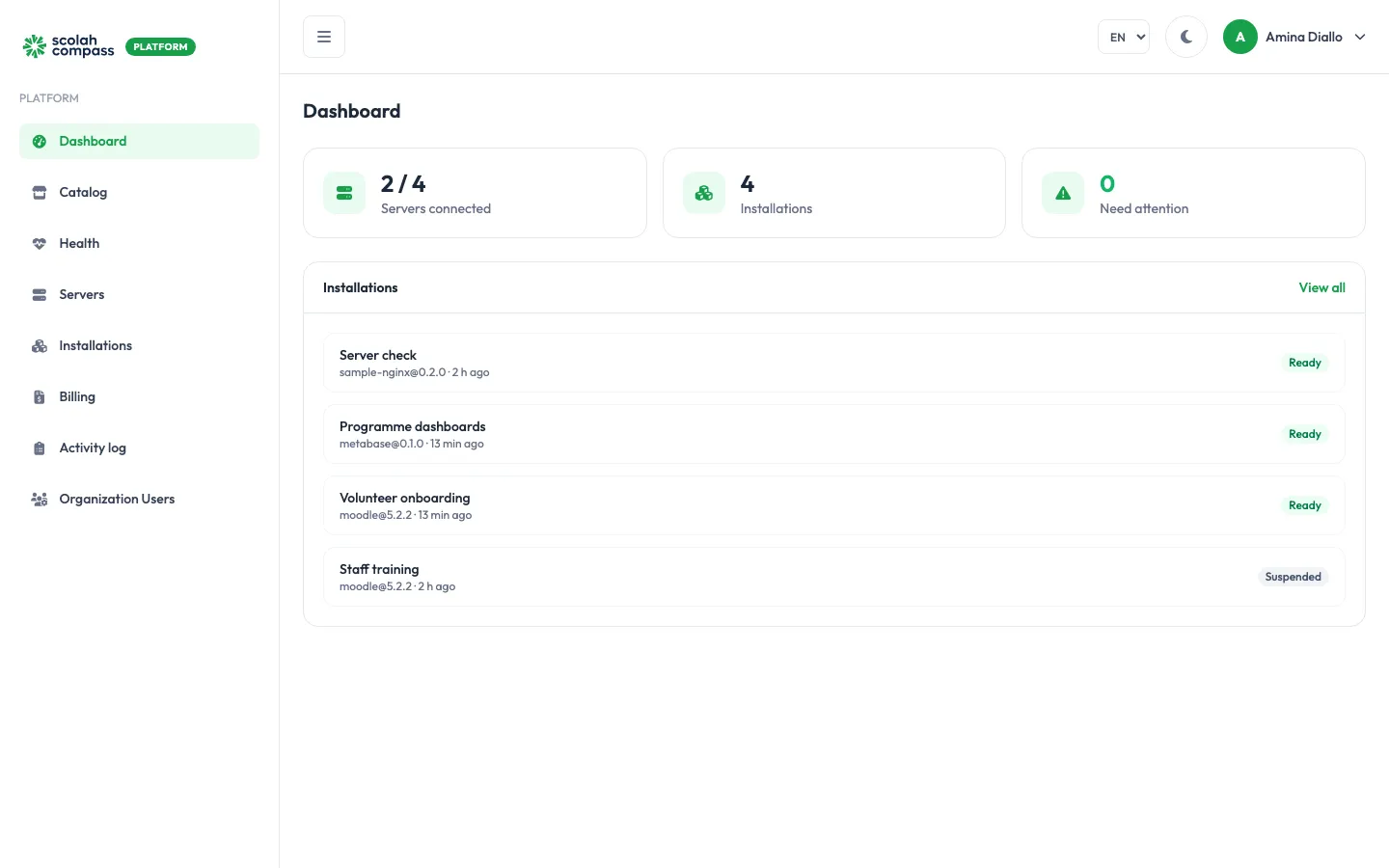
Section titled “Dashboard”The dashboard is the first page you see after signing in. It answers three questions at a glance:
- Servers connected: how many of your servers have an agent checking in right now, out of the total.
2 / 4means two servers are offline or haven’t been set up yet. - Installations: how many applications you have installed.
- Need attention: installations that are failed or degraded. Click through to see why.
Below the counters, Installations lists each installation with its state. Click one to open it.
The menu
Section titled “The menu”| Menu item | What you’ll find there |
|---|---|
| Dashboard | The summary above. |
| Catalog | The applications you can install, with descriptions, licences and available versions. |
| Health | Live status of your agents and installations, with any active alerts. |
| Servers | Your servers, whether their agents are connected, and the button to add a new one. |
| Installations | Every installation, its state and service health, and the button to create a new one. |
| Billing | Usage, invoices and payments. |
| Activity log | Who did what, and when, across your organisation. |
| Organization Users | The people who can use the portal, and their roles. |
At the top right you can switch the language (EN / FR / PT), switch between light and dark mode, and open the menu under your name for Profile and Sign out.
States you’ll see
Section titled “States you’ll see”Servers and installations show a coloured state label. The common ones:
| State | Meaning |
|---|---|
| Connected | The server’s agent is checking in normally. |
| Pending | The server was added, but no agent has connected yet. |
| Offline | The agent hasn’t checked in for more than 5 minutes. |
| Ready | The installation is deployed and all of its services are healthy. |
| Suspended | The installation is stopped on purpose. Its data is kept. |
See Installation states for the full list.