

Upgrade, scale and reconfigure
Three buttons on an installation change a running installation:
- Upgrade: move to a newer version of the application.
- Scale: change the sizing profile, for example from Small to Medium.
- Edit config: change the application’s settings.
Both admins and members can run them. Upgrade is available when the installation is Ready, Degraded or Failed. Scale and Edit config need it to be Ready or Degraded.
How a change is applied
Section titled “How a change is applied”Every change goes through the same three steps, so nothing changes on your server until you’ve seen that it’s safe.
1. Pre-check
Section titled “1. Pre-check”Choose the target version, size or settings, then click Run pre-checks. The agent checks without changing anything:
- the installation is in a state that can be changed
- there is enough disk space and memory for the new version or size
- the new version’s bundle and signature are valid, and its images can be pulled
- the database is reachable, and the new size fits the server
If a pre-check fails, you see Can’t proceed with the reason. The installation hasn’t been touched. Fix the problem, for example by freeing disk space, then Retry pre-checks.
2. Confirm
Section titled “2. Confirm”When the pre-checks pass, you get a summary (From → To) and any Advisories: things the pre-checks noticed that don’t block the change but that you should know about. If there are advisories, tick I understand these advisories and want to proceed. Then click Confirm and execute.
3. Post-check
Section titled “3. Post-check”The agent applies the change and checks that every service comes back healthy.
- Completed: the change is applied and all post-checks passed.
- Rolled back: a post-check failed, and the agent put the installation back on its previous version and configuration. The reason is shown.
- Failed: the change couldn’t be completed. The installation stays on its previous version.
You can leave the page while a change runs. The installation’s Activity tab shows the operation, and View running operation takes you back to it.
Upgrade
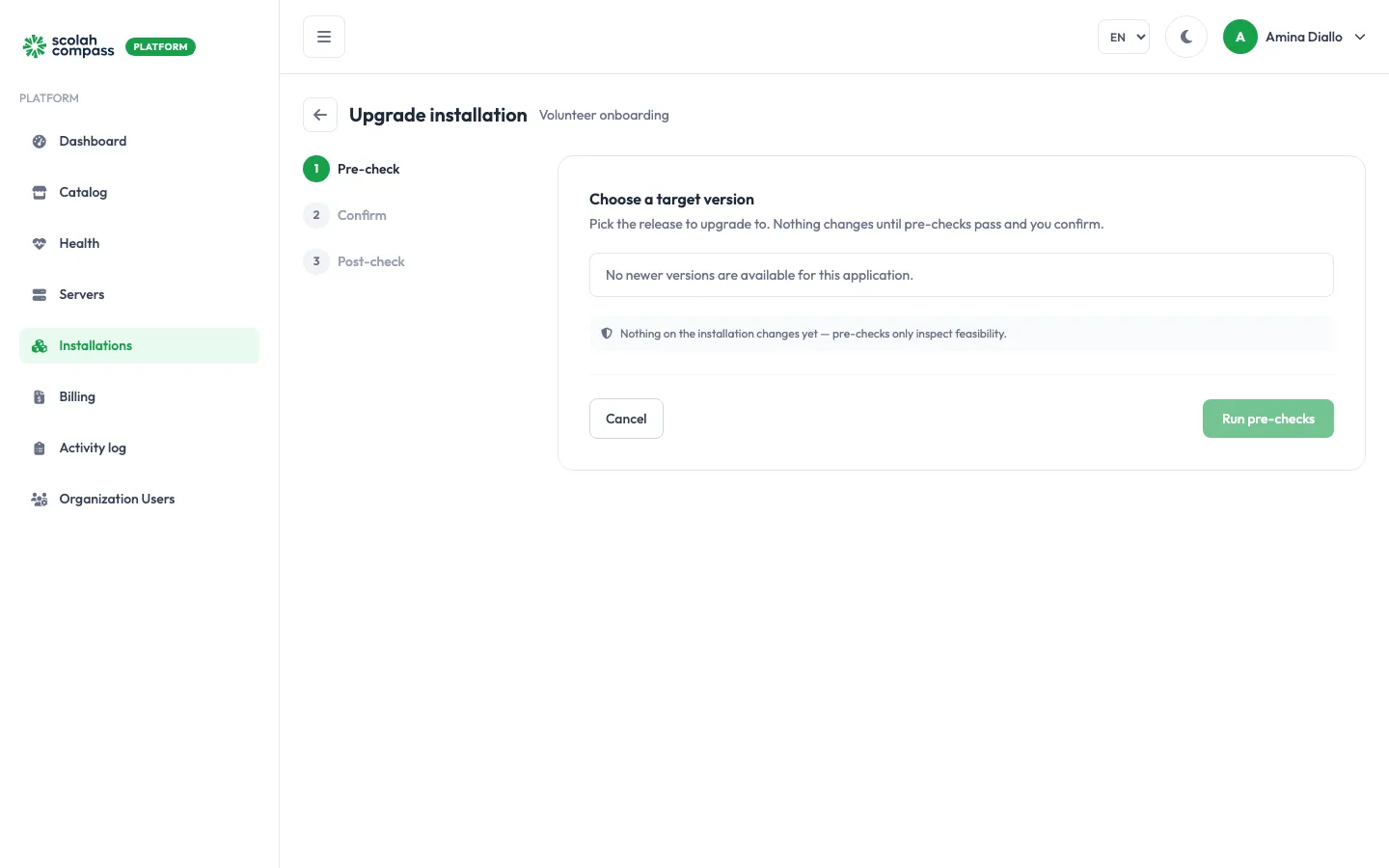
Section titled “Upgrade”Upgrade lists the versions newer than the one you’re running. If there are none, it says No newer versions are available for this application.
Versions only move forward. Application versions are designed so the old and new versions can run side by side during the change, which is what makes an automatic rollback safe.
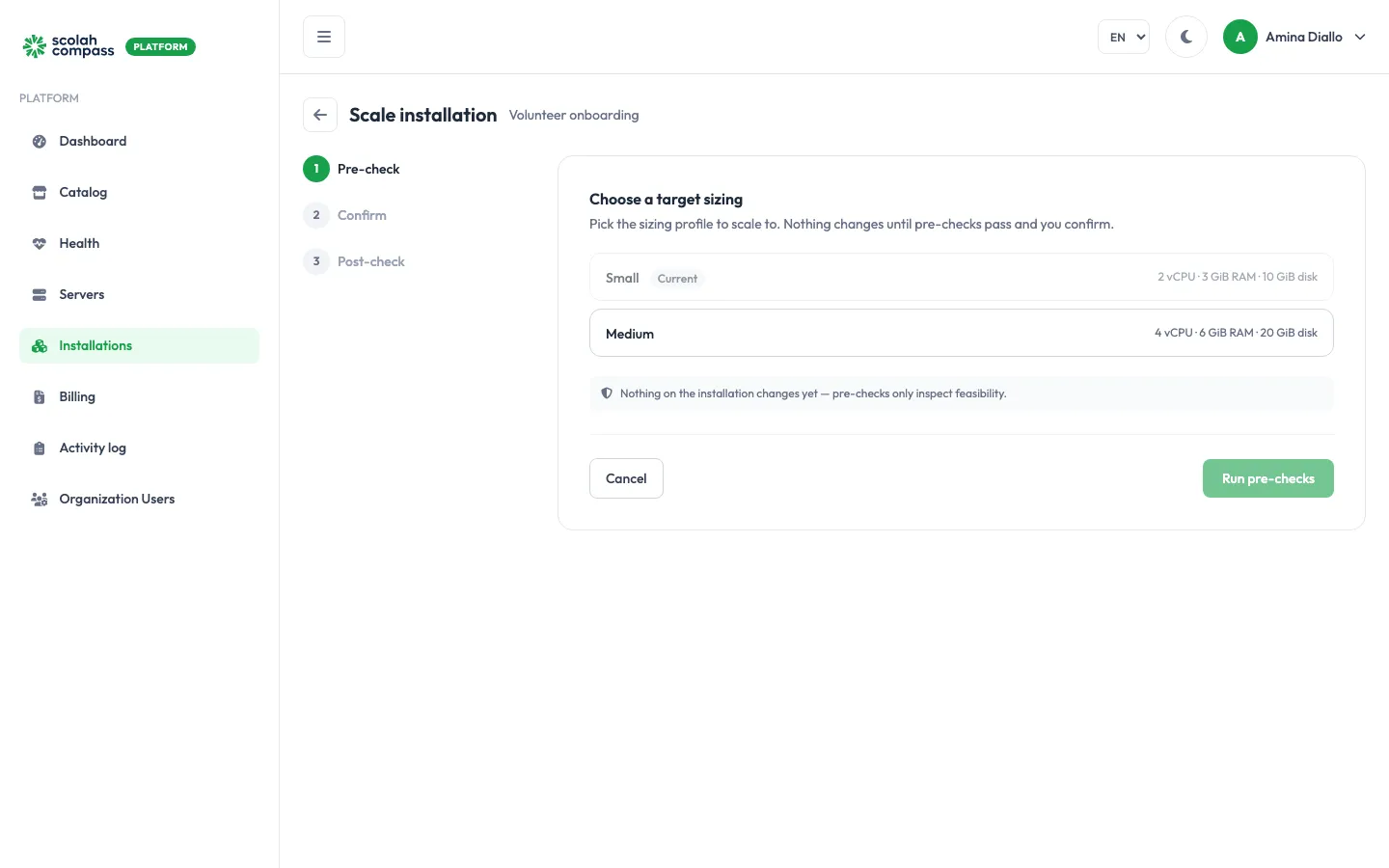
Scale shows the sizes the application offers and how much CPU, memory and disk each needs. Your current size is marked Current. Bigger sizes must fit on the server: check the server’s resources under Servers.
Changing size redeploys the installation with the new size’s settings. Depending on the application, that means new memory limits, a larger Java heap, more web workers or a bigger database cache; each application’s catalog page says what its sizes change. The affected containers restart, so expect a short interruption. Your data is kept.
On a Kubernetes server, changing size sets the pods’ memory requests and limits to the new size, along with the heap and worker settings, and rolls the pods.
Edit config
Section titled “Edit config”Edit config shows the application’s editable settings with their current values, and counts how many you’ve changed. Secrets that were sealed when you created the installation, such as generated passwords, can’t be viewed or changed here.