

Roles and Permissions
Each person has one role for the whole organisation, and the workspaces they can open. The role decides what they can see and change in every workspace they open. Roles are managed under Organisation → Roles.
The roles page
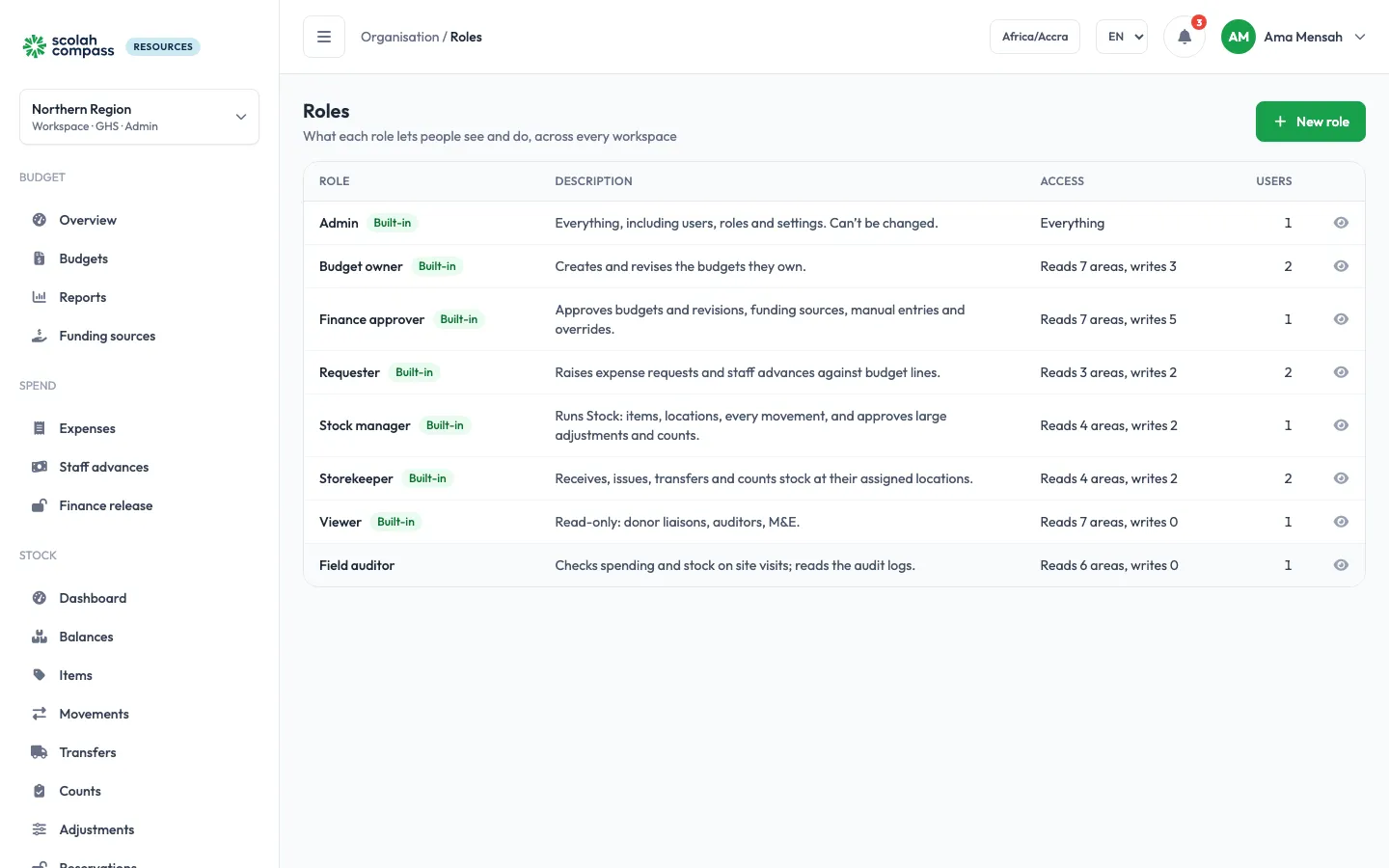
Section titled “The roles page”The list shows each role with its description and how many people have it. Scolah Compass Resources comes with seven built-in roles; you can add your own custom roles next to them.
| Role | In short |
|---|---|
| Admin | Everything, including users, roles and settings. Can’t be changed. |
| Budget owner | Runs their own budgets and spends against them |
| Finance approver | Posts to the ledger, pays and disburses, and manages funding |
| Requester | Raises expenses, advances and purchase orders; sees only their own spending |
| Stock manager | Runs stock at every location |
| Storekeeper | Runs stock at the locations they are assigned to |
| Viewer | Sees budgets, spending, procurement and stock without changing anything |
Add or change a role
Section titled “Add or change a role”- Click New role, or open a role.
- Give it a Name (each name is used once) and a Description.
- Tick its permissions in the permission matrix.
- Save.
The change applies at once to everyone with the role. Every role created, changed or deleted is in the Audit logs.
- Admin can’t be edited: it always holds every permission.
- The other built-in roles can be edited, but not deleted.
- A role can’t be deleted while someone has it, a pending invitation gives it, or an approval rule names it. Give those people another role, withdraw the invitation, or change the rule first.
You need the Roles Write permission to change roles.
The permission matrix
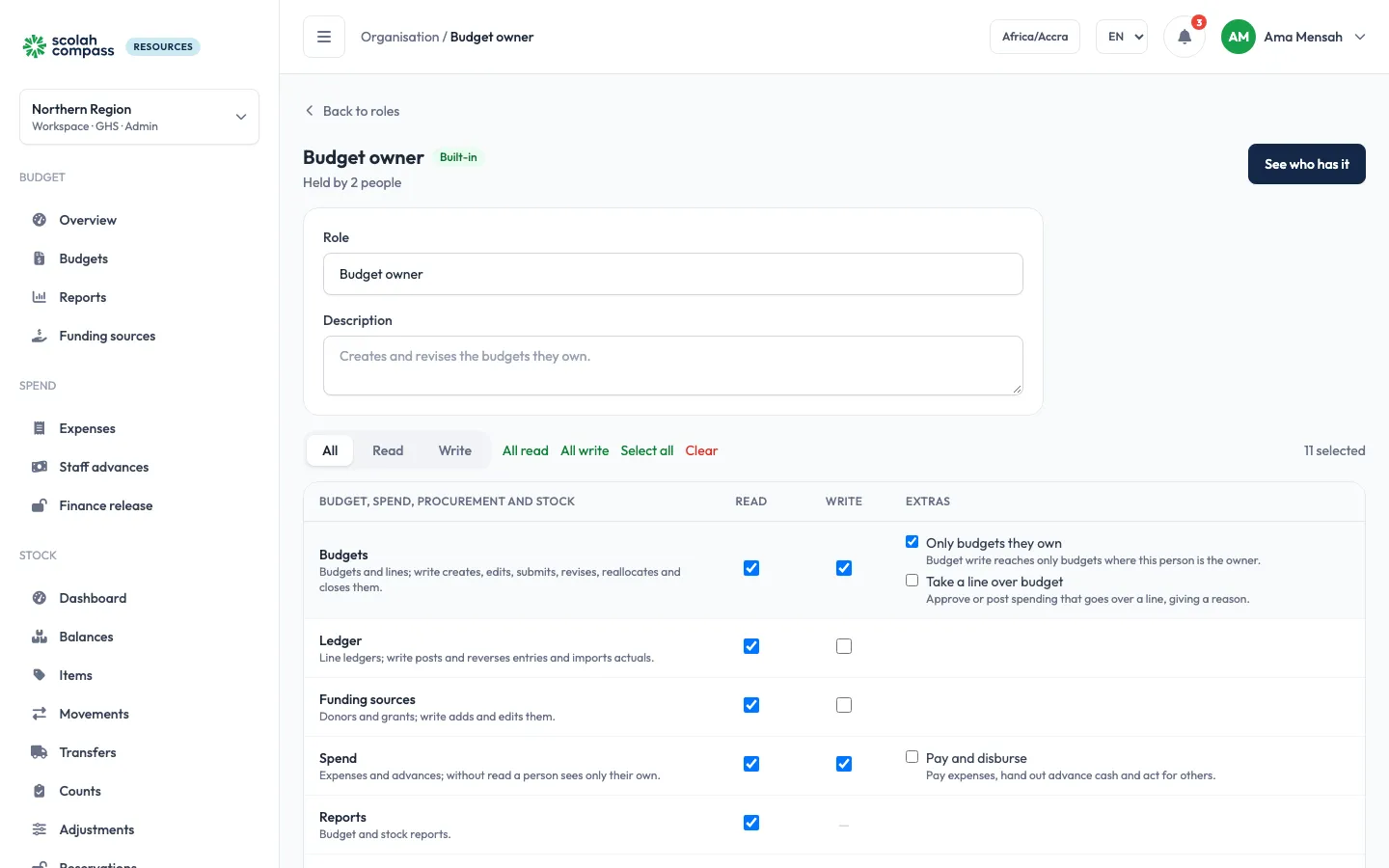
Section titled “The permission matrix”Each role has one row per area, with a Read and a Write box. Write lets you read the area too. Some areas have extras under Write.
| Area | Read lets you | Write lets you | Extras |
|---|---|---|---|
| Budgets | See budgets, lines, revisions and reallocations | Create and edit budgets and lines, submit, activate and close them, request revisions and reallocations | Only budgets they own: Write reaches only budgets the person owns. Take a line over budget: approve spending past a line’s balance. |
| Ledger | See ledger entries | Post manual entries and their reversals | |
| Funding sources | See funding sources | Add and edit them | |
| Spend | See everyone’s expenses, advances and finance releases. Without it, a person sees only their own. | Raise expenses and advances, and account for advance spending | Pay and disburse: record payments, issue advance cash, and act for others |
| Reports | See budget and stock reports | (none) | |
| Procurement | See purchase orders, direct purchases and suppliers | Create, submit and receive orders, record direct purchases, manage suppliers | |
| Stock | See items, balances and movements | Items, locations, movements, transfers, counts, adjustments, reservations and imports | Only at assigned locations: Write covers only movements, counts, transfers and adjustments at the person’s locations, with no catalogue changes |
| Users | See users | Add, edit, suspend and remove users | |
| Roles | See roles | Create, edit and delete roles | |
| Settings | See workspace settings | Edit workspace settings and branding, budget categories and storage, and create workspaces | |
| Approval config | See approval rules, and All pending under Approvals | Edit the rules, replace approvers, set the stock adjustment size limit | |
| Integrations | See API keys | Create, rotate and revoke them | |
| Audit logs | See the audit logs | Archive and purge, set the retention period |
Who can make a change is the area’s Write permission. Whether the change then needs approval, and who approves it, is set per workspace under Approval config.
What the built-in roles start with
Section titled “What the built-in roles start with”R is Read, W is Write (which includes Read). Admin holds every permission and both of Take a line over budget and Pay and disburse.
| Area | Budget owner | Finance approver | Requester | Stock manager | Storekeeper | Viewer |
|---|---|---|---|---|---|---|
| Budgets | W, only budgets they own | W, take a line over budget | R | R | R | R |
| Ledger | R | W | R | |||
| Funding sources | R | W | R | |||
| Spend | W | W, pay and disburse | W, own only | R | ||
| Reports | R | R | R | R | R | |
| Procurement | W | W | W | W | W | R |
| Stock | R | R | R | W | W, only at assigned locations | R |
Only Admin holds Users, Roles, Settings, Approval config, Integrations and Audit logs. A requester holds Spend Write without Spend Read, so they see only their own expenses and advances.
Giving a role
Section titled “Giving a role”Under Users, you can only give a role whose permissions you hold yourself. An admin can give any role.
Rules that apply to everyone
Section titled “Rules that apply to everyone”- Nobody approves their own request or change, and one person decides at most one step of the same request.
- An admin can decide any approval step.
- A suspended or deactivated user is turned away at sign-in until reactivated.