

Recording Stock Movements
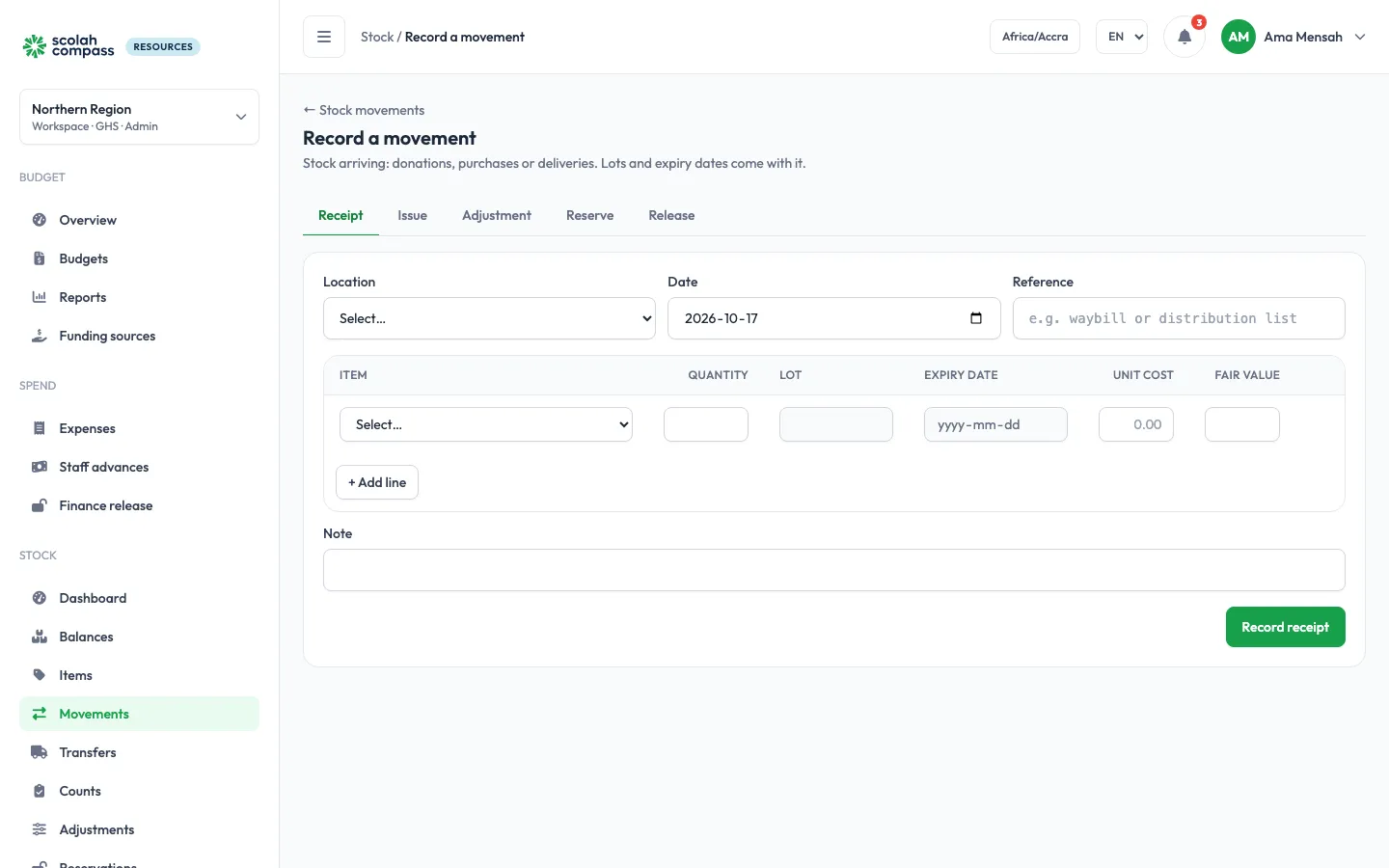
Every change to stock is a movement. Stock → Movements lists them all, newest first, and + Record movement records new ones.
Stock managers and admins can record at any location; storekeepers only at their assigned locations. If you aren’t assigned anywhere, + Record movement doesn’t appear for you.
Record a movement
Section titled “Record a movement”- Go to Stock → Movements and click + Record movement.
- Choose the type, the Location and a reference (for example a waybill or distribution list).
- Add a line per item with its Quantity, then record it.
All the lines are posted together, or none are. Check availability first tells you whether every line has enough stock, without posting anything.
With the starter rules, a receipt or issue waits for a stock manager other than you before it is posted (Receipts and issues on Approval config). A pending issue already holds its stock, so nobody else can issue it in the meantime. See Changes waiting for approval.
| Type | Use it for |
|---|---|
| Receipt | Stock arriving: donations, purchases, deliveries. Lot-tracked items need a Lot number, and expiry-tracked items an Expiry date. Enter the Unit cost (0 for a donation) and, for donations, a Fair value if you want it reported. |
| Issue | Stock handed out |
| Adjustment | Damage, loss, wastage, or found stock. Each line needs a Reason; the reason decides whether stock goes in or out. |
| Reserve | Hold available stock for a planned distribution without moving it. Stock managers only. |
| Release | Give reserved stock back to available. Stock managers only. |
Receipts against purchase orders and direct purchases are recorded from Procurement; transfers from Transfers.
Programme, purpose and grant
Section titled “Programme, purpose and grant”On an Issue you can say what it was for: the Programme, a Purpose such as a training event or office use, and the Grant that paid for the stock (the workspace’s grants are suggested). All three are optional; the distribution report groups issues by them, so donors can see what their grant handed out.
First expiry, first out
Section titled “First expiry, first out”When you issue a lot-tracked item without naming a lot, Resources takes stock from the lot that expires first. Expired lots are never issued.
To issue from a particular lot instead, choose it under Lot (optional) and say Why this lot?. The reason is recorded on the movement.
Stock can’t go negative
Section titled “Stock can’t go negative”An issue that needs more than is available is refused, and Resources lists every line that is short and by how much. Nothing is posted.
Reverse an issue
Section titled “Reverse an issue”When issued stock comes back, for example a distribution that handed out less than planned, reverse the issue instead of recording a receipt. The quantity goes back on the same lot, and the distribution report counts the issue less what came back.
- Find the issue under Stock → Movements (filter by Type: Issue), or on the item’s stock card.
- Click Reverse on it, enter the Quantity to put back and, if you like, a Reference such as “returned unused”.
- Click Reverse.
You can reverse part of an issue, and reverse it again later, up to what was issued. The issue then shows Reversed, or how much has come back so far. Storekeepers can reverse issues at their own locations; stock managers and admins anywhere.
Large adjustments wait for approval
Section titled “Large adjustments wait for approval”On Approval config, Stock tab, an admin sets which adjustments need approval: by value (quantity × cost), and an adjustment size limit in units. An adjustment that needs approval isn’t applied straight away: it becomes an adjustment request, listed under Stock → Adjustments, and its approvers get an alert. This applies to everyone, stock managers included. With the starter rule, every adjustment waits for a stock manager; add a band with no steps to let small ones through.
Its approvers (never the person who asked) decide it under Approvals: the last approval posts the adjustment, if the stock is still there.
Reservations
Section titled “Reservations”Stock → Reservations (stock managers and admins) lists stock held for planned distributions, from Scolah Compass or by hand, under a Reservation reference: what was reserved, issued, released and what remains. Close reservation releases everything still reserved under that reference, at every item and location.
When Scolah Compass is connected, approving an in-kind disbursement batch reserves its stock, and distributing it issues from the reservation.
Balances and the stock card
Section titled “Balances and the stock card”- Stock → Balances shows what is On hand, Reserved and Available per item and location, with the stock value. Show lots expands each row into its lots and expiry dates.
- Click an item’s name on Balances to open its Stock card at a location: the opening balance, every movement in the period with its direction (+ in, − out) and running balance, and the closing balance.
Both export to Excel, PDF and CSV.