Suspend, resume and delete
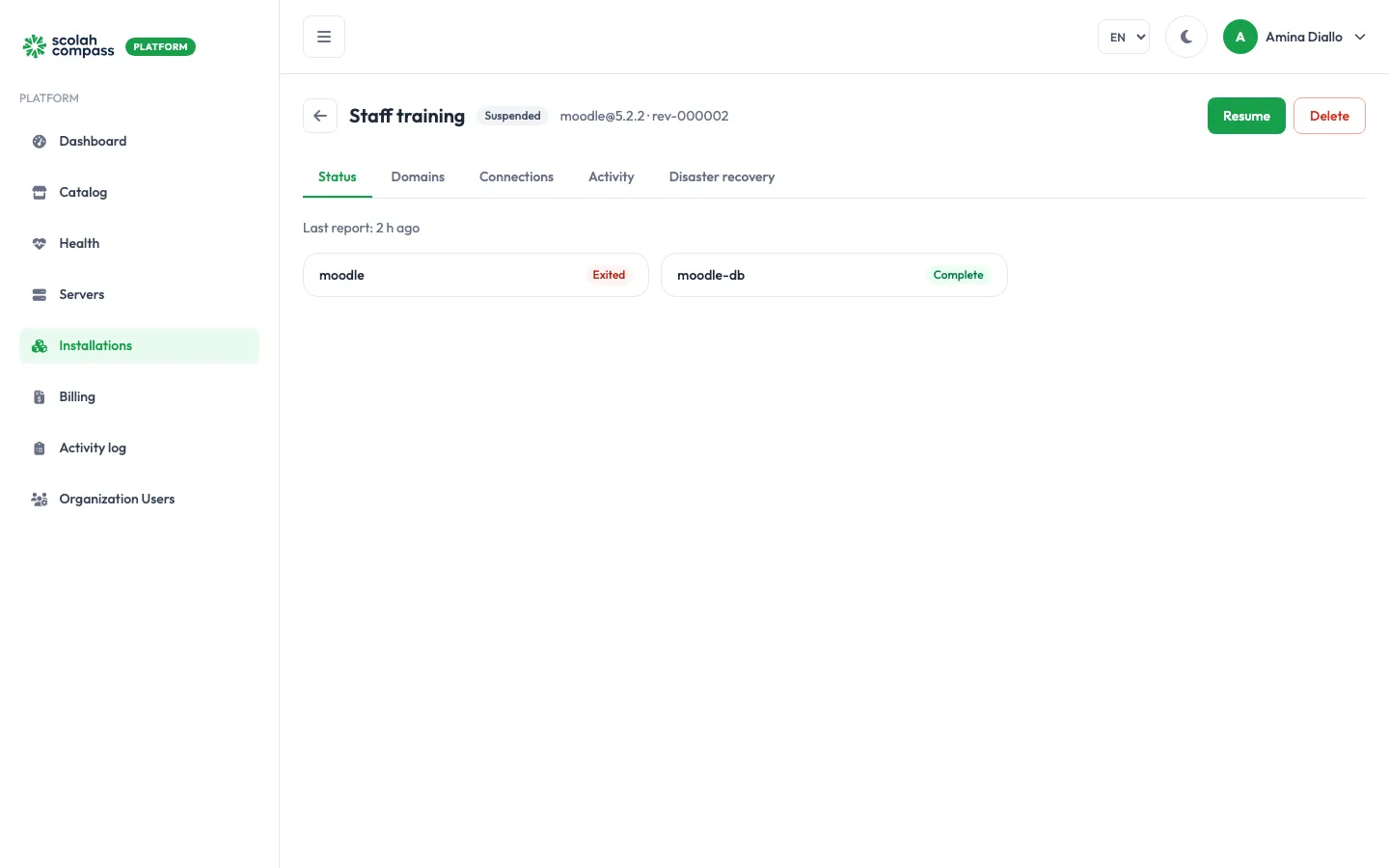
The buttons at the top of an installation change with its state. You only see the actions that make sense right now.
| Action | Available when | Who |
|---|---|---|
| Suspend | Ready, Degraded or Failed | Admins and members |
| Resume | Suspended | Admins and members |
| Retry | Failed or Degraded | Admins and members |
| Delete | Any state except Removed | Admins only |
Upgrading, scaling and editing configuration are covered in Upgrade, scale and reconfigure.
Suspend
Section titled “Suspend”Suspend stops all of the installation’s services on the server. Its databases, files and settings are kept. Users can’t reach it while it’s suspended: it has no route, so its web address answers HTTP 404 until you resume it. Suspended days aren’t billed.
The same applies, on Docker servers and on Kubernetes clusters, to any installation that isn’t serving, such as a disaster recovery standby, until it’s promoted.
The portal asks you to confirm first.
Resume
Section titled “Resume”Resume starts the services again, with all their data. The installation goes through Deploying back to Ready.
If a deployment ended in Failed, or a Degraded installation doesn’t recover on its own, Retry asks the agent to apply the same configuration again. Check the Activity tab first: if the cause was temporary (for example the server couldn’t reach the registry for a moment), a retry is usually enough. If the same step fails again, see Troubleshooting.
Delete
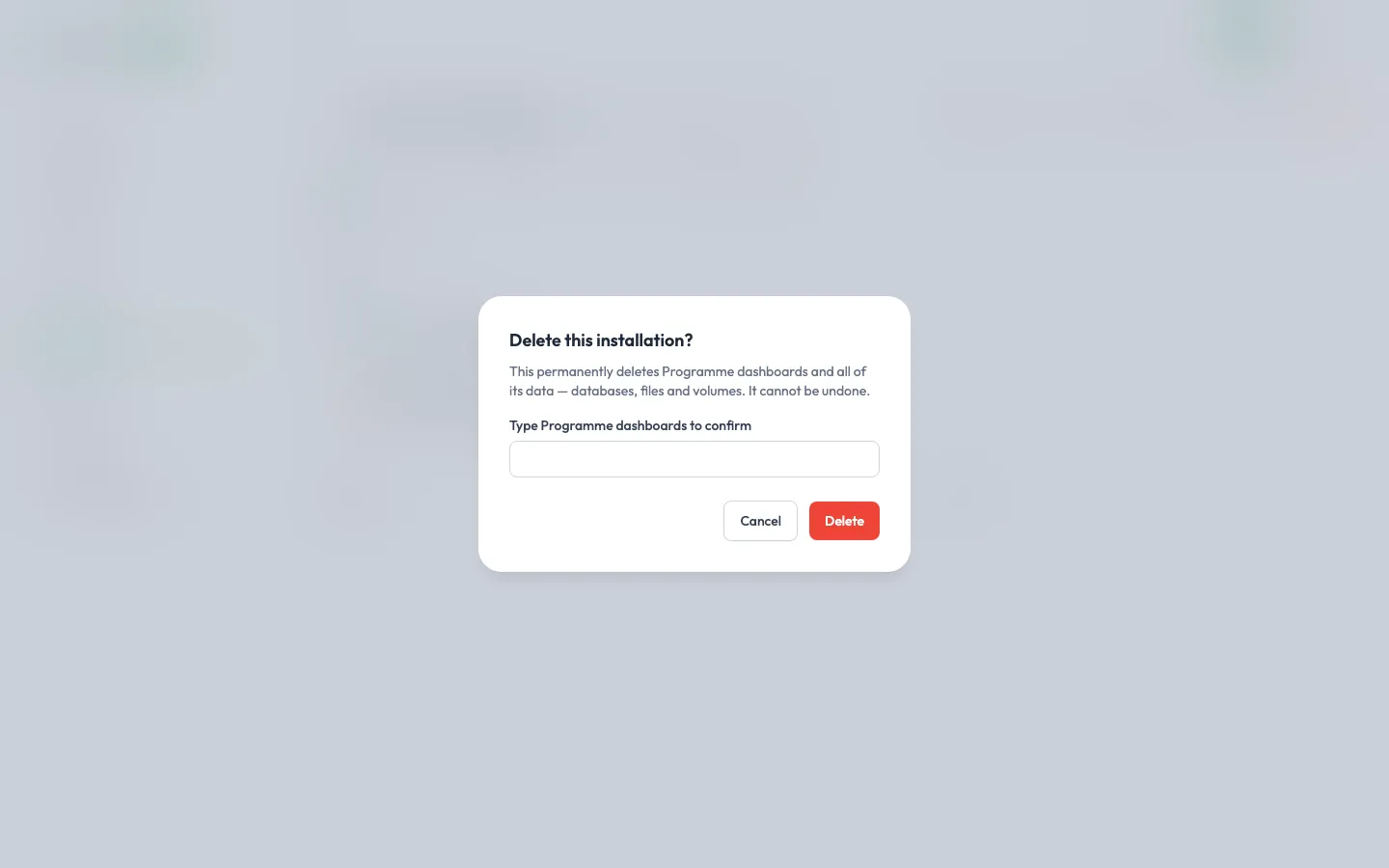
Section titled “Delete”Delete removes the installation from the server together with all its data: databases, uploaded files and volumes. It can’t be undone.
To confirm, type the installation’s name and click Delete. The installation shows Removing while the agent cleans up, then disappears from the list.