

Budgets and Lines
A budget belongs to a programme, project, grant or event. It has lines (what the money is for), each with an allocation, and it goes through approval before anything can be spent from it.
Budget statuses
Section titled “Budget statuses”| Status | What it means | Who moves it on |
|---|---|---|
| Draft | Being prepared. Only the budget’s owner and admins can change it. | Owner or admin: Submit for approval |
| Submitted | Waiting for approval. Lines can’t be edited. | Its approvers: Approve, or Send back with a reason (back to Draft) |
| Approved | Fixed. Changes now go through a numbered revision. | Owner or admin: Activate |
| Active | Accepts commitments and spending. | Finance or admin: Close budget |
| Closed | Nothing can be posted. This can’t be undone. |
Create a budget
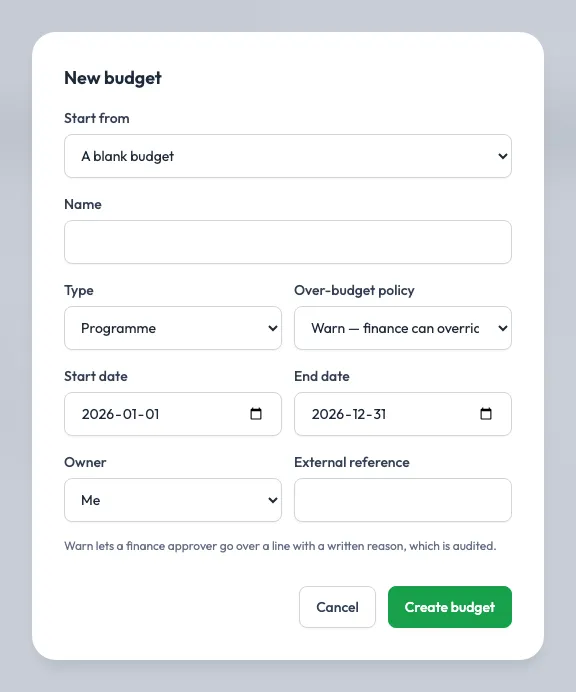
Section titled “Create a budget”- Go to Budget → Budgets and click + New budget.
- Fill in:
| Field | What to enter |
|---|---|
| Name | For example, “Cash Plus Programme” |
| Type | Programme, Project, Grant or Event |
| Start date, End date | The budget period |
| Over-budget policy | Warn (a finance approver may go over a line with a written, audited reason) or Block (nothing can take a line below zero, including Scolah Compass approvals) |
| Owner | Who prepares and revises it |
| External reference | Optional, for example the grant agreement number |
- Click Create budget. It opens in Draft.
Start from an earlier budget or a template
Section titled “Start from an earlier budget or a template”To reuse a budget’s structure, choose it under Start from in the + New budget form, or open the budget and click Copy. Give the new budget its name and dates. Its lines, sub-lines and allocations are copied into a new Draft; nothing spent or committed comes across. Untick Keep the phasing of each line or Keep the funding of each line to leave those out. Phasing that doesn’t fit the new dates is dropped and the line is spread evenly.
To keep a reusable starting point, open a budget and click Save as template. Templates are listed under the Templates tab of Budgets, can be edited like a draft, and are never spent from. Open one and click Start a budget from this template. Budget owners and admins can copy budgets and templates.
Add lines
Section titled “Add lines”On the budget’s Lines tab:
- Click + Add line, give it a Line name, a Category and its Allocated amount.
- To split a line, click + Sub-line on it. A line with sub-lines becomes a heading: it shows the sum of its sub-lines, has no allocation of its own, and nothing is posted to it. There is one level of sub-lines.
You can also load lines from a spreadsheet: Import lines (CSV) (see CSV imports).
Phase a line by month or quarter
Section titled “Phase a line by month or quarter”A line’s Phasing says when its money is meant to be spent. Reports then compare spending with that plan instead of an even spread.
- In the line’s dialog, set Phasing to Monthly or Quarterly. One box appears for each month or quarter the budget’s dates touch.
- Fill in the amounts, or click Spread evenly to divide the allocation equally (any rounding goes in the last period). Left to place shows what still has to be put in a period.
- Click Save. The phases must add up to the line’s allocation exactly; a period left empty counts as zero.
A phased line shows Phased monthly or Phased quarterly in the list. Headings (lines with sub-lines) aren’t phased; phase their sub-lines. If you shorten a draft budget’s dates, Resources refuses while a line is still phased into a period that would fall outside them.
Fund a line from grants
Section titled “Fund a line from grants”Click Funding on a line to say which grants pay for it and how much each gives (Amount from grant). If the grant amounts don’t add up to the line’s allocation, Resources tells you. Grants are set up under Funding sources.
Finance release on a line
Section titled “Finance release on a line”Finance can require a finance release on a line, so that Scolah Compass payouts from it wait until finance releases the money. See Finance release.
Submit, approve and activate
Section titled “Submit, approve and activate”- The owner clicks Submit for approval.
- It follows the Budget approval rule on Approval config; the starter rule asks for one finance approver. The budget shows its approval chain, and its approvers find it under Approvals. Each approver clicks Approve, or Send back with a reason. The owner can’t approve their own submission.
- Once the last approval is in, the budget is Approved. The owner clicks Activate. The budget starts accepting commitments and actual spending.
Other budget actions, such as creating or editing a draft, activating, closing, posting or reversing a ledger entry, are rights too. If your workspace has set one of them to need approval, it is held until approved, and the budget shows a banner while it waits. See Changes waiting for approval.
Read a line
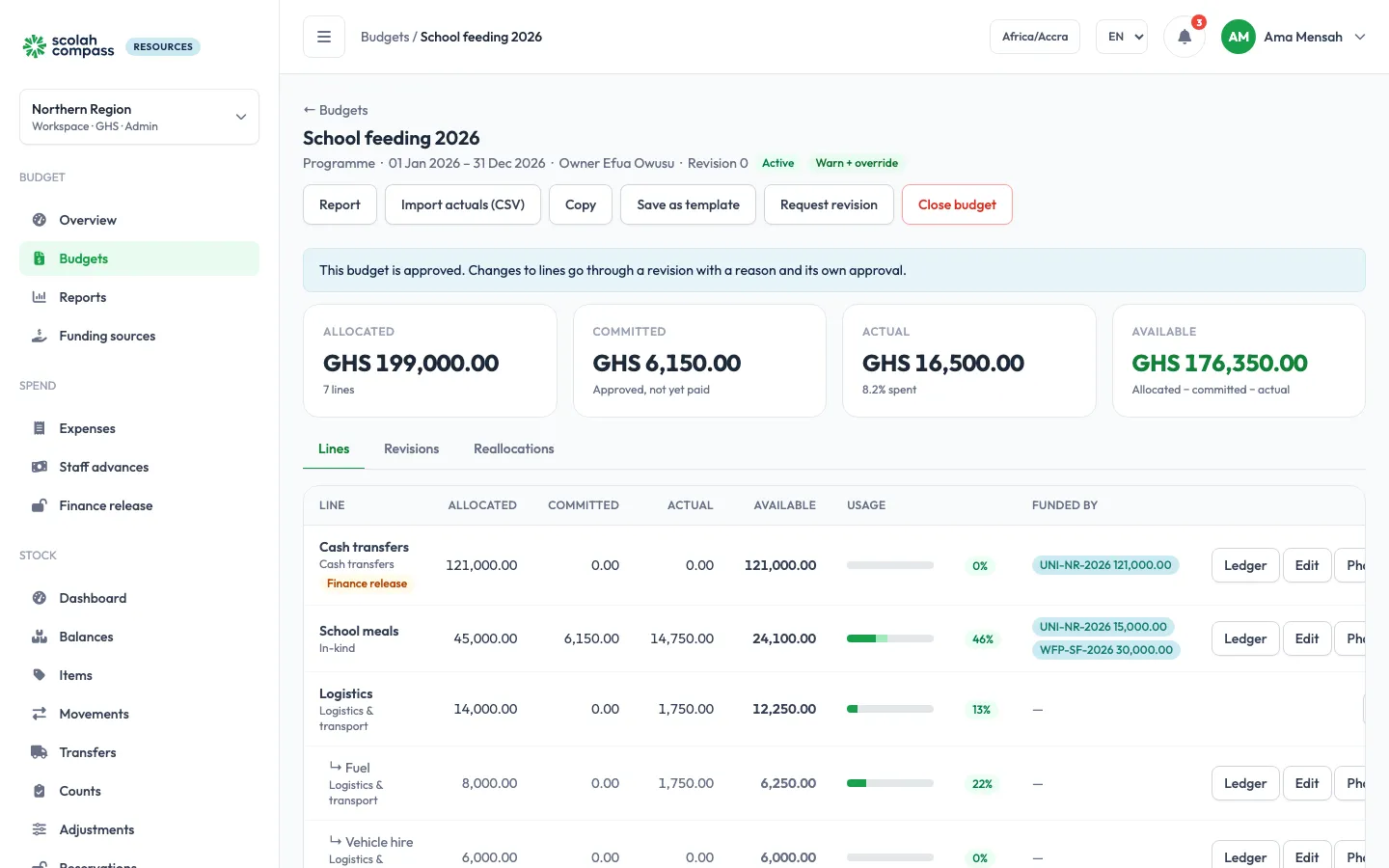
Section titled “Read a line”Every line shows Allocated, Committed (approved, not yet paid), Actual (spent) and Available (allocated − committed − actual), with how much of it is used. Click a line’s Ledger to see every entry posted to it: commitments, actuals, releases and reversals, with their source (expense, advance, purchase order, stock receipt, Scolah Compass, import or manual).
Manual entries
Section titled “Manual entries”Finance approvers and admins can post an entry by hand from a line’s ledger, for example spending recorded outside Resources:
- Click + Manual entry and choose the Type: Commit, Actual or Release.
- Enter the amount, date and references, then click Check impact. Nothing is posted yet.
- Resources shows whether it is Within budget, or over budget. Over budget on a Block budget can’t be posted; on a Warn budget you can Post with override and give a reason.
Entries can be posted only while the budget is Active.
With the starter rules, a manual entry, and a reversal, waits for one finance approver other than you before it is posted. A pending entry already counts against the line. See Changes waiting for approval.
Correct a wrong actual
Section titled “Correct a wrong actual”Entries are never edited. To correct an actual that was posted by hand, imported or sent by Scolah Compass, reverse it:
- On the line’s ledger, click Reverse on the actual.
- Enter the Amount to reverse (all that is left, unless you change it) and Why it was wrong, then click Reverse.
The reversal is dated like the original, so reports for that period are corrected, and the actual shows Reversed or how much has been reversed. Post the right figure as a new entry if needed. Actuals that came from an expense, advance or purchase order can’t be reversed here; correct them from that record. Finance approvers and admins can reverse, while the budget is Active.
Change an approved budget: revisions
Section titled “Change an approved budget: revisions”Once approved, a budget changes only through a revision with a reason and its own approval.
- On the Revisions tab, click Request revision.
- Give a New allocation for any line you want to change (leave others empty to keep them), or + New line to add one. A new allocation can’t go below what is already committed and spent.
- Give a Reason and click Submit revision.
- It follows the Budget revision rule on Approval config, matched on how much it moves the budget total; the starter rule asks for one finance approver. You can’t approve your own revision. The last approval applies the changes and the revision number goes up; rejecting needs a reason.
A phased line’s allocation and phases change together. In the revision dialog, its new allocation is refused; use Phasing on the line instead:
- Click Phasing on the line. You can change its Allocated amount, its phasing, or both.
- Give a Reason and click Submit revision. It waits for a finance approver like any other revision, and the revision list shows “(phased monthly)” or “(phased quarterly)” next to the change.
To move money between two lines without a full revision, use a reallocation.