

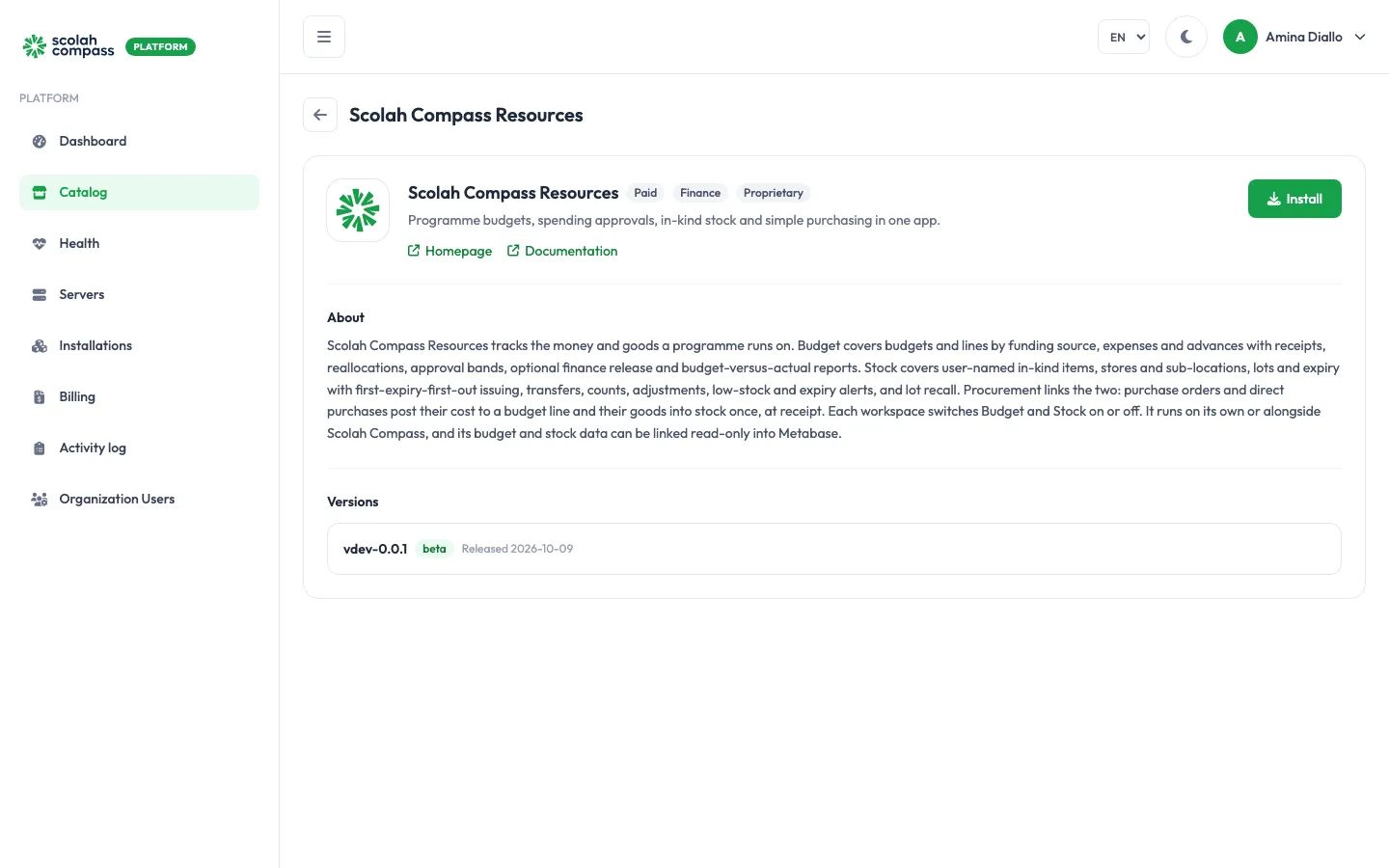
Scolah Compass Resources
Scolah Compass Resources tracks the money and goods a programme runs on. It has two modules, switched on or off for each workspace:
- Budget: budgets and budget lines by funding source, expense requests and staff advances with receipts, reallocations between lines, approval rules by amount, an optional finance release step, and budget-versus-actual and donor reports.
- Stock: the in-kind items your organisation hands out, named the way you name them (food baskets, hygiene kits, seeds, medicines and so on), held in stores and distribution points. It covers receipts, issues, transfers, counts and adjustments, lots and expiry with first-expiry-first-out issuing, low-stock and expiry alerts, and tracing who received a given lot.
When a workspace has both modules, procurement links them: purchase orders and direct purchases post their cost to a budget line and their goods into stock, once, when the goods are received.
Scolah Compass Resources is proprietary software. Billed per active installation-day.
What gets installed
Section titled “What gets installed”- Resources service: the application that holds budgets, stock and procurement.
- Resources portal: the web interface, in English, French and Portuguese.
- Database: a PostgreSQL 16 database used only by this installation.
- File storage: a MinIO store for receipts and quotes, in a bucket named
resources-files. - Sign-in: Scolah identity (scolah-sso) and the Scolah Compass gateway, so people sign in with the same account they use for Scolah Compass. Redis and a Solace message broker come with them.
- Notifications: scolah-notification, which emails each alert to the person it is for, with a MongoDB database for its delivery records.
Scolah Compass Resources is served from one web address: the installation’s main address. The portal is at / and its API, through the gateway, at /api/v1/resources. You can reach it on the server’s IP address and the installation’s port, or give it a domain.
Before you install
Section titled “Before you install”- Deployment size: sets how many workspaces the organisation can have and how much memory the Resources service gets; see the table below. The wizard’s Server fit check tells you whether your server is big enough. You can change size later with Scale. A smaller size keeps the workspaces you already have, but no new one can be created until the organisation is under the new limit.
- Image registry: the images come from the Scolah private registry. The wizard’s Private image registry card shows Automatic (Scolah private registry): the platform pulls the images with managed credentials, so you don’t need to set anything up.
- Email: alerts are emailed through Scolah unless you choose a mail relay registered on the server under Advanced.
| Size | Workspaces | Resources memory (Java heap) | Server needs about |
|---|---|---|---|
small (default) |
1 | 2.5 GiB (1 GiB) | 3 CPU cores, 13 GiB of memory, 42 GiB of disk |
medium |
2 | 4 GiB (2 GiB) | 5 CPU cores, 15 GiB of memory, 72 GiB of disk |
large |
5 | 4 GiB (2 GiB) | 6 CPU cores, 15 GiB of memory, 120 GiB of disk |
mega |
Unlimited | 6 GiB (3 GiB) | 8 CPU cores, 17 GiB of memory, 200 GiB of disk |
Options
Section titled “Options”| Field | What it does |
|---|---|
| Tenant slug | Identifies this installation’s Resources tenant. Lowercase letters and digits only: no spaces, hyphens or underscores. It can’t be changed after the installation is created. |
| Deployment size | small, medium, large or mega, as above. |
| Budget module | Whether new workspaces start with Budget on. Defaults to on. Each workspace can still change it. |
| Stock module | Whether new workspaces start with Stock on. Defaults to on. Each workspace can still change it. |
| First administrator’s email | The email address of the administrator account created on first start. It’s filled in with your own email address; click Change to use a different one. |
Alert emails go through Scolah. To send them through your own mail server instead, register it as a mail relay under the server’s External services, then turn on Use existing mail relay (SMTP) under Advanced. Email through your own mail server is not billed.
Advanced also offers the option to use a PostgreSQL server or S3-compatible storage you already run instead of the bundled database or file storage. See external services.
First sign-in
Section titled “First sign-in”On first start, Scolah Compass Resources creates its first administrator, the primary admin:
- Email: the address in First administrator’s email.
- Password: generated by the platform.
When you click Create, the portal shows the password once, under First login credentials, labelled Resources admin password. Copy it before you leave the page: it can’t be shown again.
Open the installation’s address and sign in with that email address and password. As the primary admin, you create workspaces, choose which modules each one uses, and add people under Organisation → Users, each with one role, such as budget owner, finance approver, stock manager or storekeeper, and the workspaces they can open.
The database password, the file storage keys and the sign-in signing key are also generated by the platform and sealed. You never need to type them.
Mobile app
Section titled “Mobile app”Staff connect the Scolah Compass Resources mobile app to this installation by scanning a QR code. The installation’s Domains tab has a Mobile app card with that code, the server address it points to, and Copy link. Users find the same code in the Scolah Compass Resources portal: the menu under their initials → Mobile app.
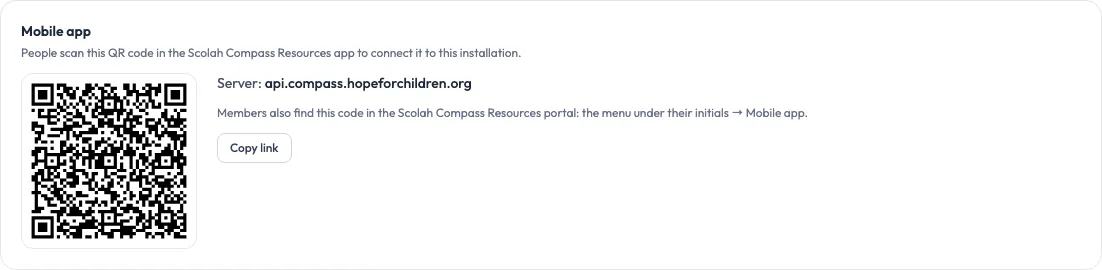
The app connects only over HTTPS, so the code appears once:
- the installation has a domain (a custom domain must be verified first), and
- that domain is served over HTTPS: Let’s Encrypt (automatic HTTPS), your own certificate, or your own gateway.
Until then, the card says what is missing and how to fix it.
People can also type the server address in the app (Our own server) instead of scanning. Either way, the app uses this installation’s Tenant slug as the organisation, so they only enter their email and password. New users sign in with the temporary password you give them, then choose their own.
Connections
Section titled “Connections”Scolah Compass Resources can offer another installation on the same server:
-
Resources workspaces, budget, stock and procurement data (read-only): read-only access to the workspaces, approvals, budget, stock and procurement data. User accounts, API keys, the audit log, and any table holding tokens, secrets or passwords are left out. Metabase can use it as an Analytics data source, to build dashboards on spending and stock.
-
Budget: approval checks, spend and finance release for Scolah Compass: gives a Scolah Compass installation an API key limited to Budget, so it can check budget lines before approving payments and record what was paid.
-
Stock: reservations and issues for Scolah Compass: the same for Stock, so Scolah Compass can reserve and issue in-kind items.
Each one is a separate connection with its own key. The platform creates the key in Scolah Compass Resources, hands it to Scolah Compass, and revokes it when you remove the connection. A connection is refused if its module is switched off in every linked workspace.
It can use, from another installation on the server:
- Send alerts through Scolah Compass: a Scolah Compass installation emails Resources alerts, such as a budget line passing 75%, an approval waiting or a release reminder, with its own mail settings. Each email goes to the person the alert is for and links back to the item in Scolah Compass Resources. Optional: without it, the installation’s own notification service sends them. The platform creates a broker client that may only publish Resources alerts, and deletes it when you remove the connection.
See connections.