

Approval Config
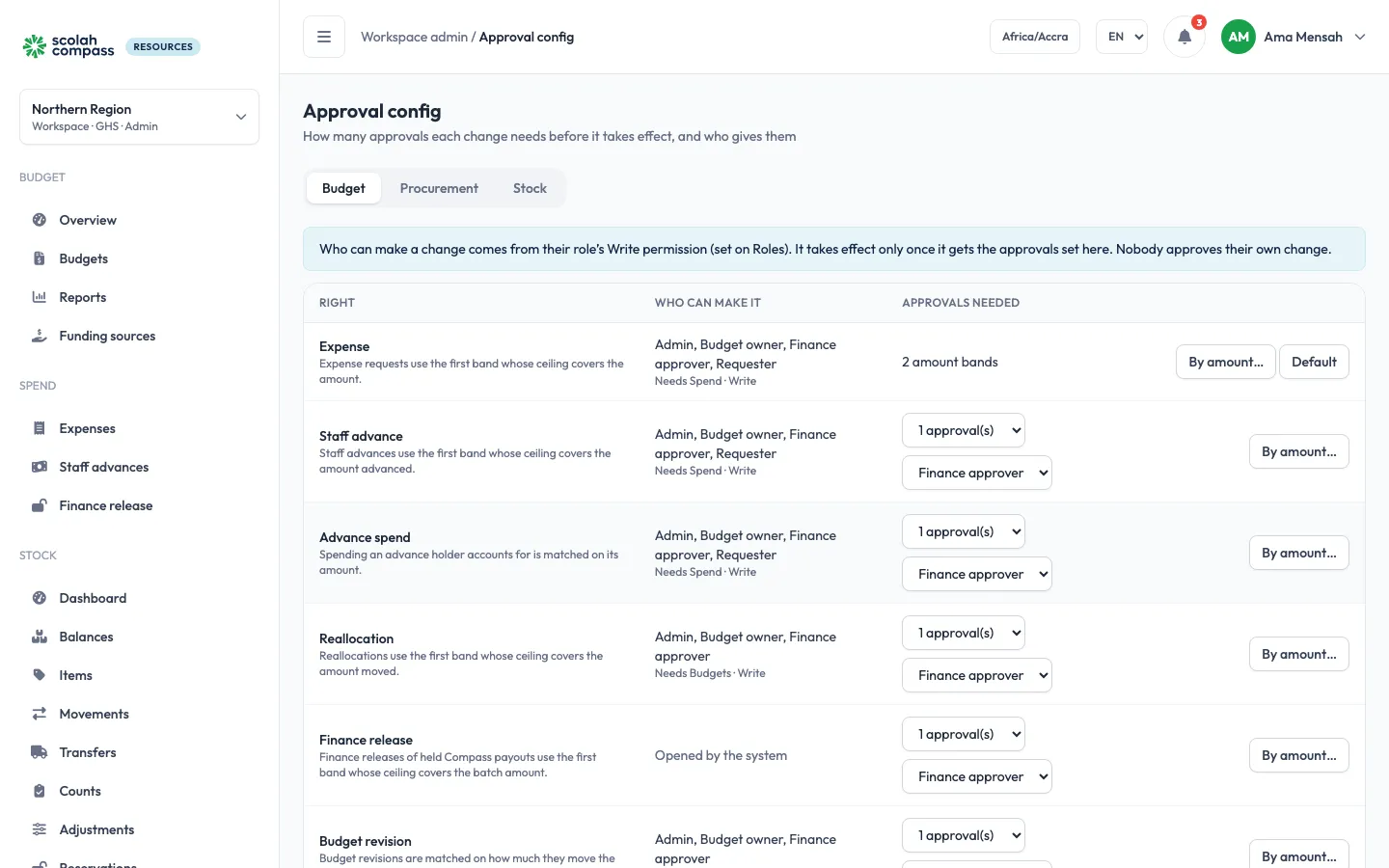
People with the Approval config Write permission set who approves what, per workspace, under Workspace admin → Approval config. Every action that changes Budget, Procurement or Stock data is a right on this page, in three tabs:
| Tab | Rights, for example |
|---|---|
| Budget | Expenses, staff advances, advance spend, reallocations, finance releases, budget revisions, budget approval, creating and editing budgets, line funding, ledger entries and reversals, expense payments, advance cash, budget categories, funding sources |
| Procurement | Purchase orders, direct purchases, receiving goods, closing a purchase order, suppliers |
| Stock | Adjustments, counts, transfers, receiving a transfer, receipts and issues, closing a reservation, opening balances, items, locations and storekeepers, stock categories and adjustment reasons, stock settings |
A tab shows only when its module is on; Procurement needs both Budget and Stock. Organisation and admin work (users, roles, settings, branding, API keys, audit logs and this page) is never held for approval.
How it works
Section titled “How it works”This page is about approvals only. Who can make a change is set on their role: the area’s Write permission (see Who can make a change). The change takes effect only once it gets the approvals set here. Nothing is refused because there aren’t enough approvers: the change waits, and the admins are told (see When nobody can approve yet).
- Requests that already have their own pending state, such as expenses, advances, purchase orders and transfers, wait in that state as before.
- Every other change is held until it is approved, then applied as the person who made it. See Changes waiting for approval.
Changes made through an API key, for example by Scolah Compass, are never held.
The rights table
Section titled “The rights table”Each tab is a table with one row per right:
| Column | What you set |
|---|---|
| Right | The action, with a line saying what it covers |
| Approvals needed | No approval, or 1 to 5 approvals, and the role that gives them: any role, custom ones included |
Change as many rows as you like; changed rows are highlighted. Save 3 changes (it counts the changed rows) saves them all at once; Discard changes drops them.
The last column opens the full editor:
- By amount… on rights with an amount (expenses, advances, advance spend, reallocations, releases, revisions, budget approval, purchase orders, direct purchases, adjustments, counts, transfers, ledger entries and reversals, expense payments and advance cash). Use it for bands.
- Named people… on the other rights. Use it to pick specific people or several steps.
A row set up in the editor with more than one band or step shows a summary, such as “3 amount bands”, instead of the two selects. ← All rights takes you back to the table.
Some rights land on something that was already approved, for example recording a payment on an approved expense. Their row says so: a second approval there may be more than you need.
Who can make a change
Section titled “Who can make a change”Making a change needs the Write permission of its area on the person’s role, with the role’s extras: storekeepers only at their own locations, budget owners only on budgets they own, requesters only on their own requests.
| Rights | Made with |
|---|---|
| Expenses, advances, advance spend | Spend Write |
| Expense payments, advance cash | Pay and disburse (Spend) |
| Creating, editing, submitting, activating and closing budgets, line funding, revisions, reallocations | Budgets Write |
| Ledger entries and reversals | Ledger Write |
| Funding sources | Funding sources Write |
| Budget categories | Settings Write |
| Purchase orders, direct purchases, receiving goods, closing an order, suppliers | Procurement Write |
| Every Stock right | Stock Write |
Finance releases are opened by the system, so their row says Opened by the system.
Starter rules
Section titled “Starter rules”A new workspace starts with every right set to 1 approval by the area’s role:
| Area | Approved by |
|---|---|
| Budget, including budget revisions and budget approval | 1 finance approver |
| Procurement | 1 finance approver; purchase orders and direct purchases use the Expense rule |
| Stock | 1 stock manager |
Set a row to No approval to let that change go through at once.
Admins can approve wherever a role is asked for, so “2 finance approvers” can be one finance approver and one admin. Nobody approves their own change.
A row warns you when it can’t be met today, for example Only 2 people can approve this today, so it waits whenever one of them makes it on a row that needs 2. Give that role to more people, or lower the count.
A right with an amount has a list of bands. A request uses the first band whose ceiling (Up to) covers its amount: a band “Up to 5,000” covers 5,000 exactly, and the next band starts above it. The last band has no ceiling.
A band with no steps means no approval: requests in it go straight through. Use it for small amounts, for example “expenses of 100 or less need no approval”. A finance release always needs someone, so its bands can’t be empty.
What “amount” means:
- Budget revisions: how much the revision moves the budget total, up or down.
- Stock: the value of what is adjusted, counted differently from what was on hand, or sent. When nothing says what an item cost, the highest band applies.
A band has up to 5 steps, run in order. Each step says who approves and how many of them must:
| Who approves | How many |
|---|---|
| A role: anyone with it, built-in or custom (an admin can decide any role step) | Any one, or At least… a number of different people |
| Specific people: people you pick (up to 20) | Any one, All of them, or At least… a number |
| Owner of this budget: the owner of the budget being spent (Budget and Procurement only) | The owner |
Under each step, the page says it in words, for example All 5 of Ama, Kofi, Efua, Yaw and Akosua must approve.
Inside a step, people vote in any order. Only people who can open the workspace and whose role can read the tab’s area can be picked: Budgets Read for Budget, Procurement Read for Procurement, Stock Read for Stock.
Example: everyone must approve large expenses
Section titled “Example: everyone must approve large expenses”On Budget, row Expense, click By amount…:
- Band 1, Up to 5,000: one step, A role, Finance approver, Any one.
- Band 2 (anything above): one step, Specific people, tick the five approvers, All of them.
- Save changes.
An expense of 6,000 now waits until all five have approved.
The rules everyone follows
Section titled “The rules everyone follows”- One rejection rejects. The steps after it are cancelled.
- Nobody votes on their own request or change. “All of them” means all the others.
- One person votes once on a request, even across steps.
- Changes to this page apply to new requests only. A request or held change keeps the rule it was made under.
- Every change to a rule alerts the other admins, with what it was before and after, and is in the Audit logs.
Following expenses, and going back to the starter rule
Section titled “Following expenses, and going back to the starter rule”Purchase orders and direct purchases use the Expense rule until you give them their own. Set their row, or save bands on them, to give them their own; Use the Expense rules puts them back.
On other rows, Default puts back the starter rule.
Stock: the adjustment size limit
Section titled “Stock: the adjustment size limit”The Stock tab also holds the adjustment size limit: an adjustment of more units than this always needs at least one approval (a stock manager, if its band has no steps), whatever it is worth. Leave it empty for no limit. Changing it needs Approval config Write, and it applies at once.
When nobody can approve yet
Section titled “When nobody can approve yet”A request or change whose step has too few people who can approve it is still saved. It waits, is marked Stuck under Approvals → All pending, and the admins get an alert. To unblock it:
- give someone the approving role, or add a user with it: role steps count who holds the role now;
- on a step with named people, Add a person or Replace approver from All pending;
- or change the rule here for new requests.
If someone named in a band is no longer an active user, the editor warns you. Requests keep working while enough named approvers remain.