

Settings
Go to Workspace admin → Settings. The tabs you see depend on your role’s permissions and on which modules are on.
| Tab | Permission needed | Module |
|---|---|---|
| General | Settings Write | |
| Branding | Settings Write | |
| Storage | Settings Write | |
| Categories | Settings Write | Budget |
| Stock categories | Stock Write | Stock |
| Stock settings | Stock Write | Stock |
General
Section titled “General”- Workspace: name, fiscal year, time zone and the organisation slug. The base currency is shown but can’t change.
- Modules: switch Budget and Stock on or off. Switching a module off hides its menus; nothing is deleted.
- Compass settings: the Linked Compass agency, and the Compass commitment mode: Per item (one commitment per disbursement, the default) or Per line (one commitment per budget line per batch, for batches of tens of thousands of payments). It applies to new Scolah Compass approvals only.
- Finance release defaults: the finance release settings new budget lines start with.
Click Save changes.
Branding
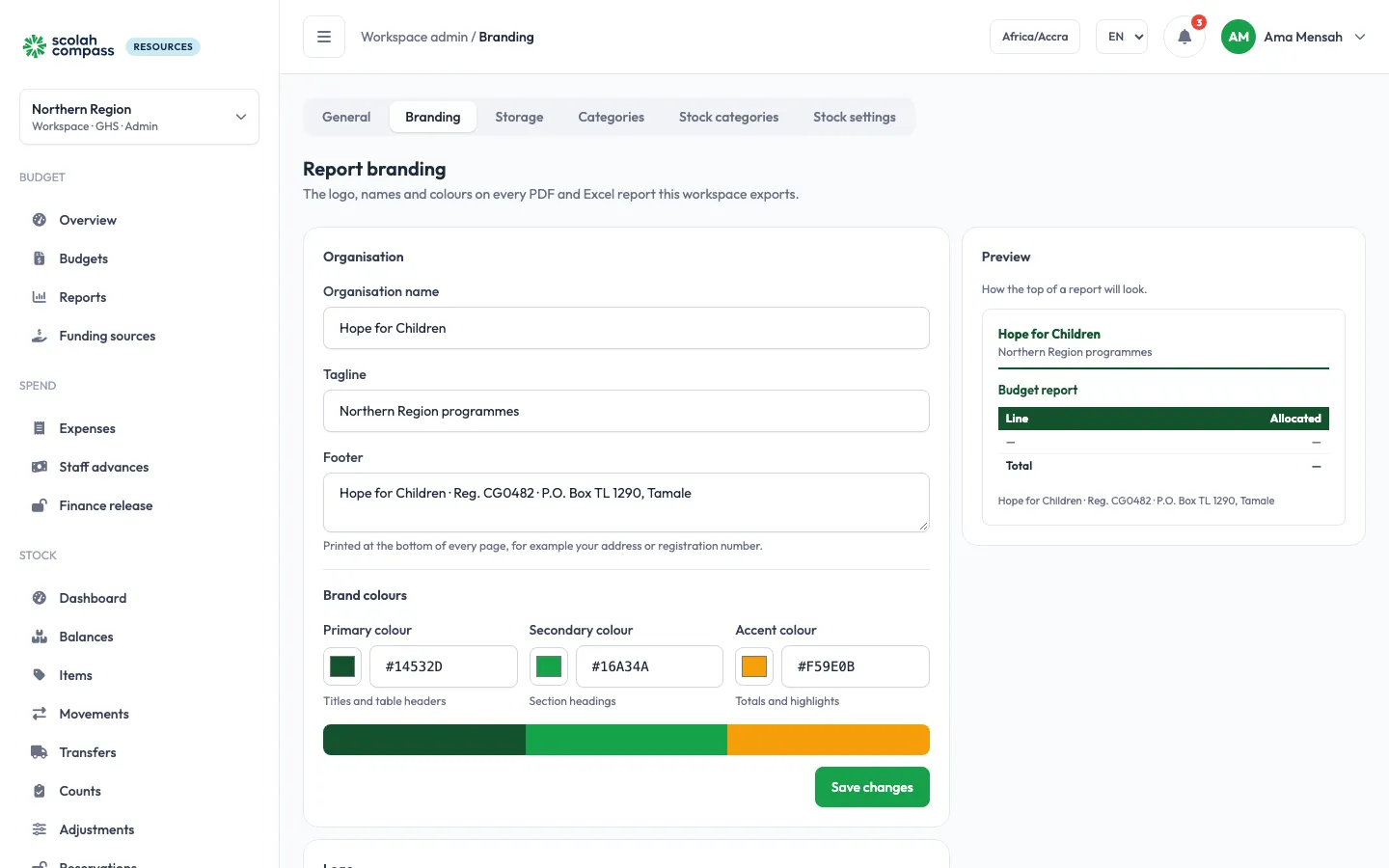
Section titled “Branding”The logo, names and colours on every PDF and Excel report this workspace exports.
| Setting | Notes |
|---|---|
| Organisation name, Tagline | Up to 200 characters each |
| Footer | Printed at the bottom of every page, for example your address or registration number. Up to 500 characters. |
| Primary colour | Titles and table headers |
| Secondary colour | Section headings |
| Accent colour | Totals and highlights |
| Logo | PNG or JPEG, at most 500 KB. Upload logo, Replace logo or Remove logo. |
The Preview shows how the top of a report will look. Colours are entered as # and six digits, like #0e7a63.
Storage
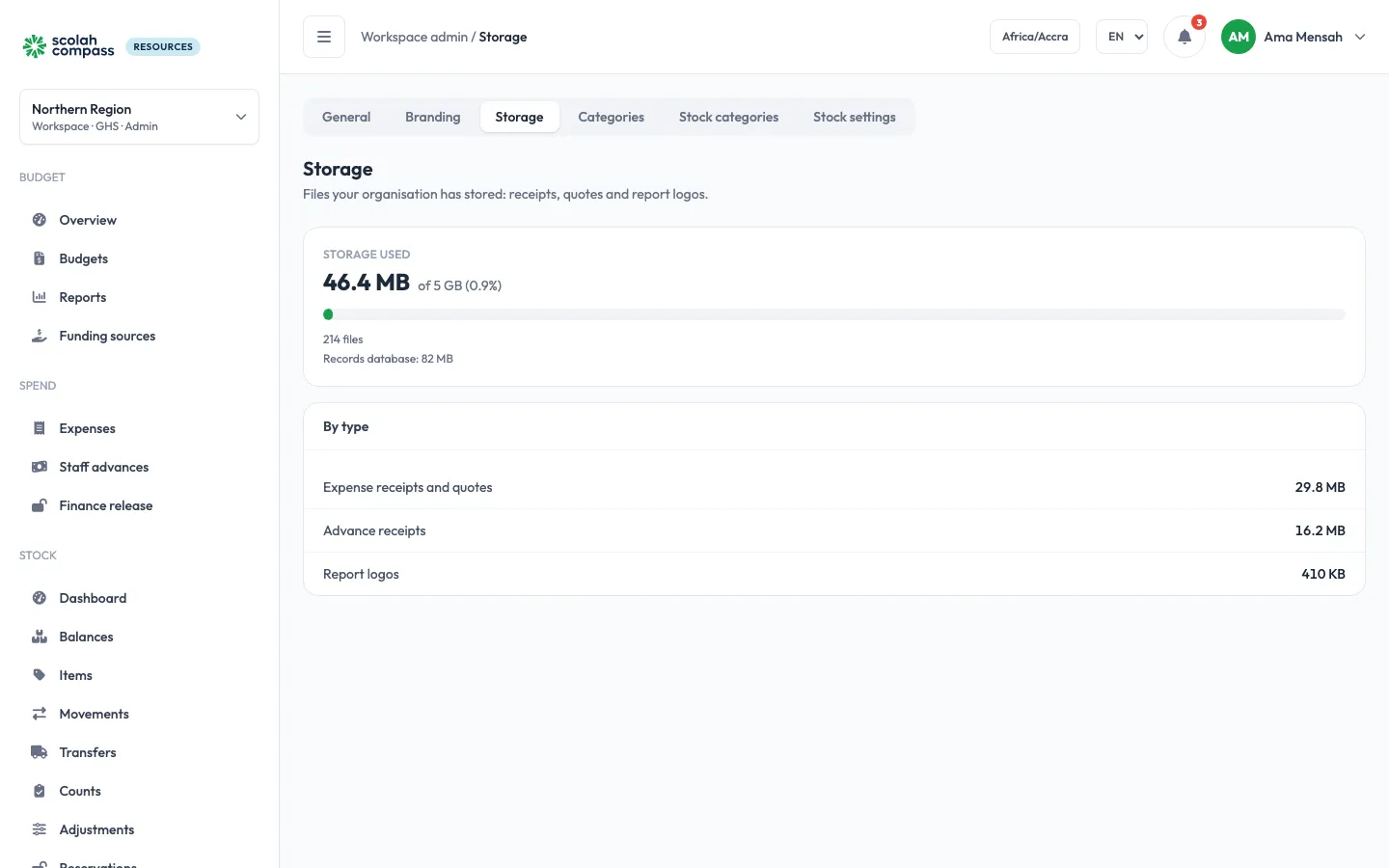
Section titled “Storage”How much file storage your organisation uses, as on the Scolah Compass storage page. It covers every workspace in your organisation, not only this one.
- Storage used: the total, and the share of your limit when one is set, with a bar that turns amber as you near the limit and red past it.
- Files: how many files are stored, and the size of your records database.
- By type: expense receipts and quotes, advance receipts, report logos.
Your Scolah administrator sets the limit. A banner warns you as you get close. If the limit is enforced and your organisation passes its block point, uploads (receipts, quotes, logos) are refused until space is freed or the limit is raised; nothing already stored is affected. With no limit set, the page says so.
Categories
Section titled “Categories”Spending categories used by budget lines.
- Add a category with the form beside the list.
- Rename one, or move it with ↑ and ↓ to set the order lines are listed in.
- Deactivate a category you no longer use. It stays on the lines that already use it, so nothing changes in reports, but it can’t be chosen for new lines, revisions or imports. Reactivate brings it back.
Approval rules
Section titled “Approval rules”Who approves what, for budget, procurement and stock requests, is set on its own page: Approval config.
Stock categories and reasons
Section titled “Stock categories and reasons”Item categories, and the Adjustment reasons used when stock is adjusted. Each reason goes in or out; system reasons (such as count variances and loss in transit) can’t be changed.
Stock settings
Section titled “Stock settings”- Approval limits for adjustments, counts and transfers are on Approval config, Stock tab.
- Expiry: Warn before expiry (days) controls alerts and the “expires soon” badge (default 30). Near expiry (days) is used by the expiry report (default 90) and must be at least the warning days.