

Expenses and Approvals
An expense request asks to spend money from a budget line. It goes through an approval chain, then finance records the payment and the receipt is attached.
Expense statuses
Section titled “Expense statuses”Draft → Pending (in approval) → Approved (the amount is committed on the line) → Paid. A request can also be Rejected or Cancelled.
Raise an expense
Section titled “Raise an expense”Requesters, budget owners, finance approvers and admins can raise expenses.
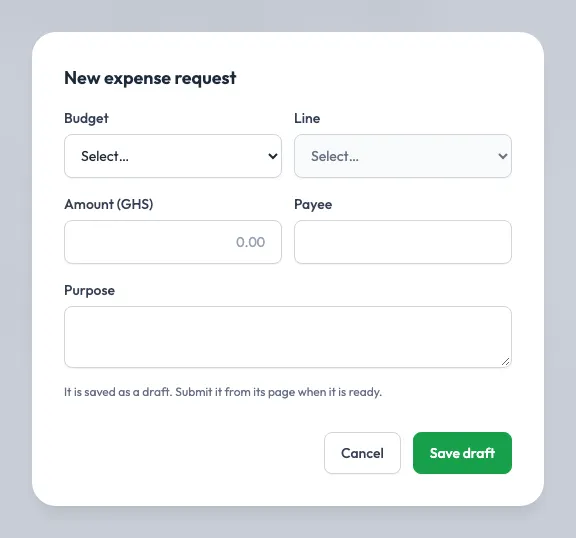
- Go to Spend → Expenses and click + New expense.
- Choose the Budget and line, then enter the Amount, Payee and Purpose. The form shows what is available on the line.
- Click Save draft. It is saved as a draft.
- Open it, attach a quote if you have one (+ Attach file), and click Submit for approval. The budget must be Active.
How approval works
Section titled “How approval works”Approval config decides who approves, by amount. Each amount band has up to 5 steps in order. A step is decided by a role, by specific people, or by the owner of the budget, and may need more than one approval, for example all 5 of these people. A band with no steps approves at once. The approvers are fixed when the request is submitted, so later rule changes don’t affect it.
- Nobody votes on their own request, and one person votes once on the same request.
- One rejection rejects the request.
- The request’s approval chain shows every step, how many have approved, who voted and who is still to vote.
Decide a request
Section titled “Decide a request”- Go to Approvals. It lists everything waiting for your vote, oldest first.
- Open a request and click Approve (with an optional comment) or Reject (with a reason).
When the last step approves an expense, its amount is committed on the line.
Over budget
Section titled “Over budget”If approving would take the line over its allocation:
- On a Block budget, it can’t be approved. The request stays pending.
- On a Warn budget, only a finance approver or admin can Approve with override, with a written reason that is audited.
Record payment
Section titled “Record payment”Once approved, a finance approver opens the expense and clicks Record payment:
- Enter the Amount paid, the date and the Payment reference.
- Paying less than approved gives the rest of the commitment back to the line. Paying more applies the over-budget rules to the difference.
The expense becomes Paid and the line’s commitment turns into actual spending.
Receipts and quotes
Section titled “Receipts and quotes”Under Receipts and quotes on an expense, click + Attach file and choose the kind: Quote, Receipt or Other. JPEG, PNG, WebP, HEIC or PDF, up to 10 MB.
A paid expense without a receipt is flagged No receipt. On the expenses list, Missing receipt shows only those; the Overview counts them too.
Cancel
Section titled “Cancel”The requester or an admin can Cancel request while it is a draft, pending or approved. Cancelling an approved expense gives its commitment back to the line.
Who sees what
Section titled “Who sees what”A requester sees only their own expenses. Others see every expense in the workspace, and can filter by budget, status, Mine only or Missing receipt.