Manage servers
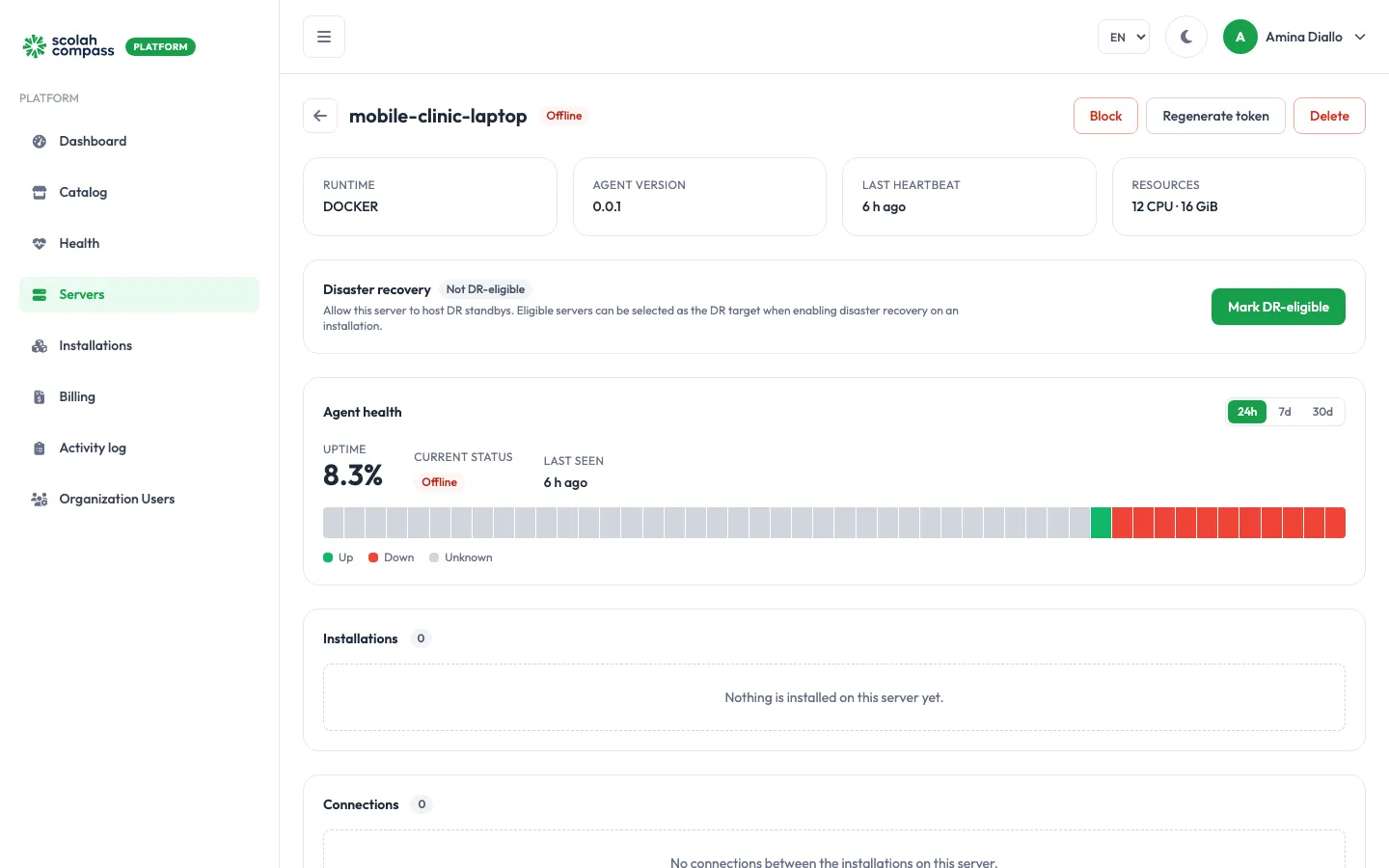
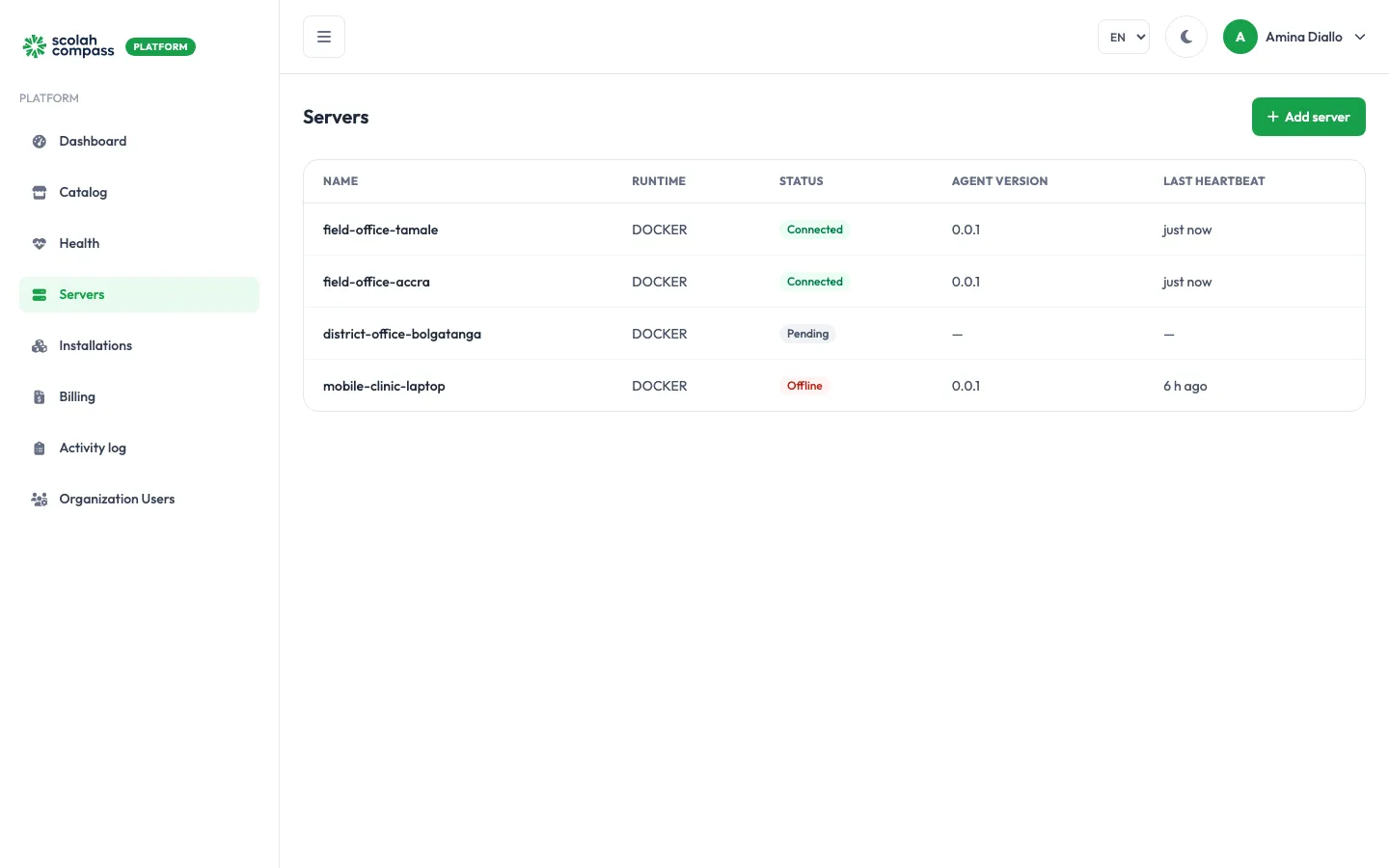
Servers lists every server in your organisation with its runtime, status, agent version and last heartbeat.
Server status
Section titled “Server status”| Status | Meaning | What to do |
|---|---|---|
| Pending | Registered, but no agent has enrolled yet. | Run the install command on the server. See Connect a server. |
| Connected | The agent is checking in. | Nothing to do. |
| Offline | No heartbeat for more than 5 minutes. | Check that the server is on, that the agent is running, and that the server can reach the platform over HTTPS. |
| Blocked | An admin cut off the agent’s access. | Unblock it if the block was a mistake (see below). |
An offline server’s installations keep running. The portal just can’t see them or change them until the agent reconnects.
Server details
Section titled “Server details”Click a server to open it. The page shows:
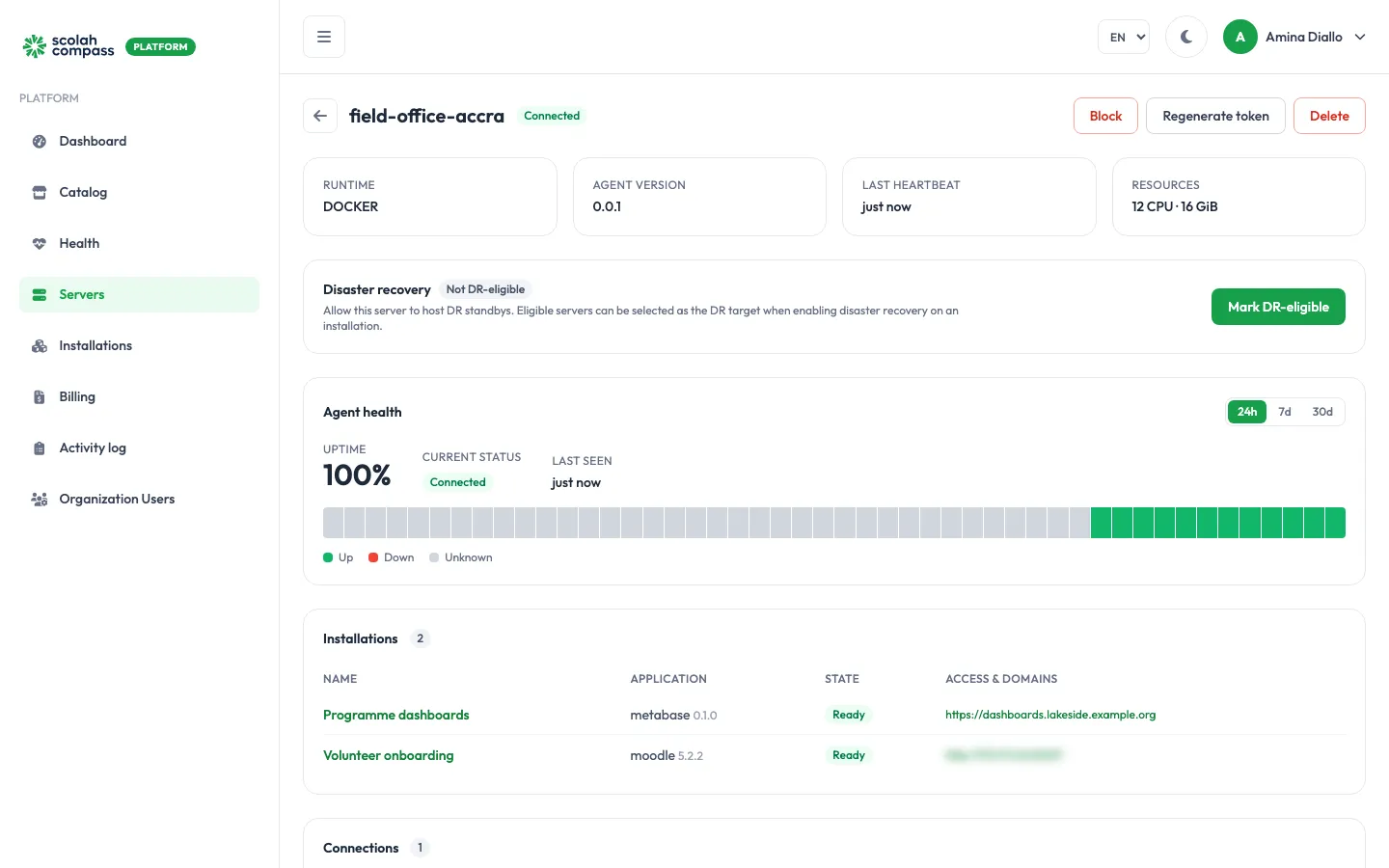
- Runtime, Agent version, Last heartbeat and Resources (CPU and memory reported by the agent).
- Agent health: uptime over the last 24 hours, 7 days or 30 days.
- Installations on this server, with their state and web addresses.
- Connections between installations on this server.
Actions
Section titled “Actions”These are for Organization admins.
Use this if a server is lost, stolen or compromised. Block revokes the agent’s access at once, and the agent stops on its next request. Applications already on the server keep running, but you can’t manage them until the server is unblocked.
Unblock
Section titled “Unblock”Unblock issues a new one-time token. The old identity is never trusted again, so you must re-enroll the agent: stop it, delete its state folder, and run the install command again with the new token.
Regenerate token
Section titled “Regenerate token”Use this if you lost the install command before the agent enrolled, or you want to move the server’s identity to a fresh agent. Regenerate token immediately disconnects any agent currently enrolled as this server, and returns the server to Pending until an agent enrolls with the new token. Stop the old agent process afterwards.
Update the agent
Section titled “Update the agent”When a newer agent is released, the server’s Agent version card shows Update available with the version the server runs and the latest one. Click Update agent to update it.
The agent downloads the new version, checks that Scolah signed it, and restarts in place. Your installations keep running while it does. The card shows Updating, then Updated.
If the new version fails to start, or can’t reach the platform within 10 minutes, the agent goes back to the version it was running and the card shows Rolled back. The server is then still on its previous version, and you can try again later.
- The server has to be Connected, and only one update runs at a time.
- An agent run by hand in a terminal, rather than as a service, swaps its program but may need restarting to finish. The card says so.
- On a Kubernetes cluster the agent is a Helm release, so it is updated from the cluster:
helm upgrade scolah-agent oci://ghcr.io/engineeringpurple/charts/scolah-agent --reuse-values.
Mark DR-eligible
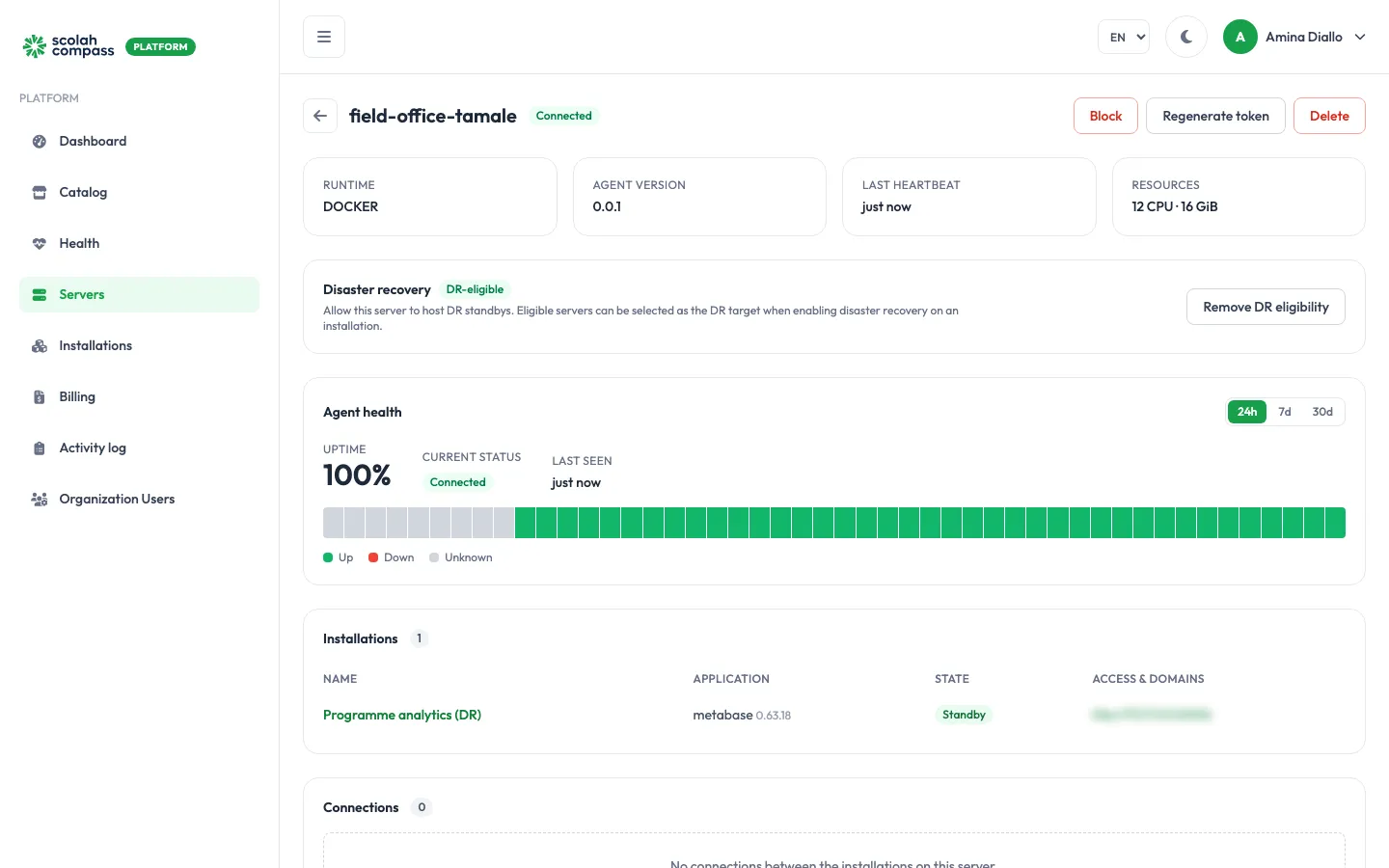
Section titled “Mark DR-eligible”A server can only host disaster recovery standbys once it’s marked DR-eligible. On the server’s page, the Disaster recovery card shows DR-eligible or Not DR-eligible. Click Mark DR-eligible to allow it, or Remove DR eligibility to stop offering it as a DR server. Removing eligibility doesn’t affect standbys already on the server.
Docker servers and Kubernetes clusters can both be marked DR-eligible. A standby on a cluster needs an artifact store, as described in Kubernetes clusters.
Delete
Section titled “Delete”Delete removes the server from your organisation and revokes its agent credentials permanently. You must remove all its installations first. To confirm, type the server’s name.
Deleting a server in the portal doesn’t uninstall anything from the machine. To clean up, stop the agent and remove its state folder yourself.