Transfers
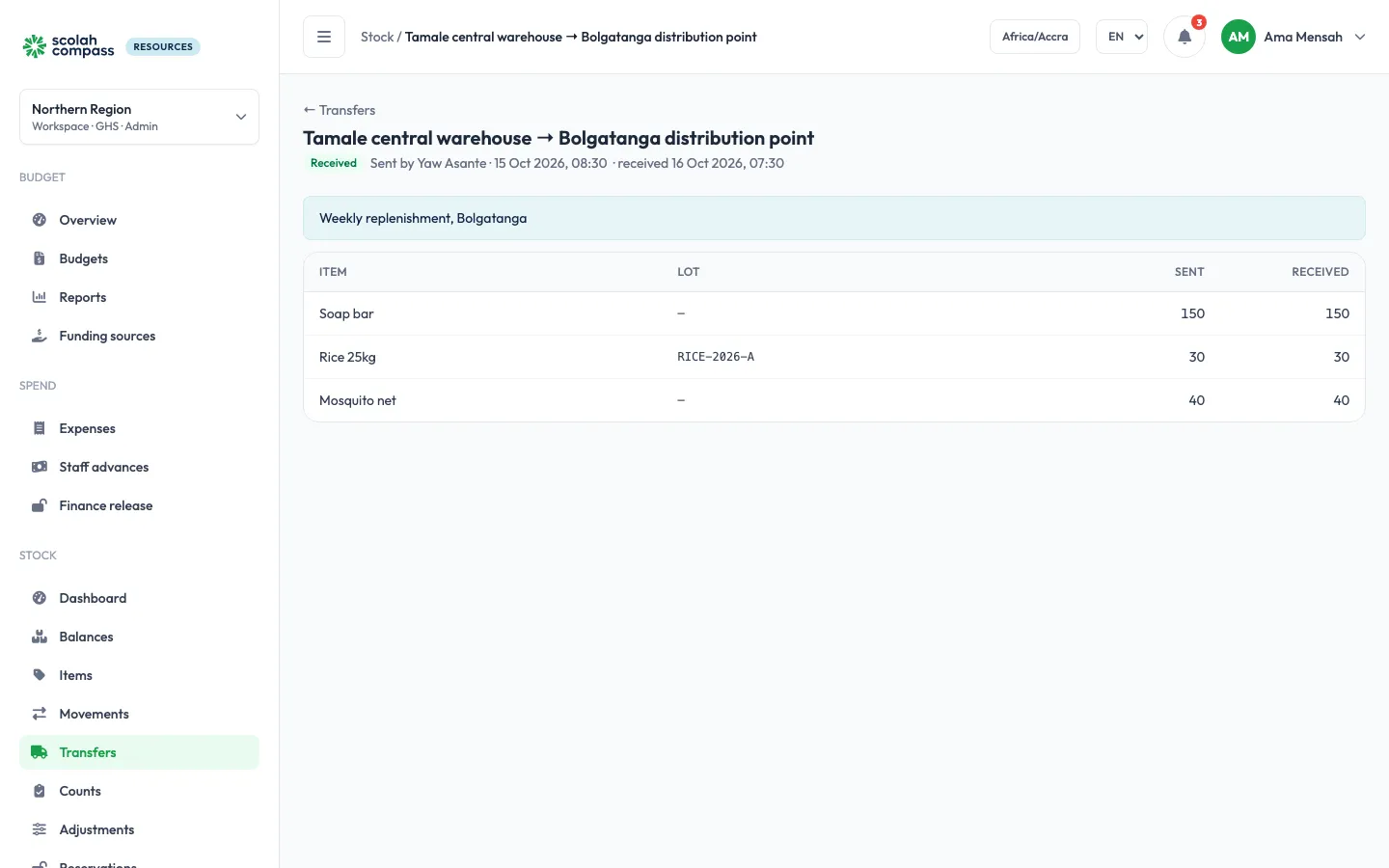
A transfer moves stock from one location to another. The stock leaves the source straight away and is in transit until the destination receives it.
Send a transfer
Section titled “Send a transfer”A storekeeper at the source, a stock manager or an admin can send one.
- Go to Stock → Transfers and click + New transfer.
- Choose From and To (two different locations) and add a line per item and quantity. Lots are taken first-expiry-first-out unless you name one.
- Click Send transfer.
The destination’s storekeepers get an alert that stock is on its way.
When a transfer needs approval
Section titled “When a transfer needs approval”With the starter rule, a stock manager approves each transfer. An admin can change that on Approval config, Stock tab, for example so that transfers below a value go at once. A transfer that needs it shows Waiting for approval: nothing leaves the source yet. Its approvers decide it from Approvals or the transfer itself; the last approval sends it, and lots are picked then. A rejected transfer moves nothing.
Receive it
Section titled “Receive it”A storekeeper at the destination, a stock manager or an admin opens the transfer and clicks Receive, entering what actually arrived on each line. Anything less than was sent is written off as lost in transit.
Receiving is a right of its own (Receive a transfer on Approval config). If it needs approval, the receipt is held until it is approved, and the transfer shows a banner while it waits. See Changes waiting for approval.
Cancel it
Section titled “Cancel it”While it is waiting for approval or in transit, the sender, a stock manager or an admin can Cancel transfer. Stock in transit goes back to the source, on the lots it came from.