

External services
If your organisation already runs a database server, a mail relay, a single sign-on provider or an AI model endpoint, register it once on the server. Installations can then use it instead of running their own. You need to be an Organization admin.
Open a server and scroll to External services.
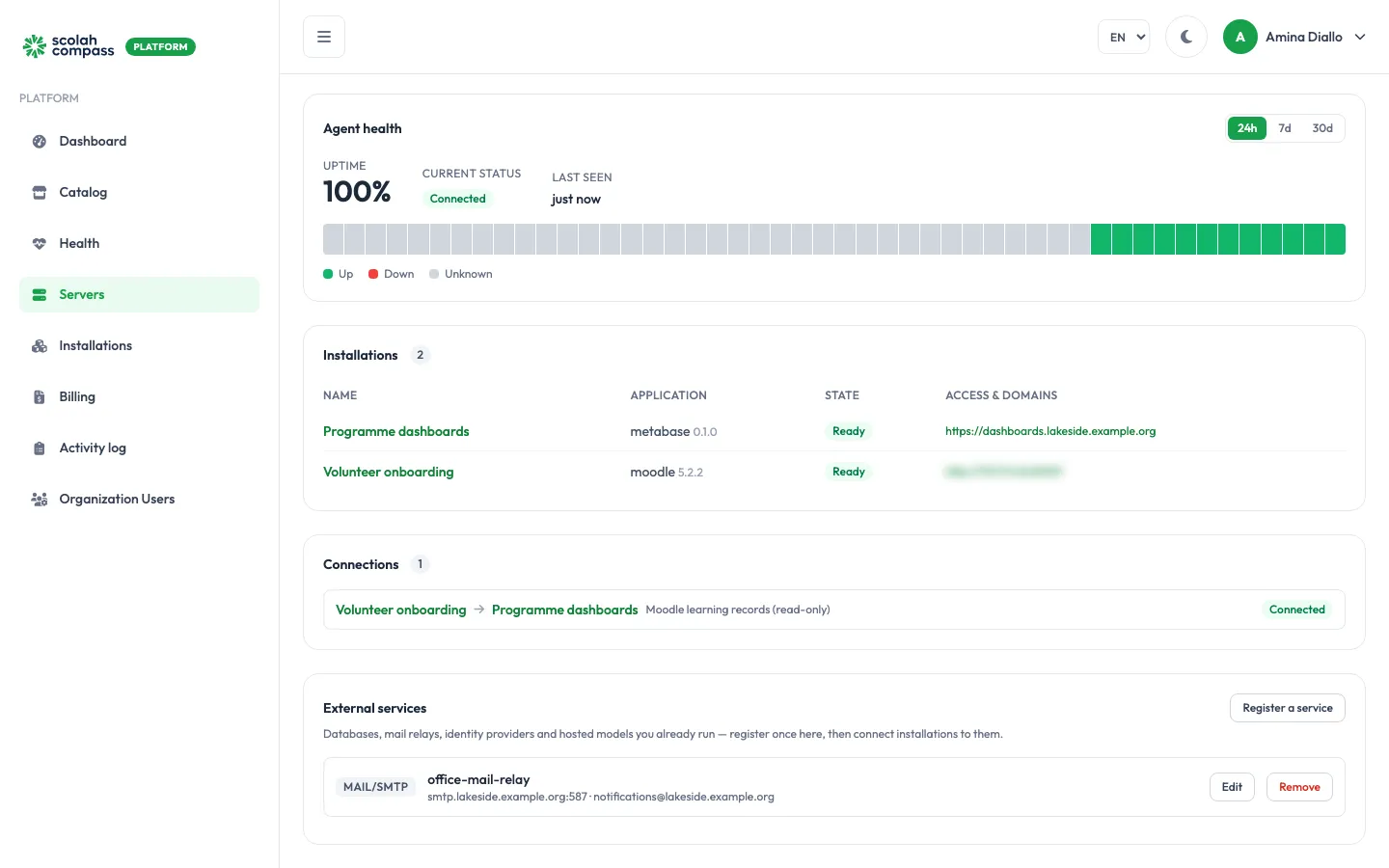
What you can register
Section titled “What you can register”| Group | Types |
|---|---|
| Databases & infrastructure | PostgreSQL, MySQL / MariaDB, MongoDB, Redis, Solace, RabbitMQ, S3-compatible object storage, Elasticsearch |
| Services you already run | Mail relay (SMTP), Identity provider (OpenID Connect), Hosted model (OpenAI-compatible) |
Register a service
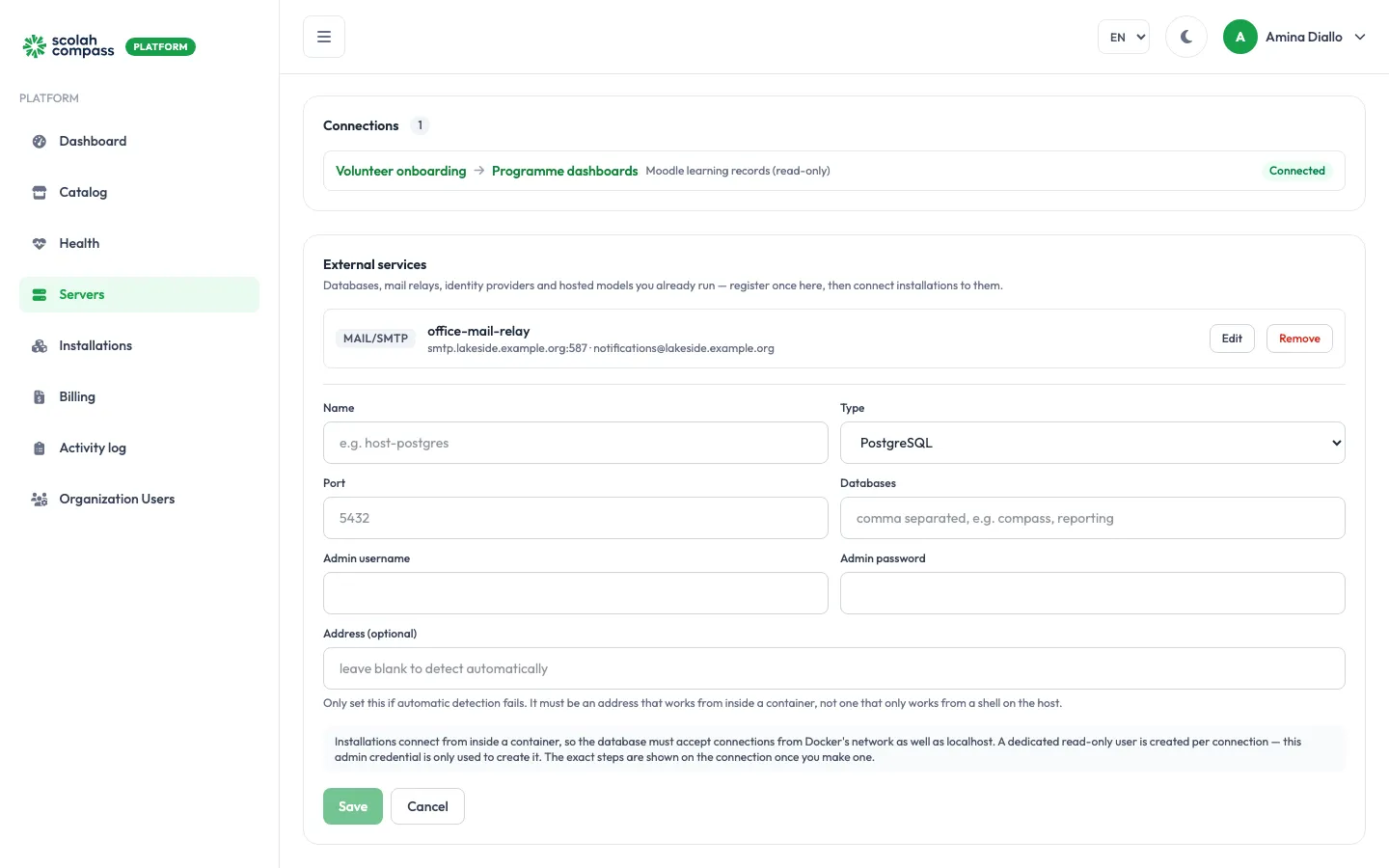
Section titled “Register a service”- Click Register a service.
- Choose the Type, give it a Name you’ll recognise (such as
host-postgres), and fill in the connection details. - Save.
Databases
Section titled “Databases”- Address: leave it blank and the platform works it out. Only set it if automatic detection fails, and then use an address that works from inside a container, not one that only works from a shell on the server.
- Admin username and Admin password: an account allowed to create users. The platform only uses it to create a separate, limited user for each installation or connection. It’s never handed to an application.
- Databases: for databases that installations will read through a connection, the database names, comma separated.
Installations run in Docker containers, so the database must accept connections from Docker’s network (normally 172.16.0.0/12) as well as from localhost. Once you connect something to it, the connection’s Setup notes give the exact steps for your database engine: which setting to change, which access rule to add, and how to reload.
Mail relays, identity providers and AI models
Section titled “Mail relays, identity providers and AI models”For these, nothing is created on your service. The platform passes the details you enter (host, from-address, client ID, base URL and so on) to the application that uses them. The service must already exist and accept those credentials.
Use a registered service
Section titled “Use a registered service”- As a connection: on an installation’s Connections tab, registered services are offered alongside installations. See Connections.
- When you create an installation: open Advanced and turn on Use existing … for a service. Then choose your registered service under Use this registered server. A database or other infrastructure is used instead of the bundled one; for Scolah Compass and Scolah Compass Resources, a mail relay sends their email.
Disaster recovery
Section titled “Disaster recovery”A PostgreSQL, MySQL / MariaDB or MongoDB server registered on a DR server can hold a standby’s databases. Choose Managed by you when you turn on disaster recovery. See A database you manage for the rights the account needs.
Edit or remove
Section titled “Edit or remove”Edit changes the details. Leave the password blank to keep the stored one. Remove stops offering the service to installations; nothing on the service itself changes. The list shows how many connections use each service.