

Users
Organisation → Users is one list of everyone in your organisation’s Scolah Compass Resources, outside any workspace. Each person has one role (see Roles and permissions) and the workspaces they can open. You need the Users permission to see the list, and Users Write to change it.
The users list
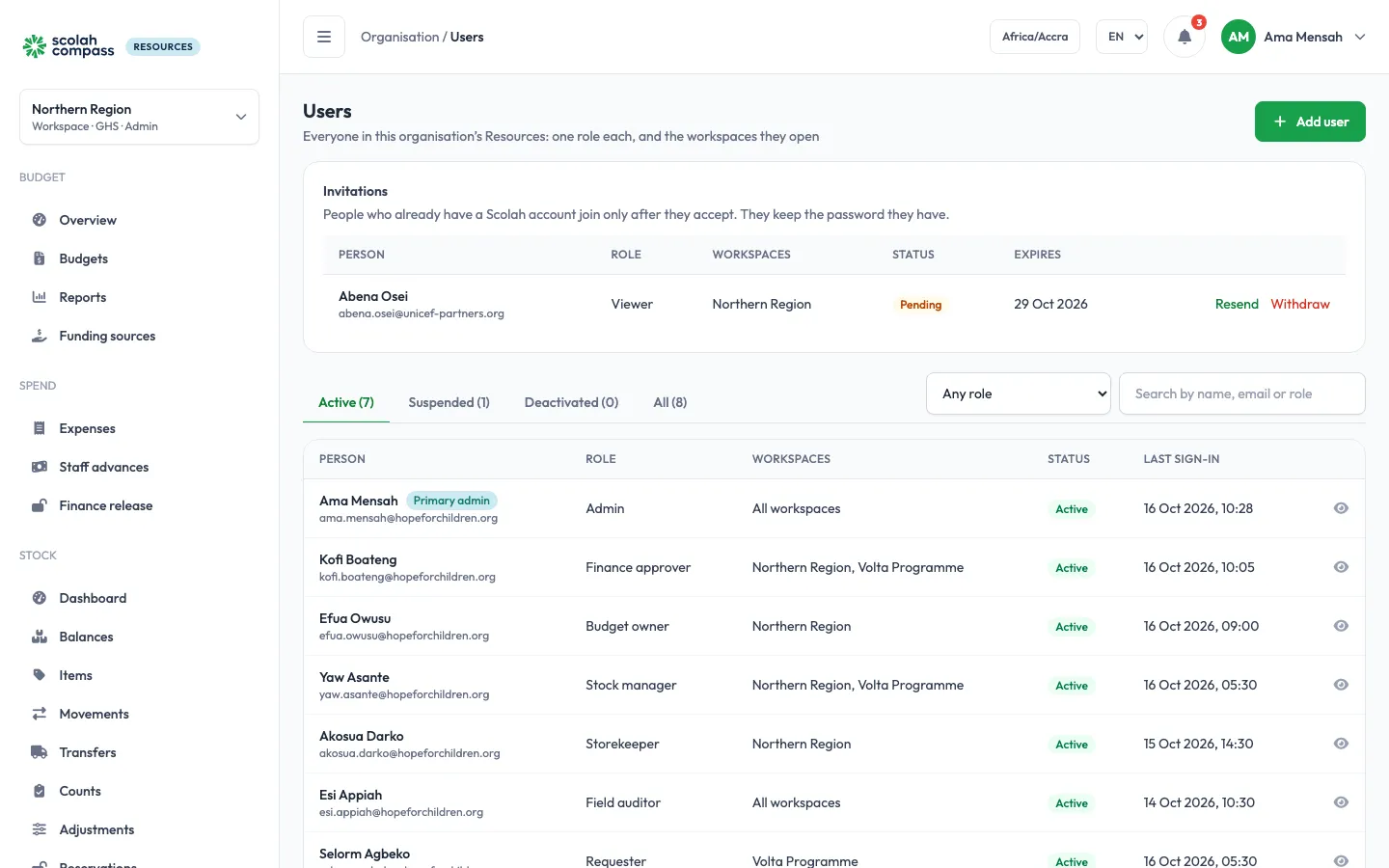
Section titled “The users list”The list has Active, Suspended and Deactivated tabs. Each row shows the person, their role, their workspaces and their last sign-in. The primary admin comes first. Click a person to open their page.
Pending invitations
Section titled “Pending invitations”People who already have a Scolah account join only after they accept an invitation. Until then they show in the Invitations card above the list, with who invited them and by when they must accept.
- Resend sends the invitation again, valid for another 14 days.
- Withdraw cancels it. They can no longer accept it.
Add a user
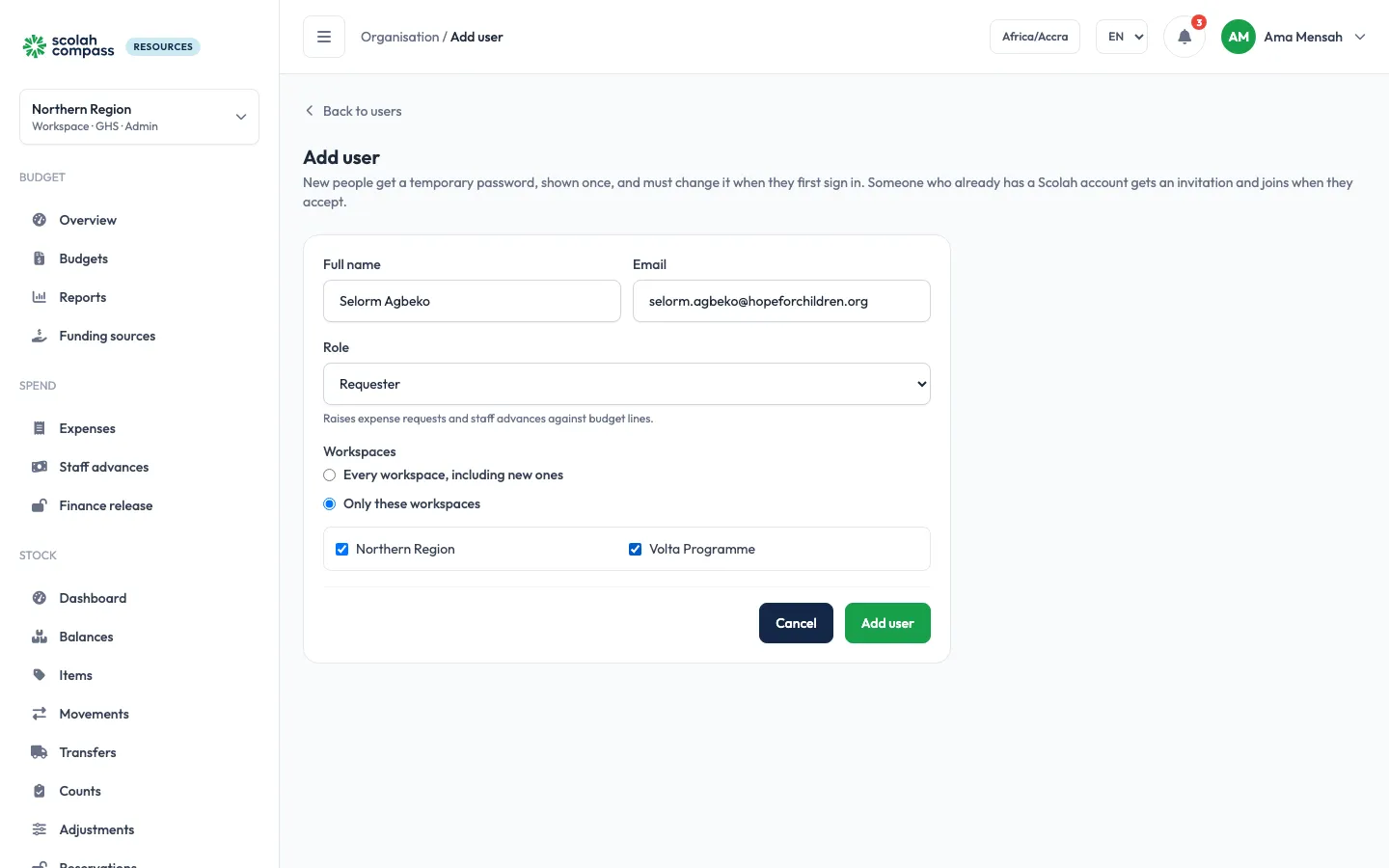
Section titled “Add a user”- Click Add user.
- Enter their Full name and Email.
- Choose a Role. You can only give a role whose permissions you hold yourself.
- Choose their Workspaces: All workspaces, or pick the ones they can open.
- Save.
What happens next depends on the email:
- An email new to Scolah: Scolah Compass Resources creates the account and shows a Temporary password once. Give it to the person in person or by a secure channel. They choose their own password when they first sign in.
- An email that already has a Scolah account, for example someone who uses Scolah Compass: they get an invitation to accept or decline, and keep the password they have. Nothing changes until they accept.
- Someone you removed earlier: adding the same email brings them back, with the role and workspaces you choose now.
Someone who is already an active or suspended user can’t be added again.
Workspaces
Section titled “Workspaces”A user opens either all workspaces, including ones created later, or only the ones picked for them. Workspaces they can’t open don’t appear in their workspace switcher, and they get no alerts from them. The primary admin always opens every workspace.
A person’s page
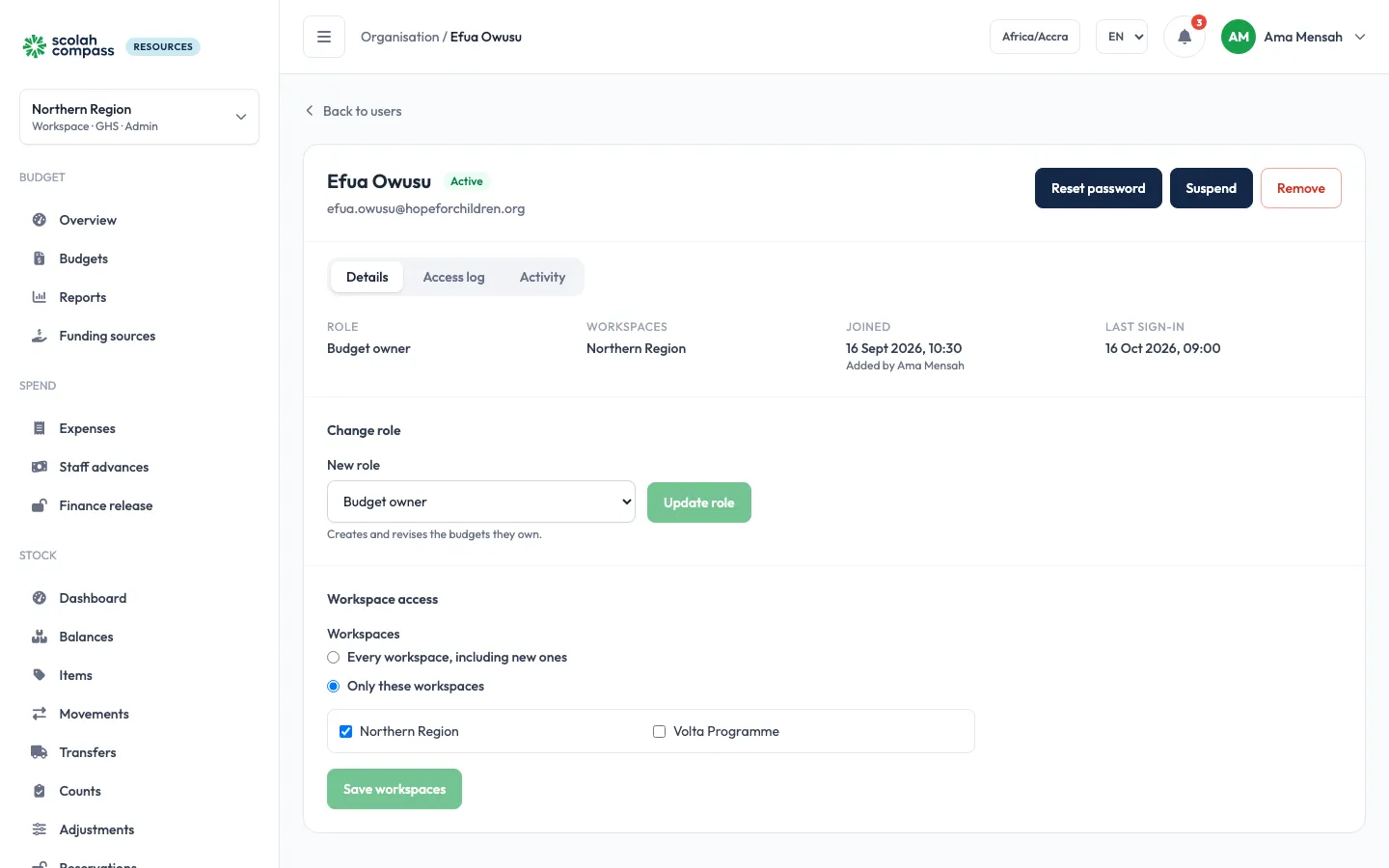
Section titled “A person’s page”The header shows their name, their status and, for the primary admin, a Primary admin pill.
Details
Section titled “Details”The Details tab shows their Role, their Workspaces, when they Joined and their Last sign-in. Change the role or the workspaces here and save. You can’t change your own role: ask another admin.
Audit log
Section titled “Audit log”The Audit log tab shows the same Audit logs filtered to that person.
Actions
Section titled “Actions”| Action | What it does |
|---|---|
| Reset password | Gives them a new temporary password, shown once. Their current password stops working, in Scolah Compass too, and they must change it at their next sign-in. Only the primary admin can do this. |
| Suspend | They keep their account, role and workspaces, but are turned away at sign-in. Reactivate restores access. |
| Remove | Deactivates them: they are turned away at sign-in and move to the Deactivated tab. Adding the same email again brings them back. |
The primary admin
Section titled “The primary admin”The person who set up Scolah Compass Resources is the primary admin. They are listed like everyone else, with the Admin role, and:
- can’t be removed or suspended, and can’t be given another role;
- always open every workspace;
- are the only one who can reset other people’s passwords.
The primary admin can hand the primary-admin flag to another active user with the Admin role, from that person’s page. The handover is in the Audit logs.
- You can’t suspend or remove yourself.
- Suspending or removing someone cancels the changes they made that wait for approval.
- Only the primary admin can reset someone’s password, because it’s their Scolah identity password, shared with every Scolah Compass product. Everyone can also reset their own with Forgot your password?. Someone whose account also belongs to another organisation resets their own.
- Users and roles are managed in the portal only. The mobile app follows the role each person has.