

Troubleshooting
The server stays Pending
Section titled “The server stays Pending”No agent has enrolled with this server’s token yet.
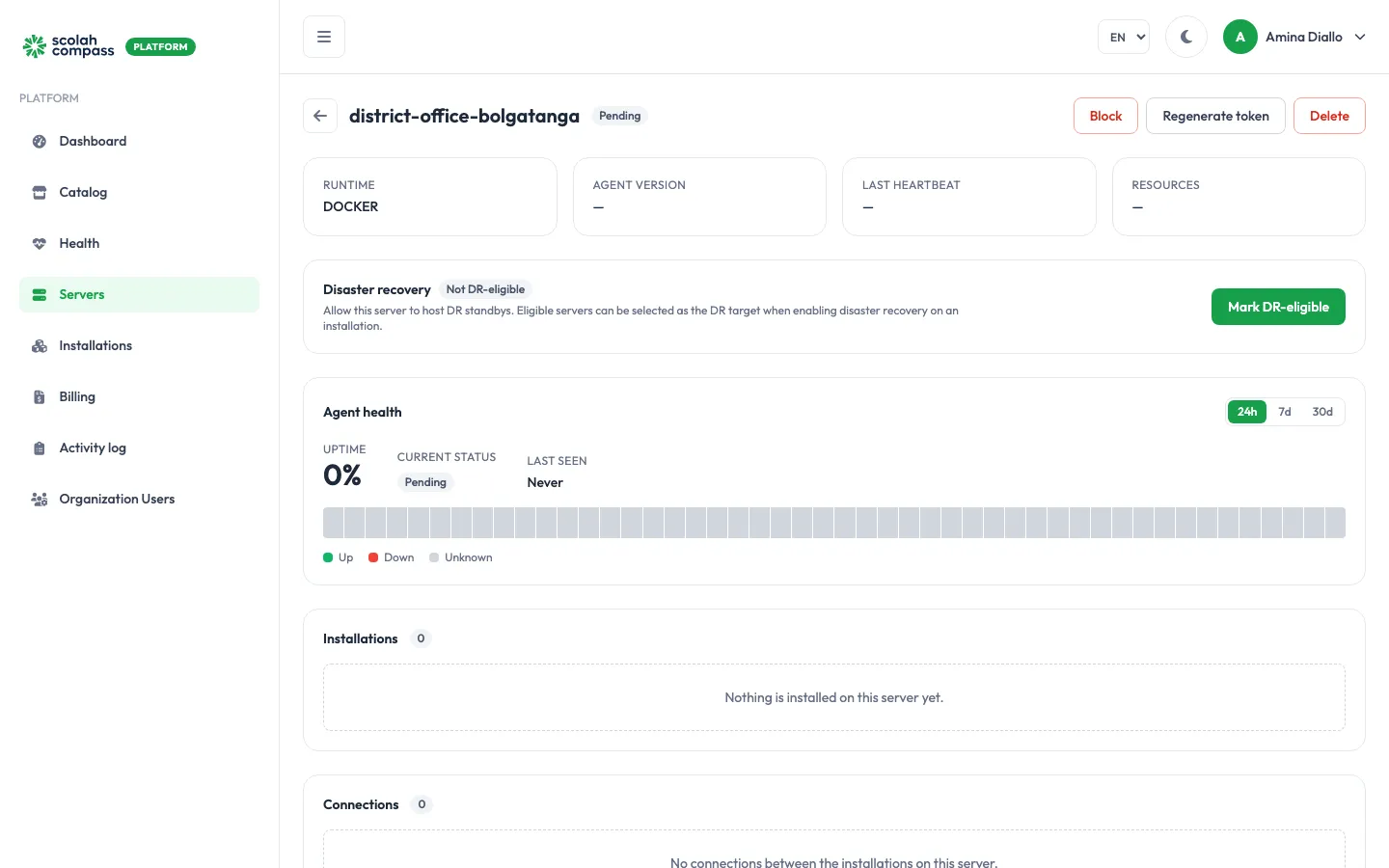
- Is the agent running? On Linux, check with
systemctl status scolah-agentandjournalctl -u scolah-agent -f, or look at the terminal where you started it. - Can the server reach the platform? From the server, run
curl -Iagainst the platform address in your install command. You should get an HTTP response, not a timeout. If you’re behind a proxy or strict firewall, allow outbound HTTPS to that address. - Was the token already used, or lost? Each token works once. Open the server, click Regenerate token, and run the new install command.
- Did you reuse a state folder? If
--state-dirpoints at a folder another server already used, the agent skips enrollment and runs as that other server. Give each server its own folder.
The server went Offline
Section titled “The server went Offline”The agent hasn’t checked in for more than 5 minutes. Installations on it keep running, but the portal can’t see or change them.
- Check that the machine is on and the agent process or service is running. Restart it with
sudo systemctl restart scolah-agent. - Check the server’s internet connection and its outbound HTTPS access.
- If the agent log says it was blocked, an admin blocked the server. See Unblock.
An installation is Failed or Degraded
Section titled “An installation is Failed or Degraded”- Open the installation. On the Status tab, find the services that aren’t Healthy.
- Open the Activity tab to see which step failed and the error message.
- Common causes:
- Not enough disk or memory. Free up space, or scale to a size that fits, or use a bigger server.
- Images couldn’t be pulled. The server lost internet access, or the registry was briefly unavailable.
- A service keeps restarting. Look at that service’s messages in the Activity tab. For application-level problems, contact Scolah support with the installation name.
- Click Retry once you’ve fixed the cause.
A deployment fails with a bundle or signature error
Section titled “A deployment fails with a bundle or signature error”The agent refused to deploy because the application bundle didn’t match its signature. This protects your server from tampered software. Nothing was changed on the server. Retry once. If it happens again, contact Scolah support: don’t try to work around it.
A custom domain won’t verify
Section titled “A custom domain won’t verify”- Check that the TXT record is at exactly
_scolah-verify.<your hostname>and that its value matches the portal, including thescolah-verify=prefix. - DNS changes can take time to propagate. Wait a few minutes and click Verify again.
- Some DNS providers add your domain to the end of record names automatically. If yours does, enter just
_scolah-verify.dashboards, not the full name.
The site loads over HTTP, not HTTPS
Section titled “The site loads over HTTP, not HTTPS”The agent was started without a Let’s Encrypt email, so automatic HTTPS is off. Add ACME_EMAIL=you@your-organisation.org to /etc/scolah-agent/env (or pass --acme-email) and restart the agent. See Domains and HTTPS.
I lost the first login password for an application
Section titled “I lost the first login password for an application”It was only shown once, when you created the installation, and the platform can’t show it again. Use the application’s own password reset, if it has one. If it doesn’t, contact Scolah support.
Still stuck?
Section titled “Still stuck?”Contact Scolah support with your organisation name, the server or installation name, and what the Activity tab shows.