

Domains and HTTPS
Once deployed, an installation can be reached at its server’s public IP address. To give people a proper web address, open the installation’s Domains tab. You need to be an Organization admin.
The Access & Domains box at the top lists every address the installation can be reached at.
Before you start
Section titled “Before you start”- The server needs a public IP address, and inbound ports 80 and 443 open to the internet (or to your users’ network).
- For automatic HTTPS, the agent must have been started with a Let’s Encrypt contact email. The install command from the portal includes one (
--acme-email). If you run the agent as a service, setACME_EMAIL, as shown in Keep the agent running.
Option 1: a Scolah subdomain
Section titled “Option 1: a Scolah subdomain”The quickest option. Scolah creates the DNS records for you under scolah.com.
- Click Add Scolah subdomain.
- Enter a Subdomain: lowercase letters, digits and hyphens, such as
lakeside-dashboards. - Click Attach. The installation becomes reachable at
lakeside-dashboards.scolah.com.
Some applications serve more than one site. Scolah Compass, for example, has an API, an admin portal and a caseworker app. For those, the portal creates one address per site, such as api.lakeside-compass.scolah.com and app.lakeside-compass.scolah.com.
Option 2: your own domain
Section titled “Option 2: your own domain”Use this to serve the installation from your organisation’s domain, such as dashboards.lakeside.org.
- Click Add custom domain.
- Enter the hostname for each site the application exposes. Leave a field blank to skip that site.
- Choose a TLS mode. Use Let’s Encrypt (automatic HTTPS) unless you have a reason not to.
- Click Attach. The domain is added as Pending, with the DNS records to create:
- an A record pointing your hostname at the server’s public IP address, or a CNAME when the server’s public address is a hostname (common for Kubernetes clusters behind a cloud load balancer)
- a TXT record at
_scolah-verify.<your hostname>that proves you control the domain
- Create both records with your DNS provider (the copy buttons help).
- Once the records have propagated (usually a few minutes, sometimes longer), click Verify.
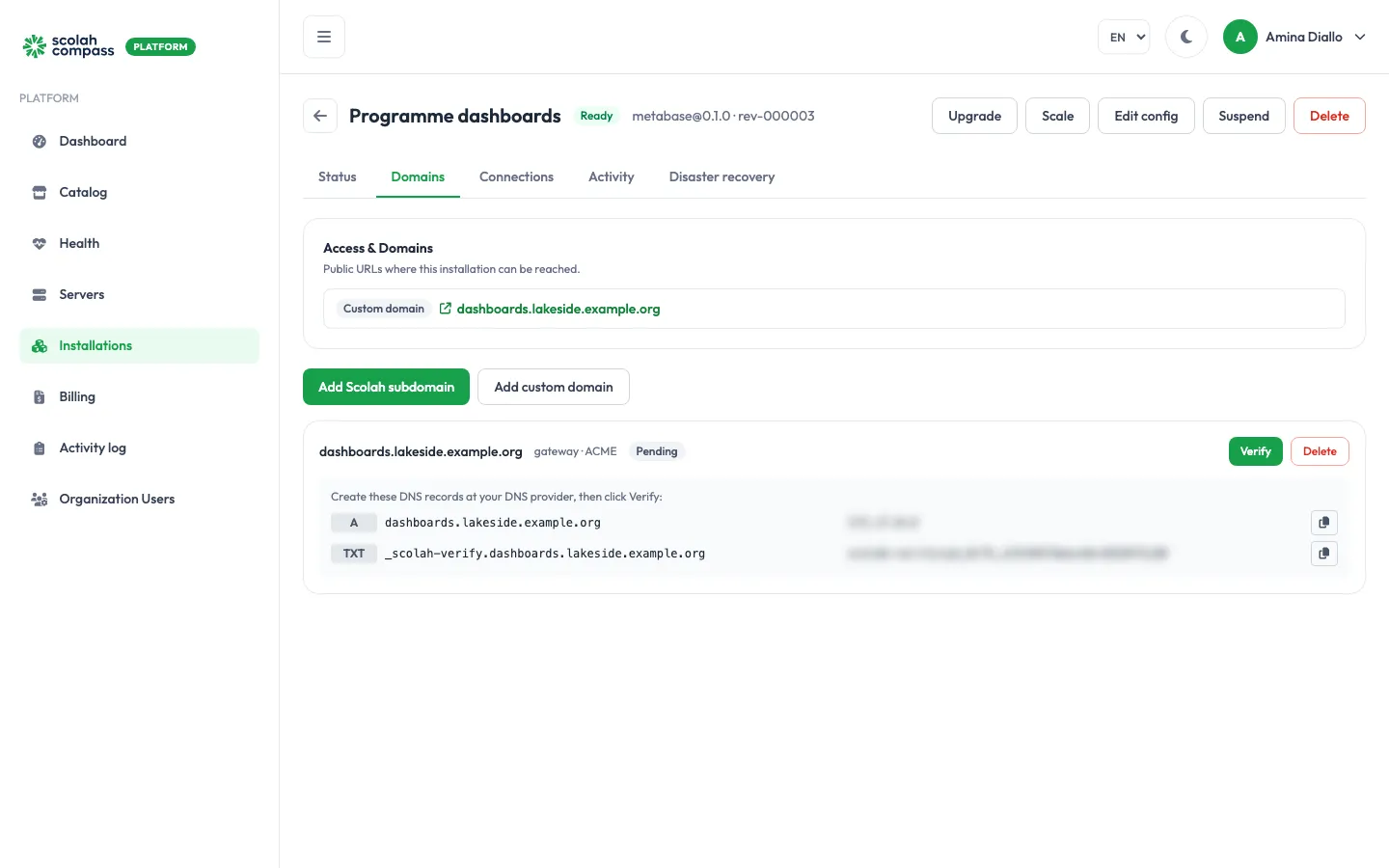
When verification succeeds, the domain shows Verified and the agent starts routing it. With Let’s Encrypt, the first visit may take a few seconds while the certificate is issued.
Each domain also shows Routed once the server serves it, or Not routed with the reason, for example a missing certificate. On a Kubernetes cluster, see also Domains and HTTPS on a cluster.
TLS modes
Section titled “TLS modes”| Mode | Use it when |
|---|---|
| Let’s Encrypt (automatic HTTPS) | Almost always. The server gets and renews a free certificate automatically. |
| Bring your own certificate | Your organisation must use its own certificate. Click Add certificate next to the domain and paste the certificate and its private key. The server then serves HTTPS with it and redirects plain HTTP to HTTPS. Until you add one, the domain isn’t served at all and shows Not routed (waiting for certificate). |
| No TLS (behind external proxy) | HTTPS is already handled by a proxy, load balancer or CDN in front of the server. |
| Terminated by your Gateway (Kubernetes Gateway API) | Kubernetes clusters only: your cluster’s Gateway already holds the certificate, and the installation attaches a route to it. See Connect a Kubernetes cluster. |
Remove a domain
Section titled “Remove a domain”Click Delete next to the domain. Traffic to that hostname stops reaching the installation. Remember to remove the DNS records at your provider too.