

Create an installation
An installation is one running copy of an application on one of your servers. You need to be an Organization admin, and have at least one Connected server.
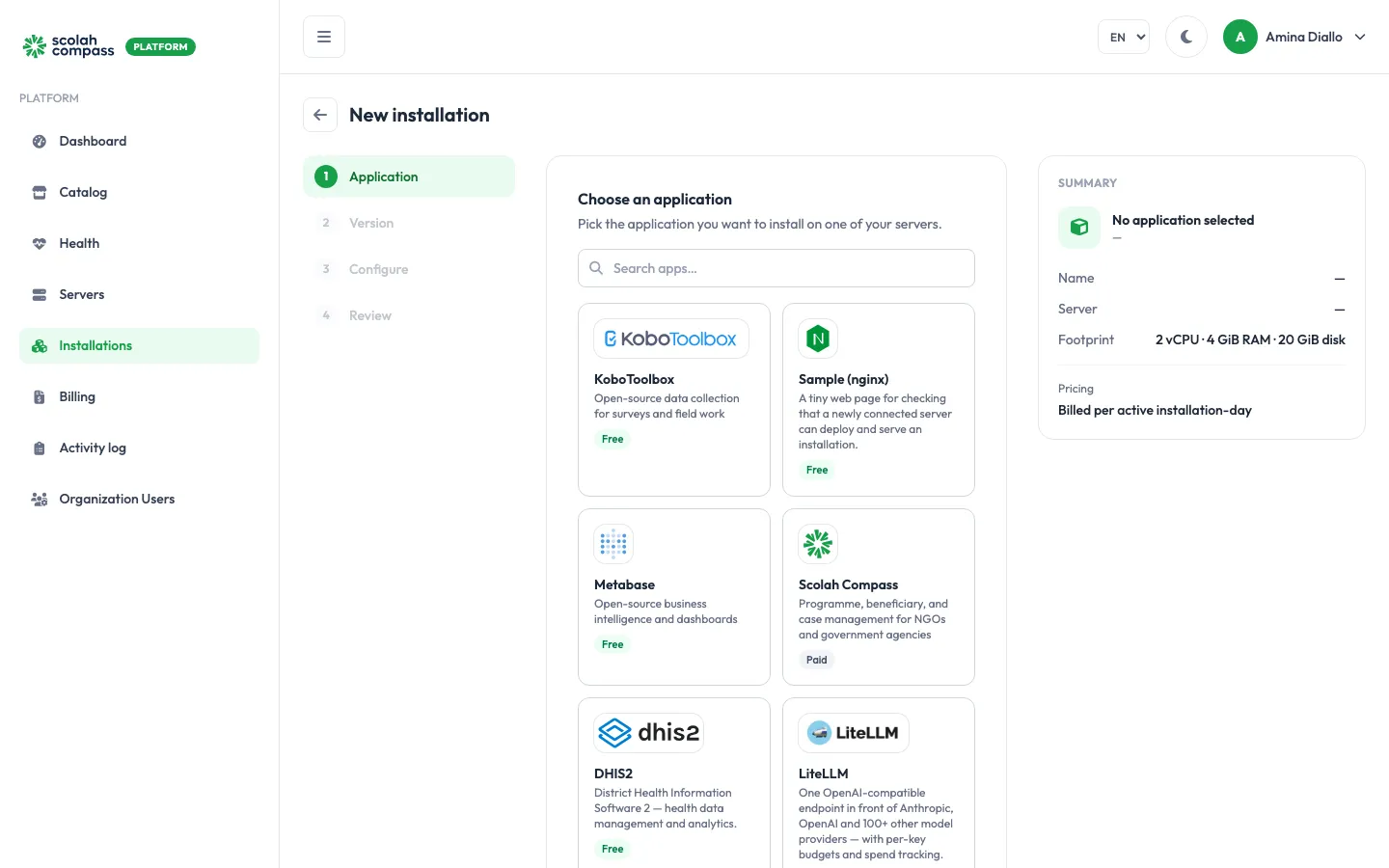
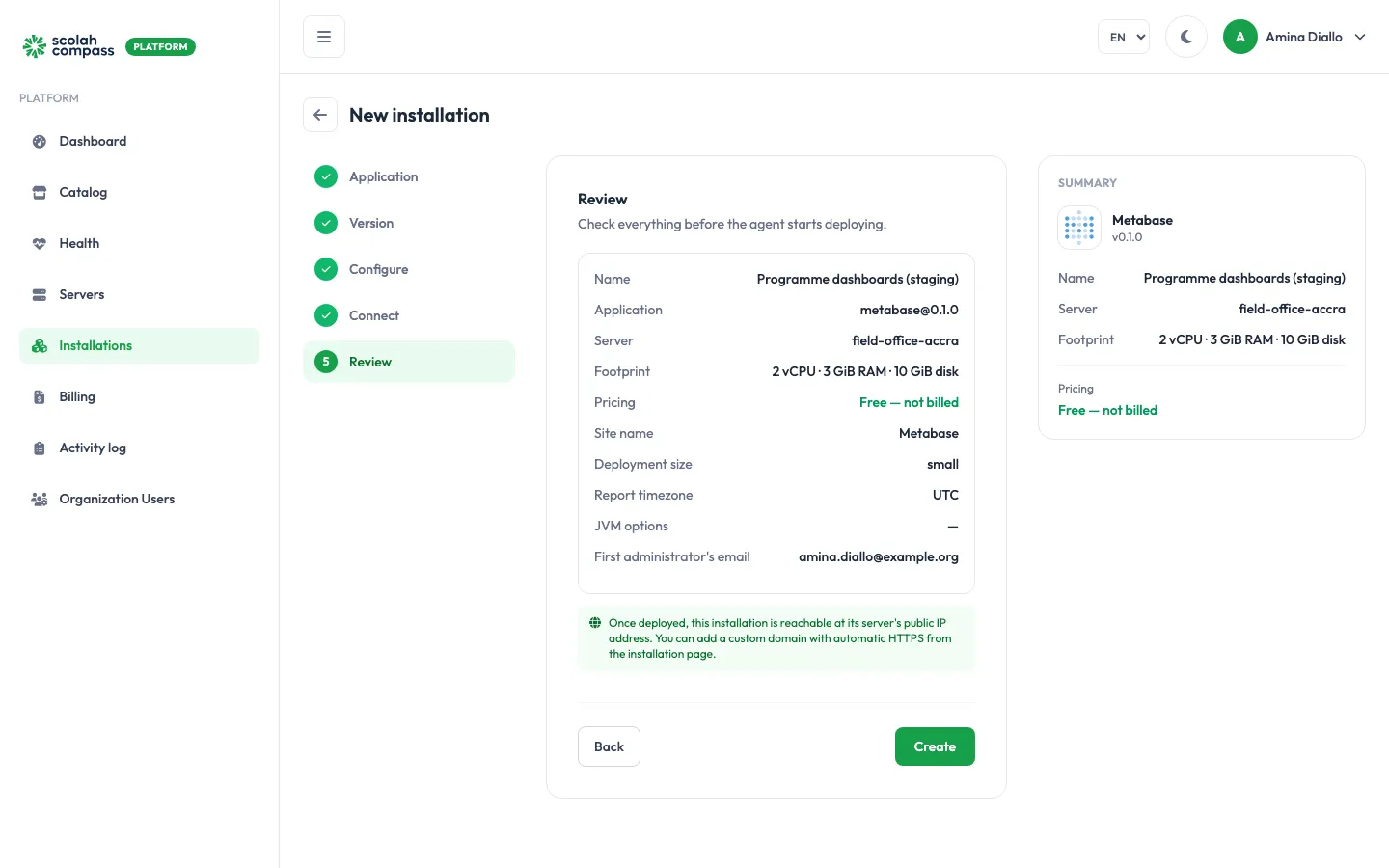
Go to Installations and click New installation. The wizard has five steps. The Summary panel on the right follows along, showing the application, server, resource footprint and pricing.
1. Application
Section titled “1. Application”Search for or pick the application you want.
2. Version
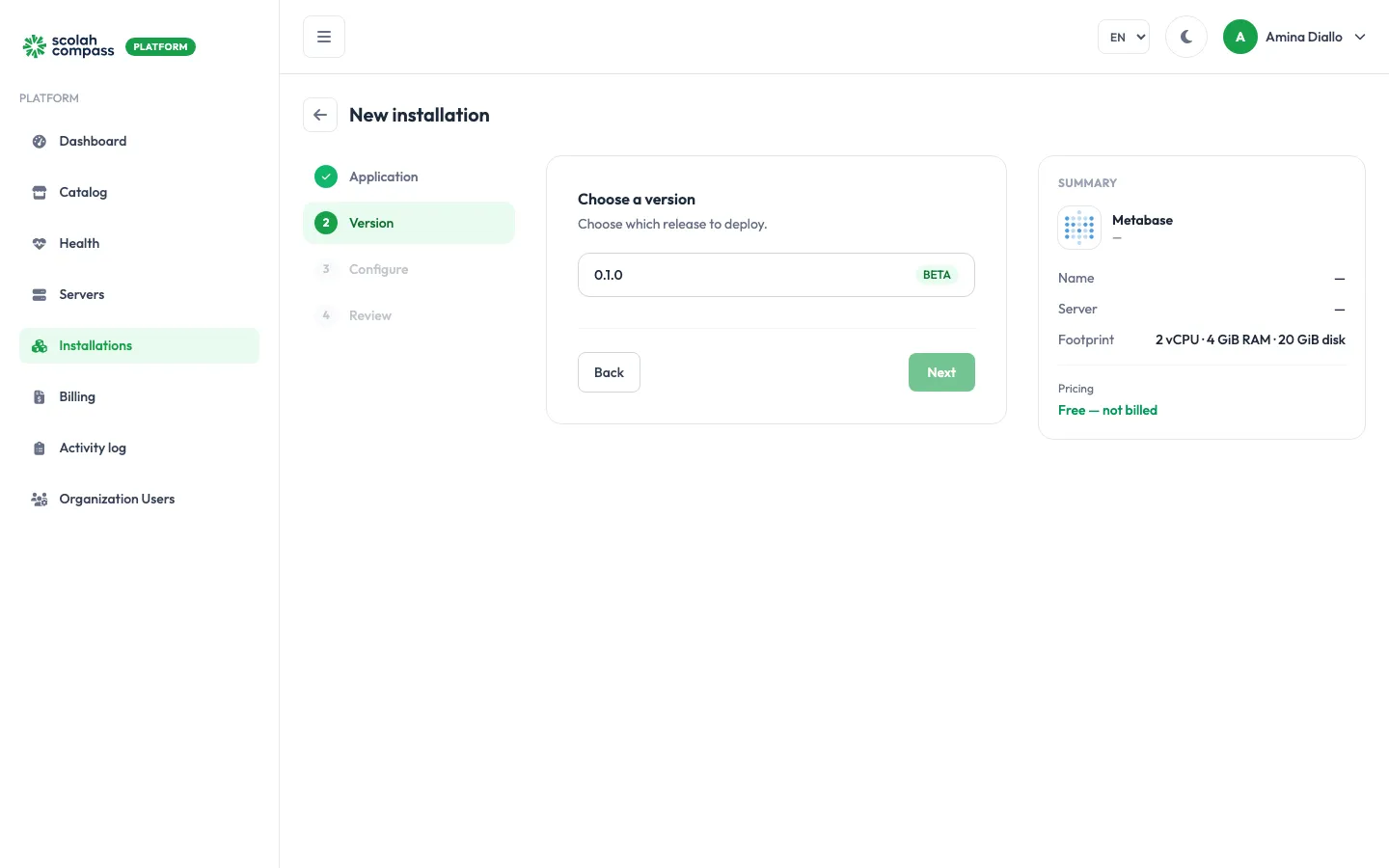
Section titled “2. Version”Choose which release to deploy. Each version is a tested, signed bundle of the application’s components. Versions marked BETA are newer and less proven.
3. Configure
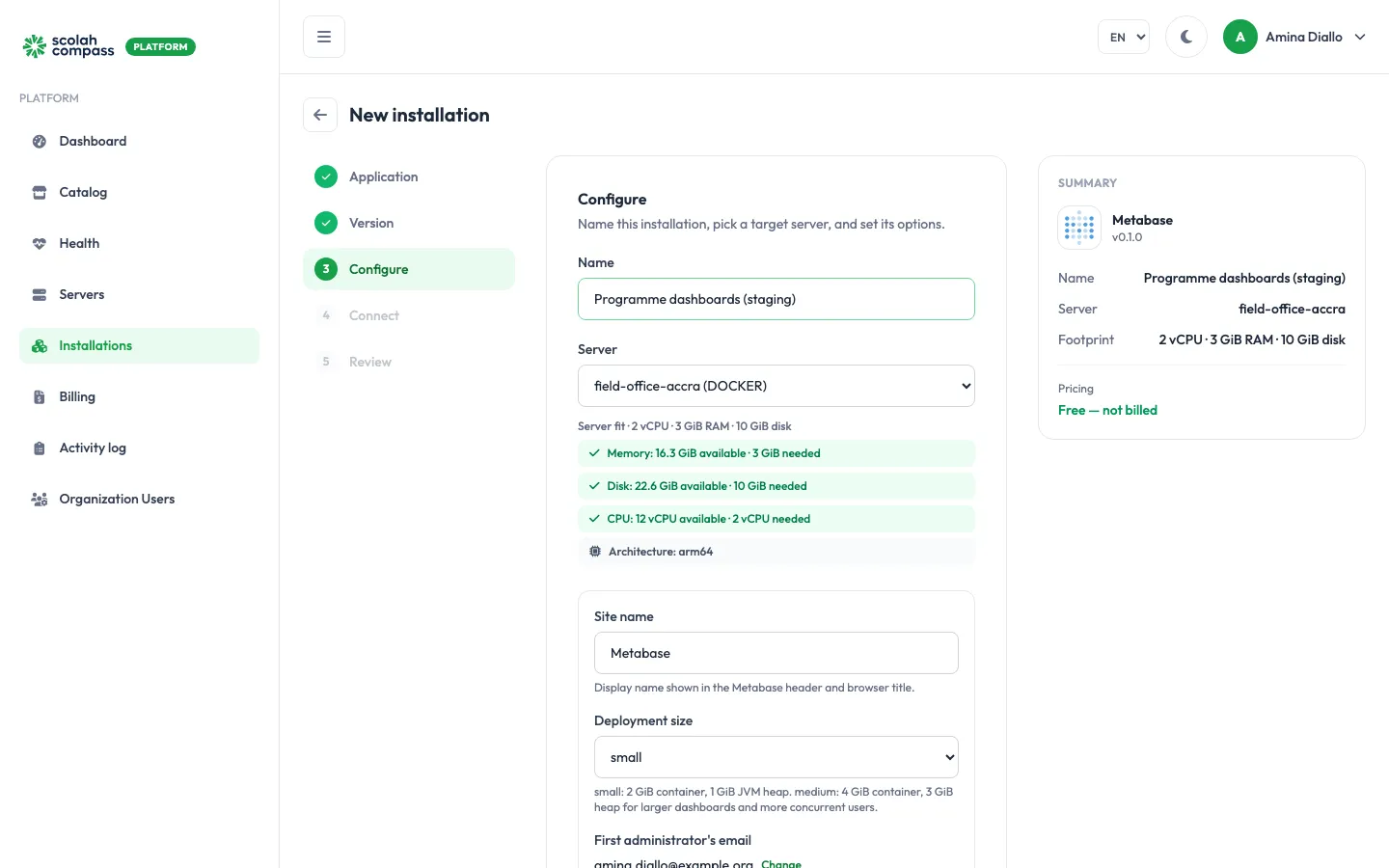
Section titled “3. Configure”- Name: what your team will call this installation, such as Programme dashboards.
- Server: where to run it. Once you pick one, Server fit compares the server’s free memory, disk and CPU with what the application needs. It also shows the server’s processor architecture. Some application versions run on
amd64(x86-64) servers only; on a server with another architecture, such asarm64, Server fit says so and you can’t continue. You also can’t continue if the server is too small. - Application options: these depend on the application, for example the site name, the Deployment size, or the email address for the application’s first administrator.
- Share services with another installation: shown when you install Scolah Compass on a server that already runs Scolah Compass Resources, or the other way round. Chosen by default, the new installation uses the existing one’s database, file storage, sign-in and gateway instead of starting its own, and the existing one grows by one Deployment size. Both apps then share one sign-in: the same email and password work in each, but a person only gets into an app once an administrator there adds them. Pick No, run its own services to keep them separate. While another installation uses its services, an installation can only be deleted together with it.
- Advanced: optional settings. For some applications you can connect to a database you already run instead of creating a new one. Nothing here is needed for a first install.
4. Connect
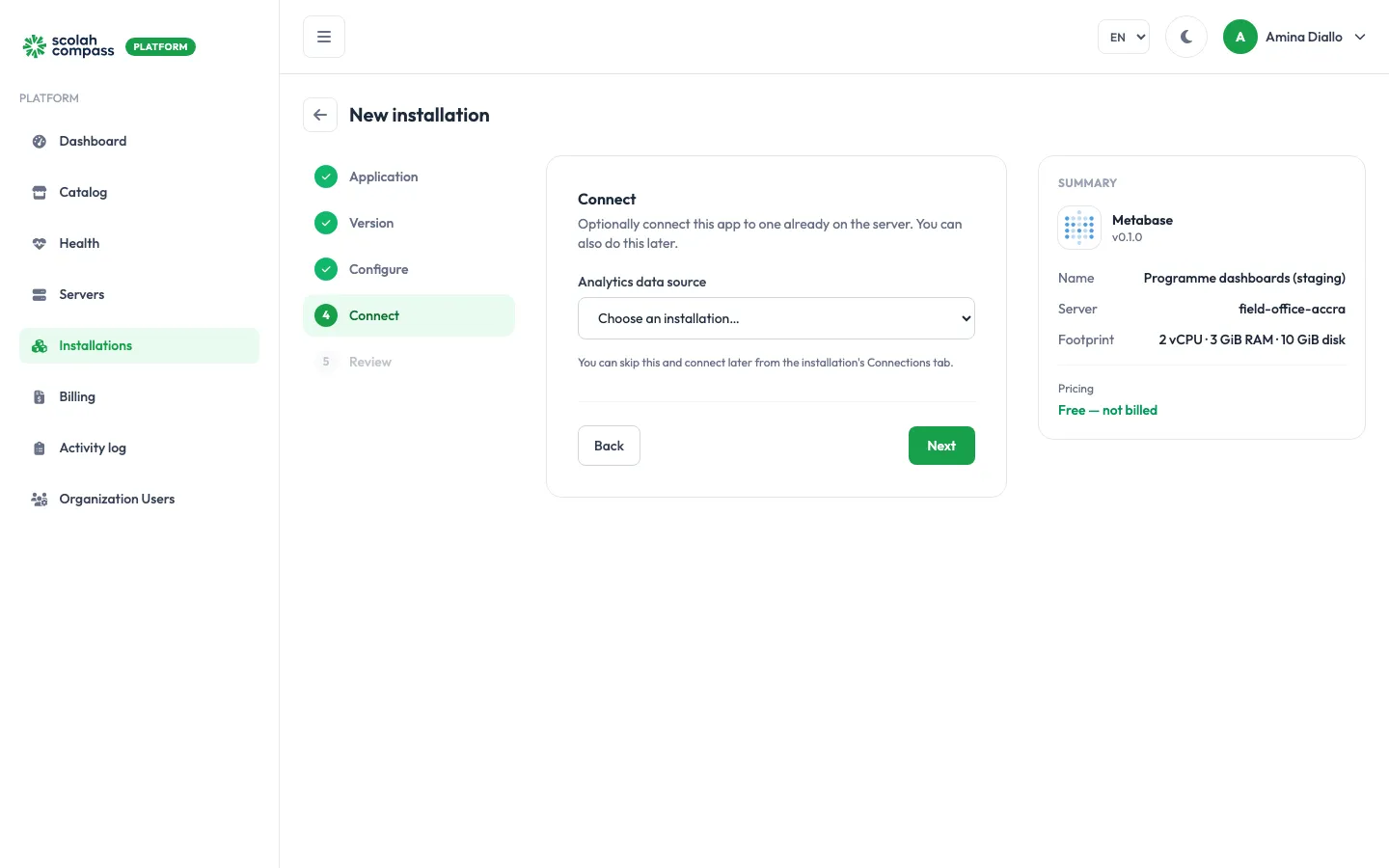
Section titled “4. Connect”Some applications can connect to another installation on the same server, for example Metabase reading data from Scolah Compass. If a match exists, you can choose it here. Otherwise skip this step: you can connect them later from the installation’s Connections tab.
5. Review
Section titled “5. Review”Check everything and click Create.
Watch it deploy
Section titled “Watch it deploy”The portal stays on the installation and shows the deployment live. The agent downloads and checks the bundle, pulls the images, starts each service and waits for them to be healthy. This usually takes a few minutes, longer the first time a server pulls an application’s images.
When all services are healthy, the state changes to Ready.
Pricing
Section titled “Pricing”The Summary shows how the application is billed:
- Free — not billed: the application is free to run.
- Billed per active installation-day: each calendar day (UTC) the installation is active counts as one day. Days when it’s Suspended, Failed or being removed aren’t billed. The exact amounts are on the Billing page.