

Mobile App
The Scolah Compass Resources app is for the work you do away from a desk: spending with receipt photos, approvals, and stock at warehouses and distribution points. It uses the same account and the same data as the portal.
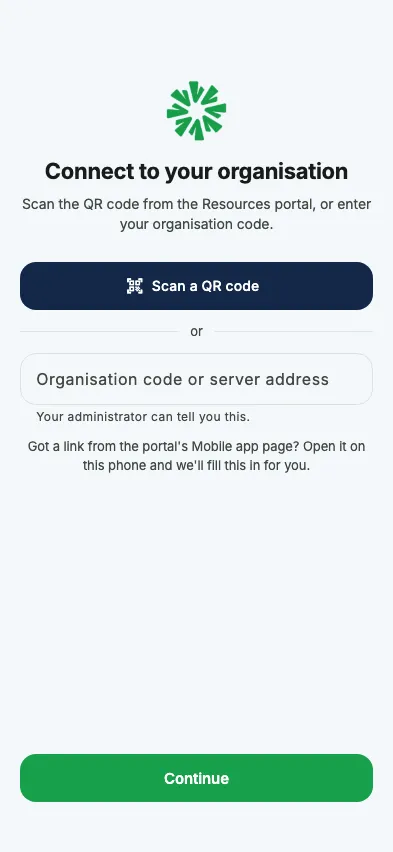
Connect to your organisation
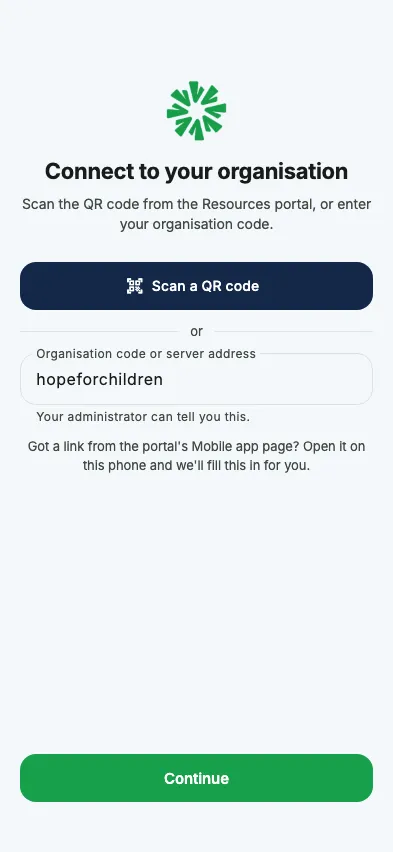
Section titled “Connect to your organisation”The first time you open the app, it asks you to connect to your organisation. The app has no sign-up and never creates an organisation: your administrator creates your account, then gives you a QR code or your organisation code. You can connect in three ways:
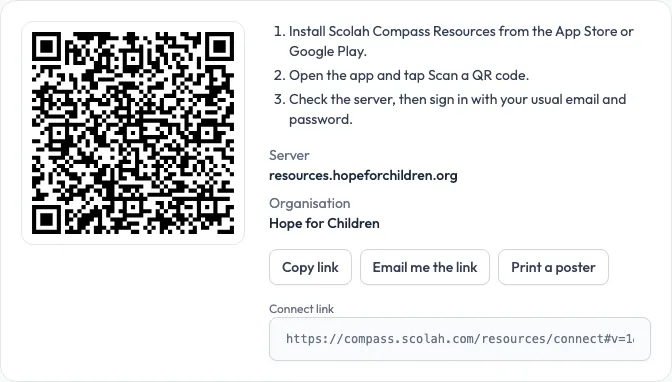
- Scan a QR code: the quickest way. Tap Scan a QR code and scan the code from the Mobile app page in the Resources portal (see below). You can also open a connect link sent from the portal on the phone; the app fills everything in.
- Organisation code: if Scolah hosts your organisation, type its code, for example
kesho. The app connects to your organisation’s own address,kesho.compass.scolah.com. - Server address: if your organisation runs Resources on its own server, type the address your administrator gave you, for example
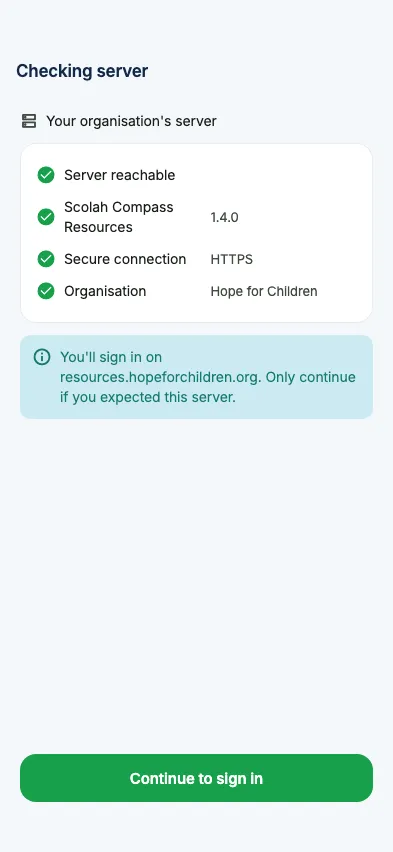
resources.your-organisation.org, or paste the link.
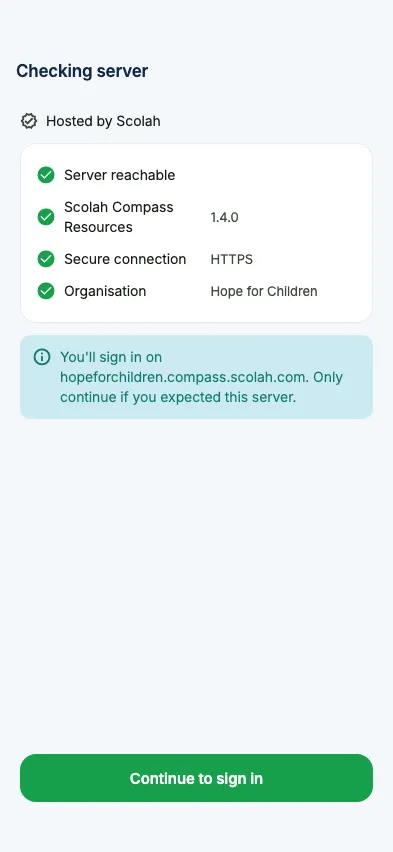
The app checks the server and shows your organisation’s name and address, whether the connection is secure, and whether it is Hosted by Scolah. Tap Continue to sign in only if it is the organisation you belong to. The app only connects to secure (https://) addresses.
If the app says No organisation called …, check the code with your administrator.
If it says your organisation doesn’t use Scolah Compass Resources yet, the code is right but Resources hasn’t been added for your organisation. Ask your administrator.
Get the QR code from the portal
Section titled “Get the QR code from the portal”In the Resources portal, open the menu under your initials at the top right and choose Mobile app. The page shows the QR code for your server and organisation, the steps to follow, Copy link and Email me the link. Admins can also Print a poster to put up in the office. The code holds no password.
If the page says the app can’t connect yet, the server needs an update or a secure address first. Ask your administrator.
Change server
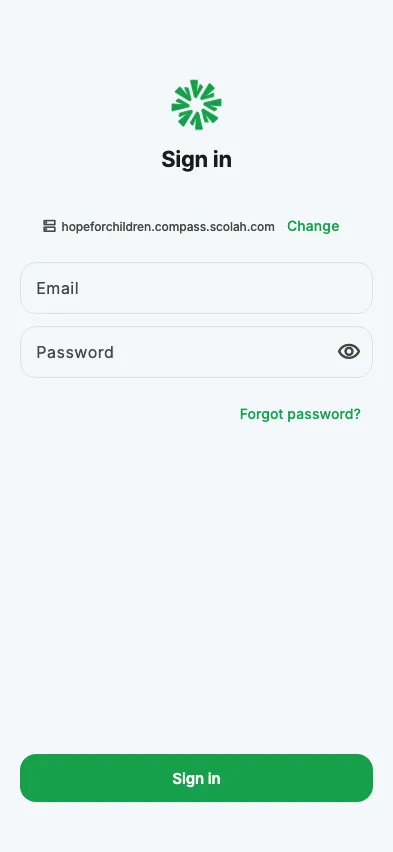
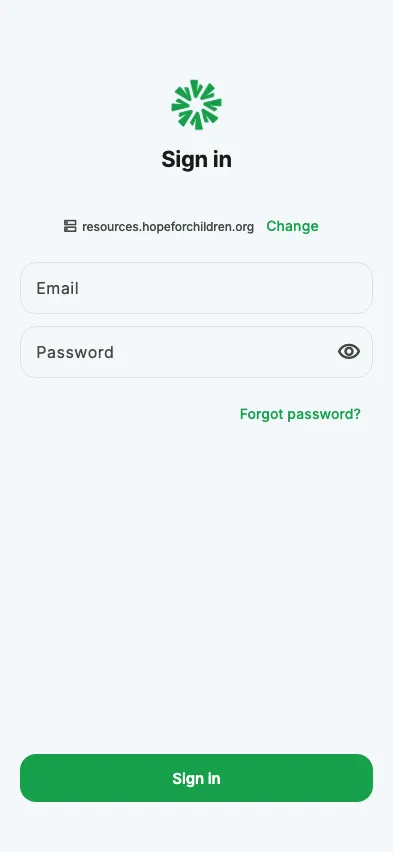
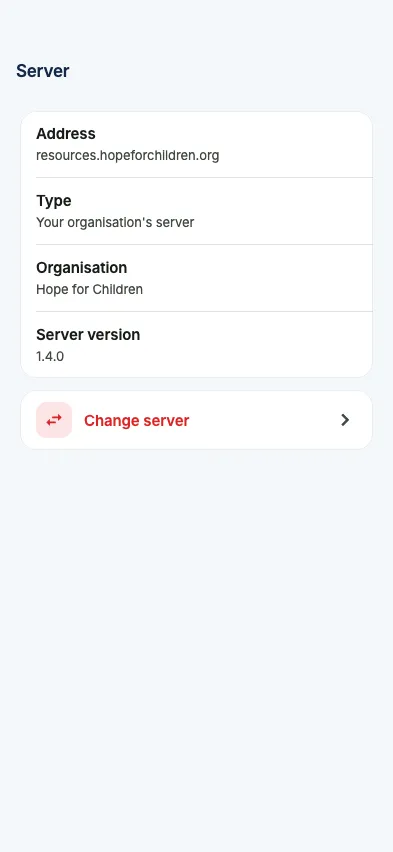
Section titled “Change server”The sign-in screen shows the server above the form, with Change. Once signed in, go to More → Server → Change server. Changing server signs you out and removes what the app keeps for the current one.
Sign in
Section titled “Sign in”Sign in with the same email and password as the portal. The server is shown above the form.
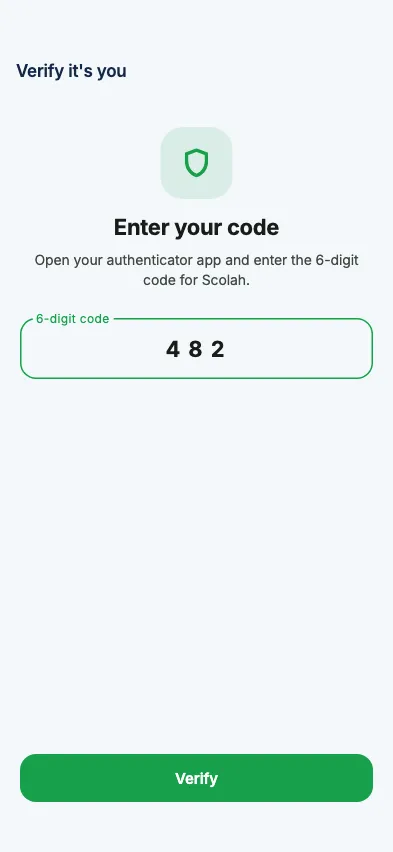
- Two-step verification: if your account uses it, enter the 6-digit code from your authenticator app.
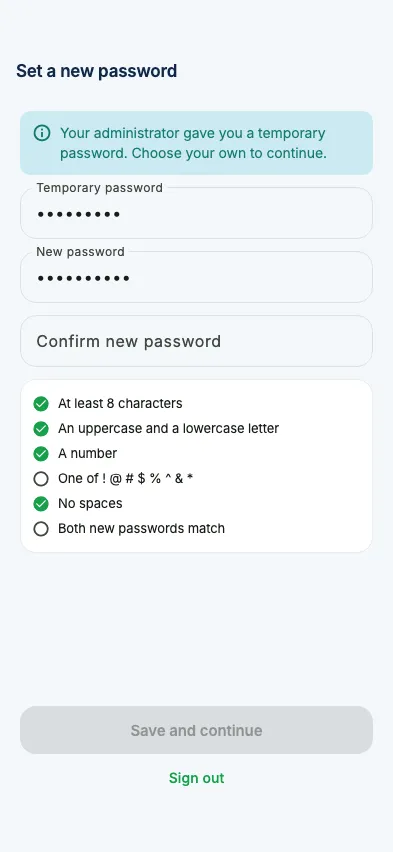
- Temporary password: if an administrator gave you one, the app asks you to choose your own before anything else. It needs at least 8 characters, with a capital, a small letter, a digit and one of
!@#$%^&*. The app ticks each rule as you type. - Forgot password: tap Forgot password? to get a reset link by email. Depending on your organisation’s server, the link opens the app, where you choose the new password, or a web page.
- Not added yet: if your Scolah account works but nobody has added you to Resources on that server, the app says so. Ask a Resources administrator to invite you.
Workspaces
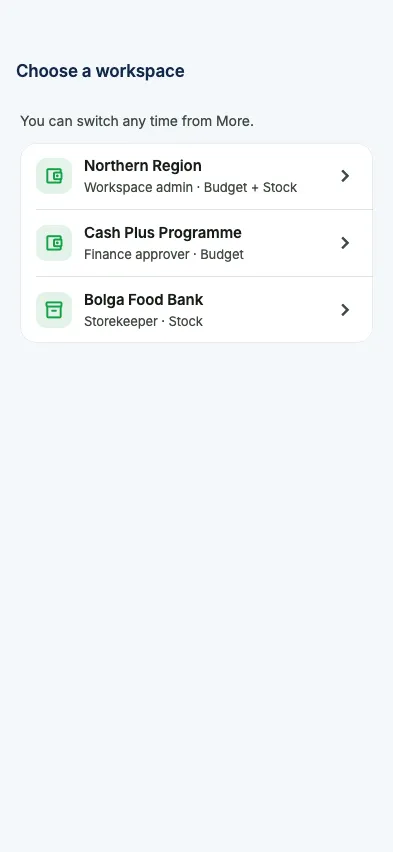
Section titled “Workspaces”If you belong to more than one workspace, the app asks which one to open and remembers your choice. To switch later, tap the workspace name on Home, or Switch on More.
What you see
Section titled “What you see”The tabs at the bottom depend on your role and on the modules your workspace has turned on: Budget, Stock, or both.
| Role | Budget and Stock | Budget only | Stock only |
|---|---|---|---|
| Requester | Home · Spend · More | Home · Spend · More | Home · More |
| Storekeeper | Home · Stock · More | Home · More | Home · Stock · More |
| Stock manager | Home · Stock · Approvals · More | Home · More | Home · Stock · Approvals · More |
| Budget owner, Finance approver | Home · Spend · Approvals · More | Home · Spend · Approvals · More | Home · More |
| Admin | Home · Spend · Stock · Approvals · More | Home · Spend · Approvals · More | Home · Stock · Approvals · More |
| Viewer | Home · Stock · More | Home · More | Home · Stock · More |
If your role has nothing to do in a workspace (for example a storekeeper in a Budget-only workspace), Home says so and offers to switch workspace. When an administrator changes your role or turns a module on or off in the portal, the app picks it up the next time you open it.
See Roles & Permissions for what each role can do.
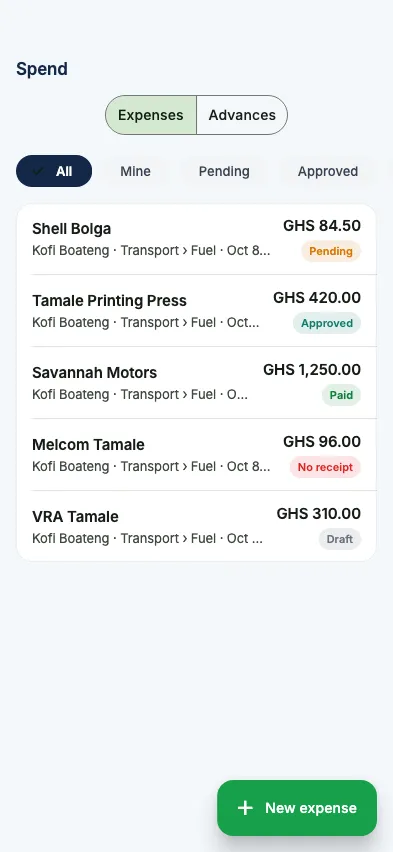
The Spend tab has two lists, Expenses and Advances, with filters at the top. Requesters see only their own; finance and budget owners see everyone’s and can filter to Mine.
Record an expense
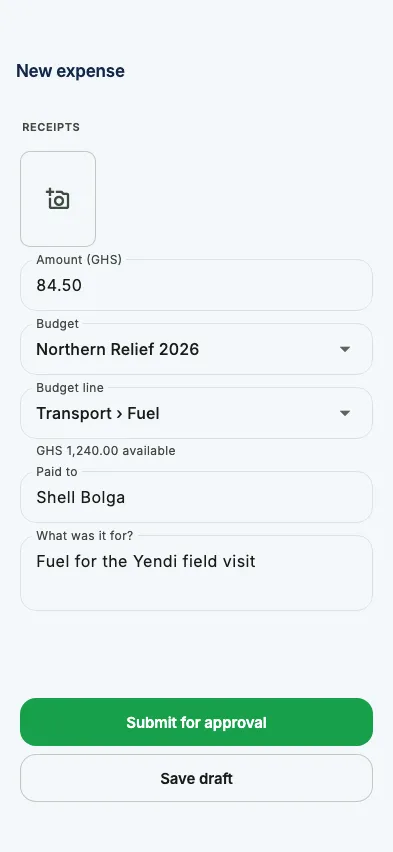
Section titled “Record an expense”- Tap New expense (on Spend or on Home).
- Add the receipt first: take a photo, choose one, or choose a PDF. Photos are made smaller before upload; files can be up to 10 MB.
- Enter the amount (in the workspace currency), pick the budget and budget line (only active budgets, and only lines that can take spending, with what’s still available), who it was paid to, and what it was for.
- Tap Submit for approval, or Save draft to finish later.
If the connection drops before the expense reaches the server, the form stays open with your receipts; try again when you have signal. Nothing is kept on the phone to send later. If a receipt fails to upload, try again; the expense isn’t created twice.
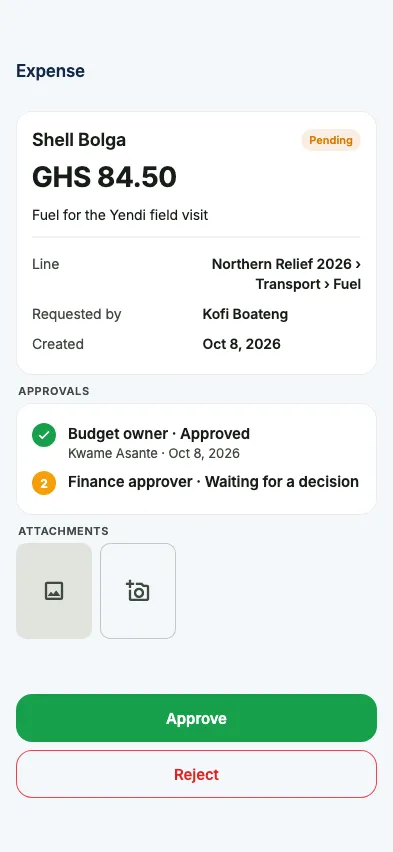
On an expense you can follow the approval steps, add receipts, edit or submit a draft, or cancel it until it’s paid. Finance taps Mark paid on an approved expense (amount, date, reference). If paying goes over the budget line, the app shows the figures and asks for an override reason, as in the portal.
Staff advances
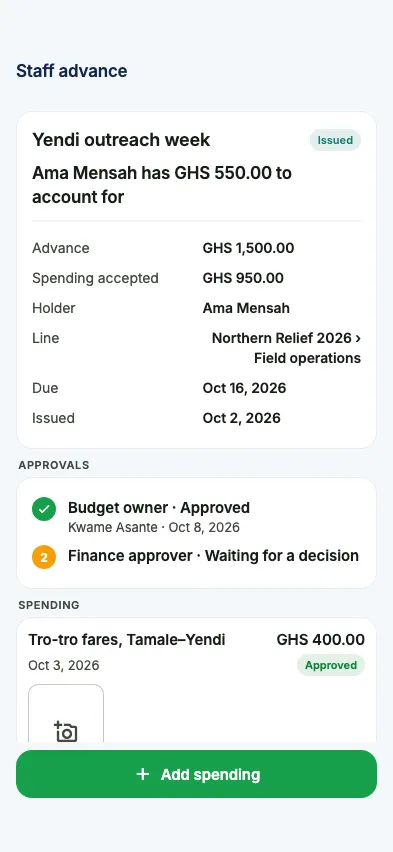
Section titled “Staff advances”- Tap Request an advance, enter the amount, budget line, purpose and the date you’ll account for it by.
- Once finance issues the cash, open the advance and tap Add spending for each thing you paid for, with its receipt (required in the app), amount, date and description.
The advance shows what you still have to account for, or what you’re owed. Finance can Issue cash, Record return when cash comes back, or Top up when the holder spent more. Finance accepts or rejects each spending line on the advance, or from Approvals.
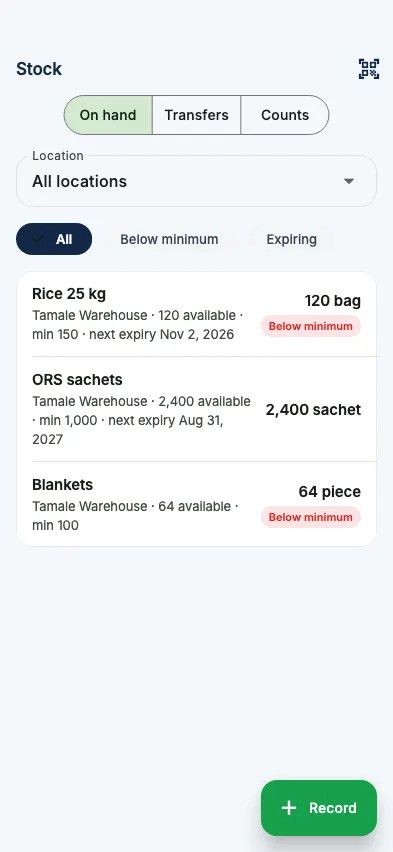
The Stock tab has three parts: On hand, Transfers and Counts. If you work at more than one location, pick one at the top or keep All locations. Viewers can look at everything here; storekeepers act only at the locations they’re assigned to, and stock managers and admins act everywhere.
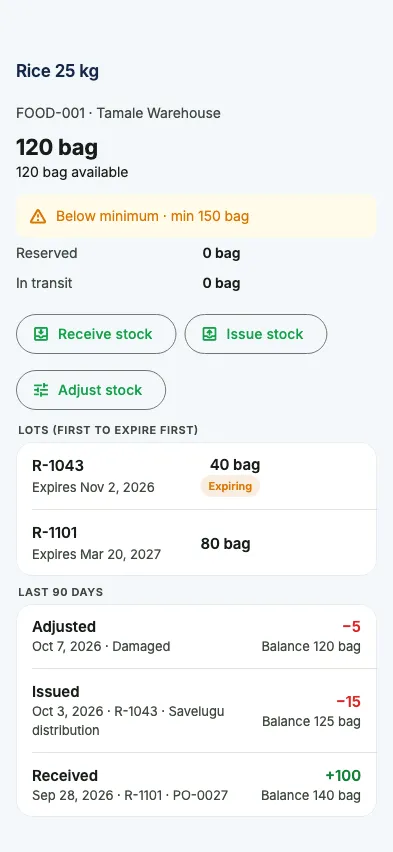
- On hand lists each item with what’s on hand and available, its minimum and its next expiry. Filter to Below minimum or Expiring. Tap an item for its card: the balance, what’s reserved and in transit, its lots (first to expire first), and the last 90 days of movements.
- Scan (top right) reads an item’s barcode and opens its card. If no item has that barcode, the app says so; search by name instead, or ask a stock manager to add the barcode in the portal.
Record stock
Section titled “Record stock”Tap Record, then choose Receive stock, Issue stock, Adjust stock, New transfer or Start a count. You can also start receipts, issues and adjustments from an item’s card.
- Pick the location (picked for you if you only have one).
- Add item: search, or tap Scan. Enter the quantity. Items that track lots ask for the lot number; items that track expiry ask for the expiry date when stock comes in. A receipt can take a unit cost.
- For an adjustment, choose the reason; the reason decides whether stock goes up or down. Taking stock out of a lot-tracked item asks which lot.
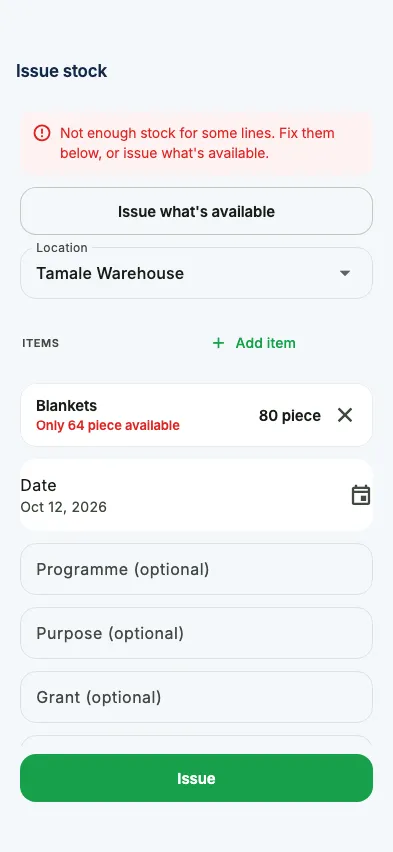
- For an issue, you can add the programme, purpose and grant.
- Tap the button at the bottom.
An issue is checked before anything is written. If there isn’t enough stock, the short lines show what’s available; fix them, or tap Issue what’s available. Stock leaves the lots that expire first, and an expired lot is never issued.
An adjustment over your limit isn’t posted straight away: it goes to a stock manager, and the app says Sent for approval. If the connection drops while you submit, tap again; nothing is recorded twice.
Transfers
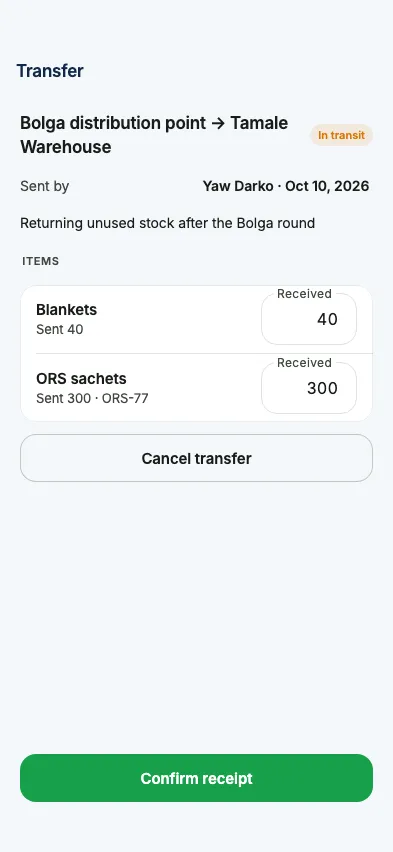
Section titled “Transfers”New transfer: choose where the stock comes from and goes to, add the items, and tap Send. The stock leaves the sending location at once and shows as in transit.
Transfers coming to your location are listed first under Coming to you. Open one and check each line: change the received quantity where less arrived, then tap Confirm receipt. Anything missing is written off as lost in transit, and the app tells you how much before you confirm. The sender or a stock manager can cancel a transfer that’s still on the way; the stock goes back.
Counts
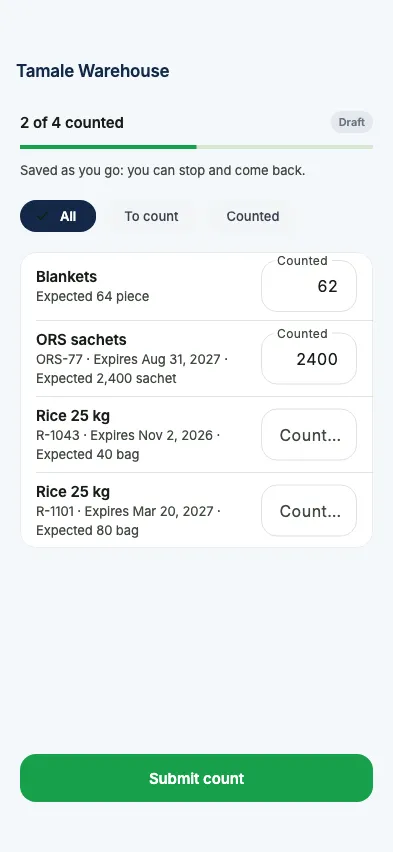
Section titled “Counts”Start a count at a location: the sheet lists every item and lot there. Type what you count; it’s saved as you go, so you can stop and come back. Filter to To count or Counted. When every line has a number, tap Submit count. A stock manager approves it (the differences become adjustments) or sends it back with a reason, which the app shows at the top. Only the person who started a count can enter it.
Purchases
Section titled “Purchases”Shown when a workspace has both Budget and Stock on. Creating purchase orders stays in the portal; the app is for receiving what arrives and for buying on the spot.
Receive a purchase order
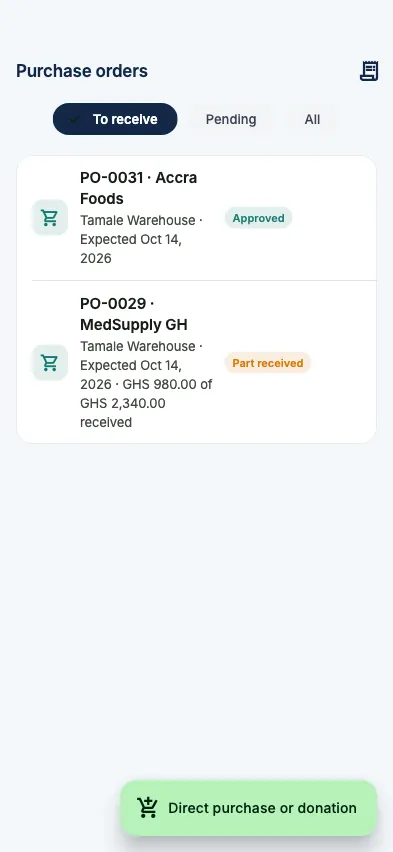
Section titled “Receive a purchase order”Open More → Purchase orders, or Record → Receive a purchase order in the Stock tab. To receive lists approved orders that still have goods to come, soonest expected first; storekeepers see the ones delivered to their locations. Pending and All show the rest.
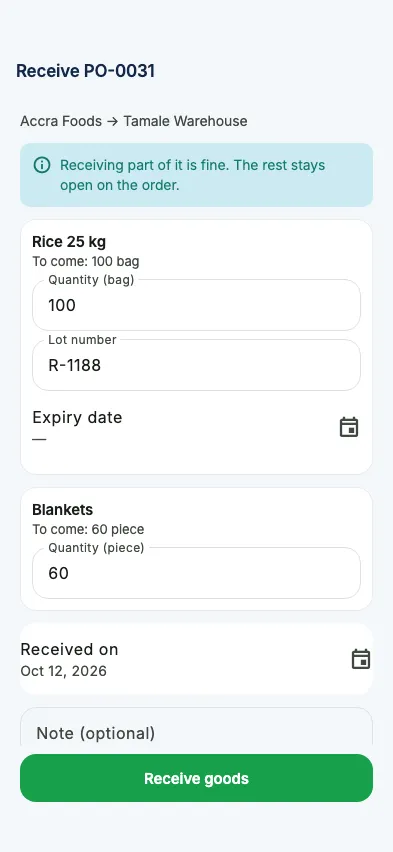
- Open an order and tap Receive goods.
- Each line starts at what is still to come. Change it if less arrived, or clear it to leave that line for a later delivery. Items that track lots ask for the lot number, and items that track expiry ask for the expiry date.
- Set Received on if it isn’t today, add a note, and tap Receive goods.
The stock is added at the order’s unit price, and the cost is recorded as spent on the order’s budget line. Receiving part of an order is fine: the rest stays open. The order shows each delivery, who received it and when. If the connection drops while you receive, tap Receive goods again; the delivery is never recorded twice.
Direct purchase or donation
Section titled “Direct purchase or donation”For goods bought or given on the spot, with no purchase order. Tap Record → Direct purchase or donation in the Stock tab, or the button on Purchase orders.
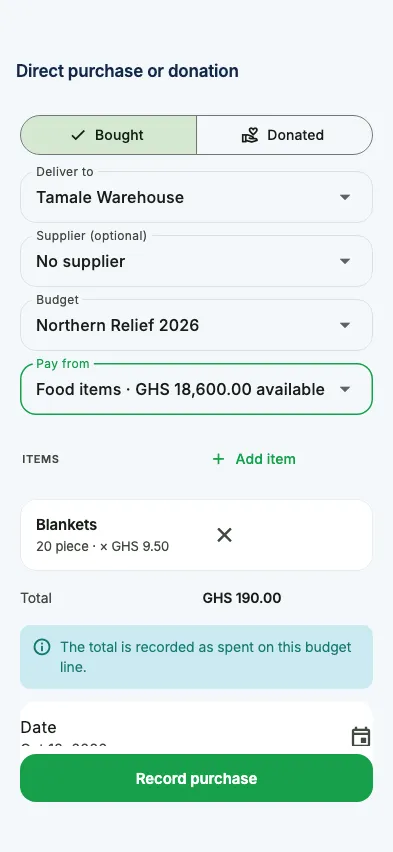
- Choose Bought or Donated.
- Pick the location the goods go into, and a supplier if you have one.
- For a purchase, choose the Budget and the line to Pay from. Donations don’t touch a budget.
- Add item, the quantity and, for a purchase, the unit cost. The app shows the total.
- Tap Record purchase or Record donation.
If the purchase takes the line over budget, the app shows what’s available and asks for an override reason, as in the portal; a line that can’t go over refuses it.
Approvals
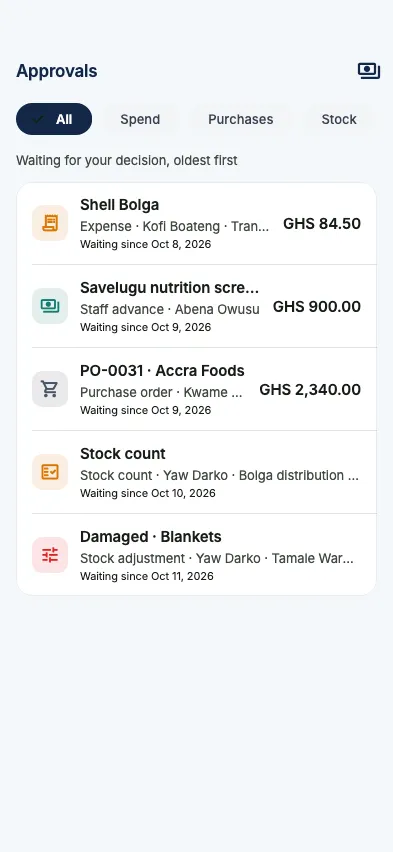
Section titled “Approvals”The Approvals tab lists everything waiting for your decision, oldest first: expenses, staff advances, spending lines on advances, reallocations, payouts from Scolah Compass, purchase orders and, for stock managers, stock adjustments and counts. The server only lists items whose current step is yours, never your own requests, and never a request you already decided a step of. The tab shows how many are waiting.
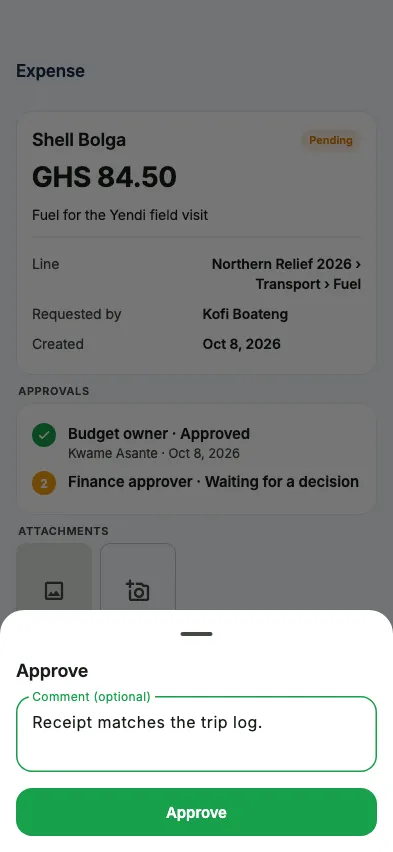
Open an item to see everything needed to decide (amount, budget line, receipts, earlier steps), then tap Approve or Reject. A comment is optional when you approve; a reason is required when you reject, and the requester sees it.
- Over the budget line: when approving takes a line over its budget, the app shows what’s available, this request and what’s left after. A finance approver or admin can approve with an override reason; anyone else is told who can. If the budget doesn’t allow going over at all, it’s blocked.
- Payouts to release (finance and admins): payouts from Scolah Compass held for finance. Open one to see the batch, beneficiaries, line and expiry, then Release or Decline. Payouts that expire within a day are flagged.
- Stock counts: only the lines that differ from what was expected are shown. Approve and post turns the differences into adjustments; Send back returns the count to the counter with your reason. Nobody approves their own count or adjustment.
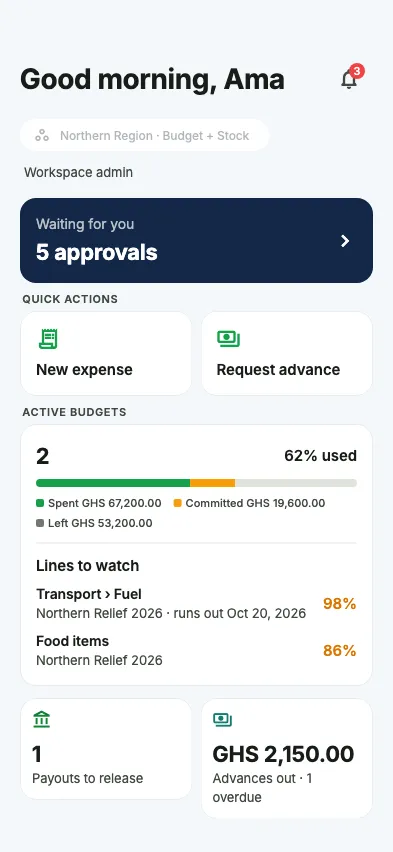
Home shows what matters for your role: how many approvals wait for you, how much of the active budgets is used with the lines to watch (budget roles), payouts to release, advances outstanding, missing receipts, and stock tiles (below minimum, expiring, transfers on the way, stock approvals). Requesters never see budget totals. Pull down to refresh.
Alerts
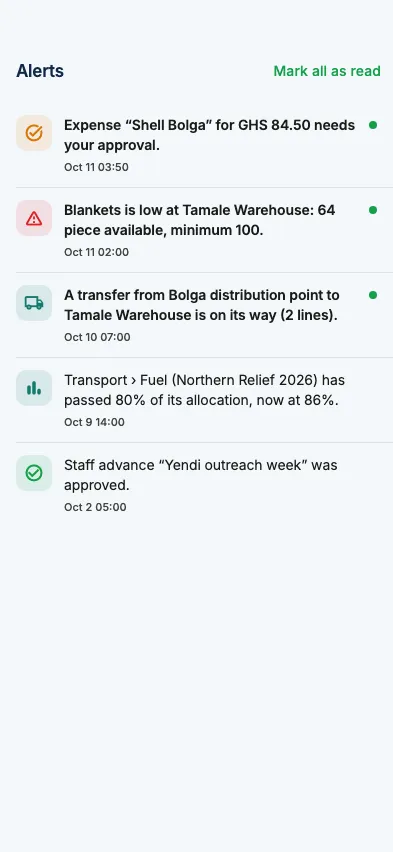
Section titled “Alerts”The bell on Home shows how many alerts you haven’t read. These are the same alerts as the portal’s bell: approvals waiting for you, decisions on your requests, low stock, expiring lots, transfers on their way, and budget lines passing 75, 90 or 100 %. Tap an alert to mark it read, or Mark all as read.
The count refreshes while the app is open. Push notifications come in a later update.
Settings
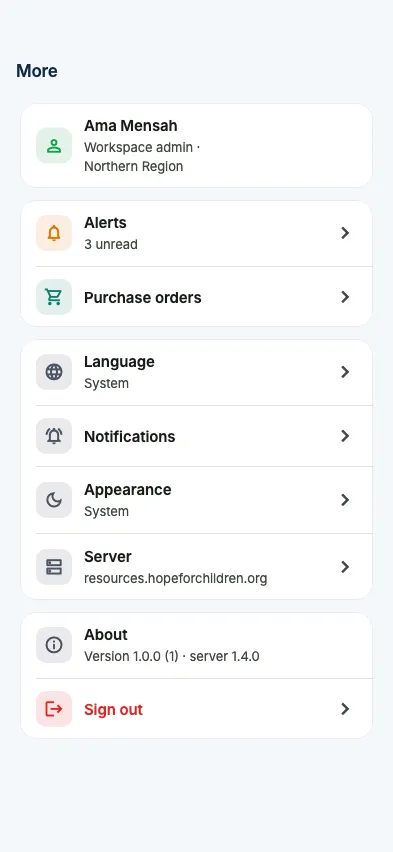
Section titled “Settings”Under More:
- Language: English, Français or Português, or follow the phone.
- Appearance: light, dark or follow the phone.
- Server: the address, type, organisation and server version.
- Sign out.
No signal
Section titled “No signal”The app works online only. It needs a connection to sign in, to load lists and to record anything; nothing is recorded offline and synced later. When you lose signal, a bar says you’re offline. Pull down to refresh once you’re back.
To be quicker, the app keeps a short-lived copy of things that rarely change (items, locations, adjustment reasons, suppliers) and of receipt files you’ve opened. Balances, budgets, requests and approvals always come straight from the server. The copy is encrypted and removed when you sign out.
For administrators of a self-hosted install
Section titled “For administrators of a self-hosted install”- The app only connects over HTTPS with a publicly trusted certificate. An install reached by plain
http://or by IP address only works in the portal, not in the app. - Staff connect with the store app: the QR code is in the portal under your name → Mobile app, and on the installation’s Domains tab in the Scolah Compass Platform. No special build is needed.
- The code checks the server first. If the portal page says the app can’t connect, update Resources or give the install an HTTPS domain.
- People need to be added under Organisation → Users in the portal. A Scolah Compass account alone isn’t enough.