

Integrations and API Keys
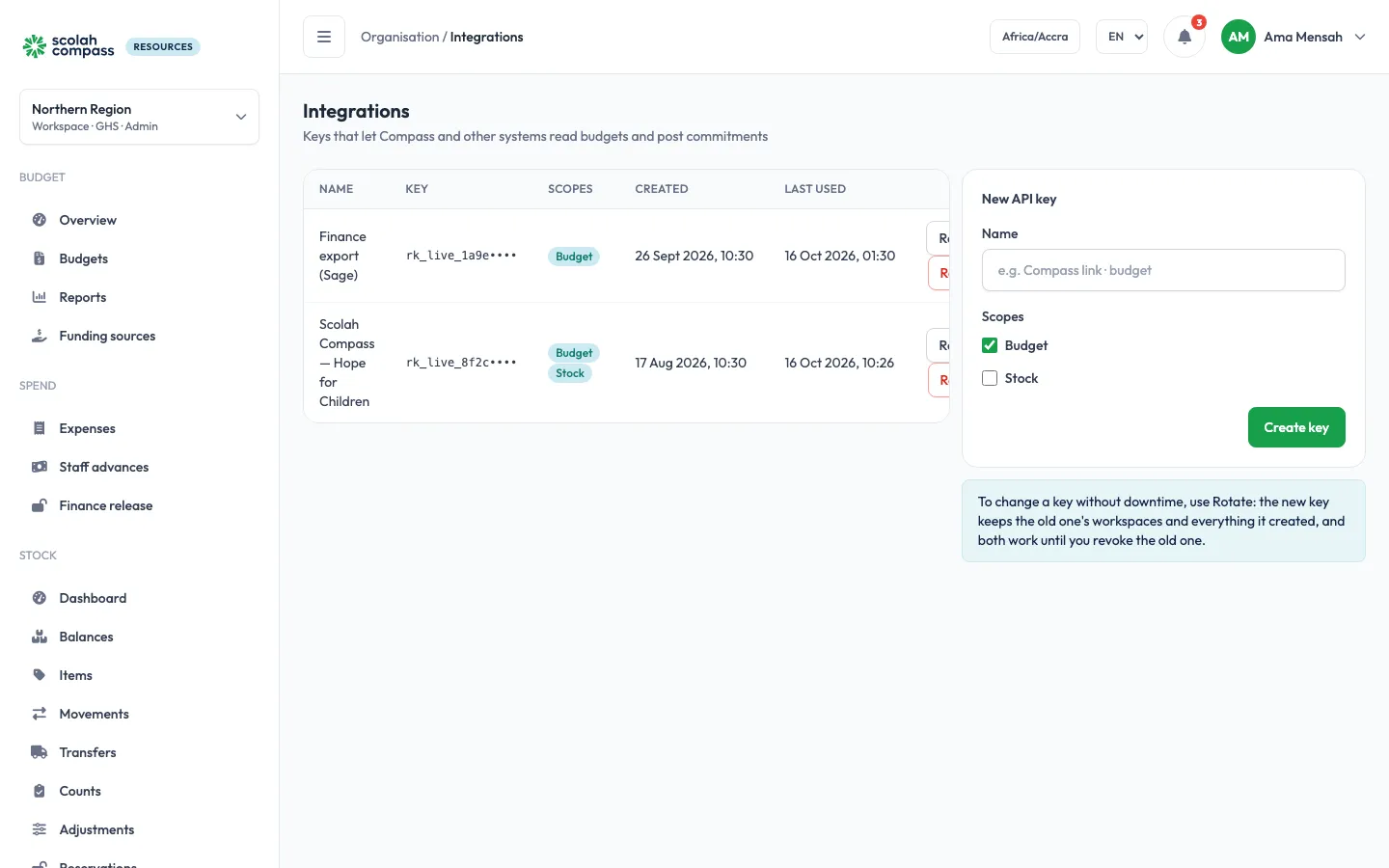
API keys let other systems, above all Scolah Compass, work with Resources: read budgets and stock, check a line before a batch is approved, post commitments and spending, reserve and issue stock. Keys belong to the whole organisation and are managed under Organisation → Integrations by people whose role has the Integrations Write permission (the Admin role by default).
Create a key
Section titled “Create a key”- Click New API key.
- Give it a Name (for example “Scolah Compass link · budget”) and choose its Scopes: Budget, Stock or both.
- Click Create key.
- Copy the key now and store it in the system that will use it. It won’t be shown again.
Rotate a key without downtime
Section titled “Rotate a key without downtime”- Click Rotate on the key and confirm. A new key is issued with the same name, scopes and workspaces.
- Copy the new key now and give it to the system that uses the old one.
- Once that system has switched, click Revoke on the old key.
Both keys work until you revoke the old one, and the new key keeps everything the old one created: open commitments, finance release requests and stock reservations stay with it. Don’t replace a key by creating a new one instead: a new key starts with no workspaces and can’t see what the old one made. Revoked keys stay listed for the audit trail; systems using them stop working straight away.
Connecting Scolah Compass
Section titled “Connecting Scolah Compass”When Scolah Compass connects with a key, it links one of its agencies to a workspace: an existing one, or a new one it creates (which counts toward the installation’s workspace limit). The linked agency shows under Settings → General → Compass settings. On the Scolah Compass Platform, the connection between the two installations is set up under Connections; see Scolah Compass Resources in the catalog.