

UNICEF HOPE
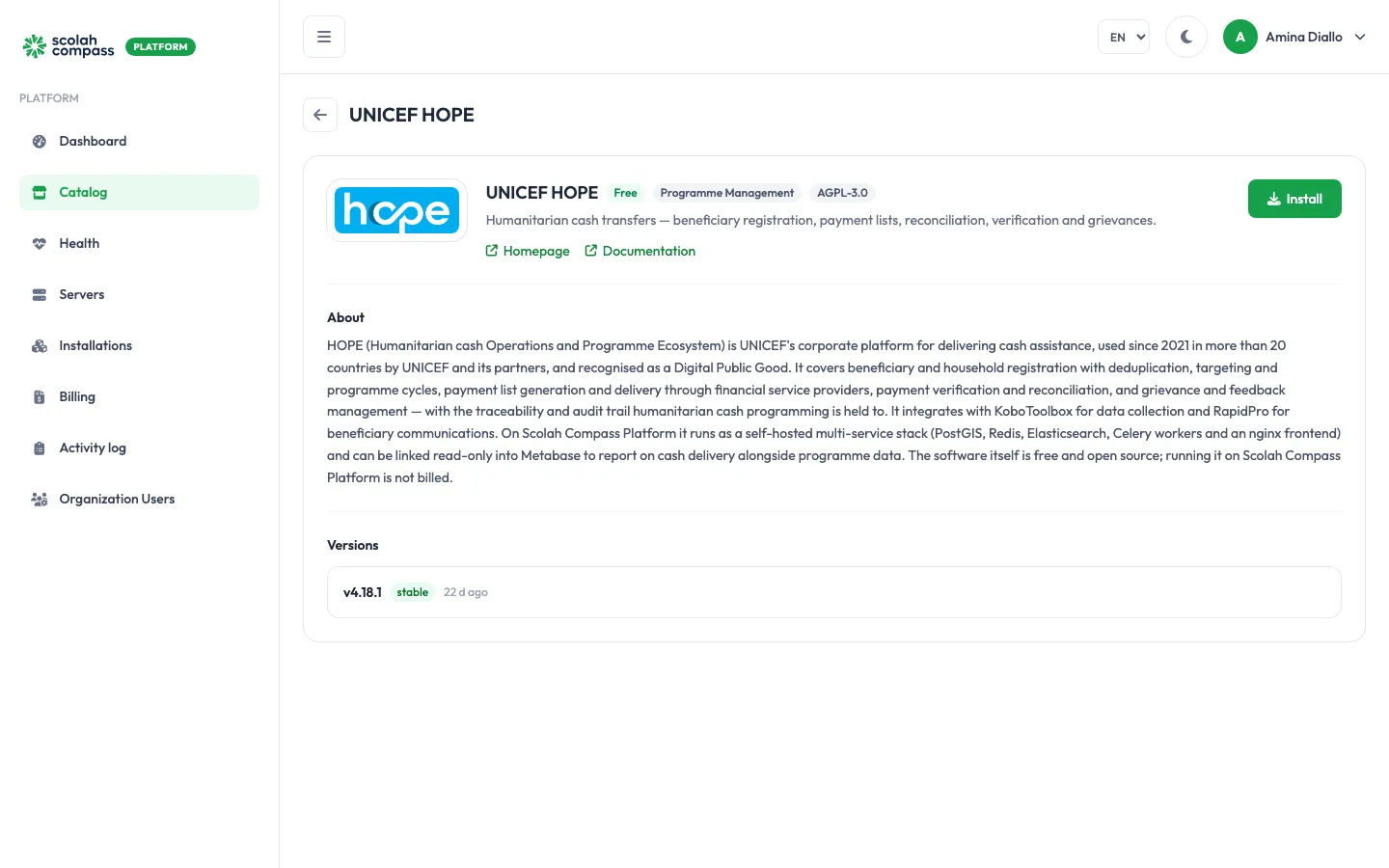
HOPE (Humanitarian cash Operations and Programme Ecosystem) is UNICEF’s platform for delivering cash assistance. It covers beneficiary and household registration with deduplication, targeting and programme cycles, payment lists and delivery through financial service providers, payment verification and reconciliation, and grievance and feedback management.
HOPE is licensed under AGPL-3.0. Free to run — not billed.
What gets installed
Section titled “What gets installed”- Frontend: a web server in front of HOPE that also serves its static files.
- Backend: the HOPE application.
- Background workers: three processes (a worker, a periodic-task worker and a scheduler) that run HOPE’s background jobs.
- Init: a one-off step that checks Elasticsearch has the plugins HOPE needs, prepares the database, creates the administrator account and loads the country list and country codes, then stops.
- Database: a PostgreSQL database with the PostGIS extension.
- Redis: the queue and cache for the background workers.
- Elasticsearch: HOPE’s search engine. A one-off step adds the search plugins HOPE needs before it starts.
HOPE is served from one web address: the installation’s main address. You can reach it on the server’s IP address, or give it a domain.
Before you install
Section titled “Before you install”- HOPE is published for x86-64 (amd64) servers only. Install it on an x86-64 server. On an ARM (arm64) server it runs under emulation, which is noticeably slow, and the wizard does not stop you: Server fit shows an Architecture: arm64 warning, but lets you continue.
- If you use an Elasticsearch server you already run, it must have the analysis-phonetic and analysis-icu plugins installed on every node. To install them, run
elasticsearch-plugin install analysis-phonetic analysis-icuon each node, then restart Elasticsearch. Before HOPE prepares its database, the installation checks for these plugins. If either is missing, the deployment fails, and the error names the missing plugin. The bundled Elasticsearch already has both. - Elasticsearch uses more memory than any other part of the installation. Deployment size sets its heap. If you add a larger
-Xmxin Elasticsearch JVM options, keep it under the Elasticsearch container limit: 2 GiB on small, 4 GiB on medium.
Choose a Deployment size:
- small: 2 web workers, 2 background workers plus 1 for periodic tasks, and a 1 GiB Elasticsearch heap. Its containers are limited to about 8 GiB of memory in total.
- medium: 4 web workers, 4 background workers plus 2 for periodic tasks, a 2 GiB Elasticsearch heap and more database memory, for larger beneficiary registries, bigger payment lists and more concurrent users. About 14.5 GiB in total.
You can change the size later with Scale. The new worker counts and memory limits apply when the installation restarts.
The wizard’s Server fit check tells you whether your server is big enough for the size you pick.
Options
Section titled “Options”| Field | What it does |
|---|---|
| Deployment size | small or medium, as above. |
| Public domain | The hostname HOPE uses in links in emails and exports, such as hope.example.org. Leave it blank to use the server IP. |
| Administrator username | The administrator account created on first start. Default admin. A later upgrade won’t change it. |
| Administrator email | The email address of that account. Default admin@example.org. |
| Maximum upload size | The largest file people can upload, such as 50m or 200m. Raise it for large beneficiary imports and reconciliation files. Default 50m. |
Advanced holds Allowed hosts (default *; narrow it to your domain once one is attached), Elasticsearch JVM options, and the outbound email settings: SMTP host (leave blank to send no email), SMTP port, SMTP username, SMTP password and From address. SMTP password is sealed and is never shown again. If you attach an Outbound email relay connection instead, it fills in all of these for you. The database is always named hopedb. On the bundled database server, its user is always hope. You can also use a PostgreSQL, Redis or Elasticsearch server you already run instead of the bundled ones. See external services.
First sign-in
Section titled “First sign-in”The first administrator is the account in Administrator username and Administrator email, which you type in the wizard. The platform generates its password.
When you click Create, the portal shows the password once, under First login credentials. Copy it into your password manager before leaving the page.
Open the installation’s address and sign in with that username and password. To change the password later, change it inside HOPE.
The database password and the application’s secret key are also generated by the platform and sealed. You never need to type them.
Connections
Section titled “Connections”HOPE can offer another installation on the same server:
- Cash transfer programme data (read-only): read-only access to the HOPE database, for reporting tools such as Metabase. User accounts, sign-in data, sessions and tokens are left out.
It can use from another installation:
- Outbound email relay: lets HOPE send its grievance and payment notifications. Optional.
See connections.