

Connect a Kubernetes cluster
A whole Kubernetes cluster can be one server in the portal. You install two components into the namespace scolah-system, each with its own Helm chart:
- The agent (
scolah-agent) connects to the platform, downloads and checks each application bundle, and writes down what should run on the cluster. It doesn’t start any workloads itself. - The operator (
scolah-operator) does the work. It checks each bundle’s signature again for itself, then creates the application’s workloads, volumes and web routes.
The two share one volume, scolah-agent-bundles. The agent puts checked bundles on it and the operator reads them from it. One cluster runs exactly one agent and one operator.
You need to be an Organization admin to register the server, and have admin rights on the cluster to install the charts.
Before you start
Section titled “Before you start”Cluster
- Kubernetes with Helm 3 and
kubectl. We test on Kubernetes 1.37. The charts don’t set a minimum version. - A default StorageClass. The charts create two volumes: a 10 GiB volume for bundles and a 1 GiB volume for the agent’s identity. Applications create their own volumes for their data. None of them name a storage class, so the cluster’s default is used.
- On a cluster with more than one node, the bundles volume is
ReadWriteOnceby default, so the agent and the operator must run on the same node. To let them run on different nodes, use a storage class that supportsReadWriteManyand add--set bundles.accessMode=ReadWriteMany --set bundles.storageClass=<class>to the agent’s install command.
Web traffic
- An Ingress controller, such as ingress-nginx, if people will reach installations through a domain. The operator gives each domain an
Ingress. You don’t need one to connect the cluster or to deploy applications. - cert-manager and a ClusterIssuer if you want Let’s Encrypt (automatic HTTPS) on a cluster. The operator doesn’t request certificates itself. It asks your issuer for them.
If your cluster runs a Gateway (Kubernetes Gateway API) instead, installations can attach their routes to it. Choose Terminated by your Gateway as the domain’s TLS mode (see Domains and HTTPS).
Network
- Outbound HTTPS from the agent’s pod to the platform address in the install command.
- Outbound access from the nodes to the container registries the applications’ images come from. The cluster pulls images on each node, not through the agent.
- No inbound ports to connect the cluster or deploy applications. For domains, your Ingress controller must be reachable on ports 80 and 443.
1. Register the cluster
Section titled “1. Register the cluster”-
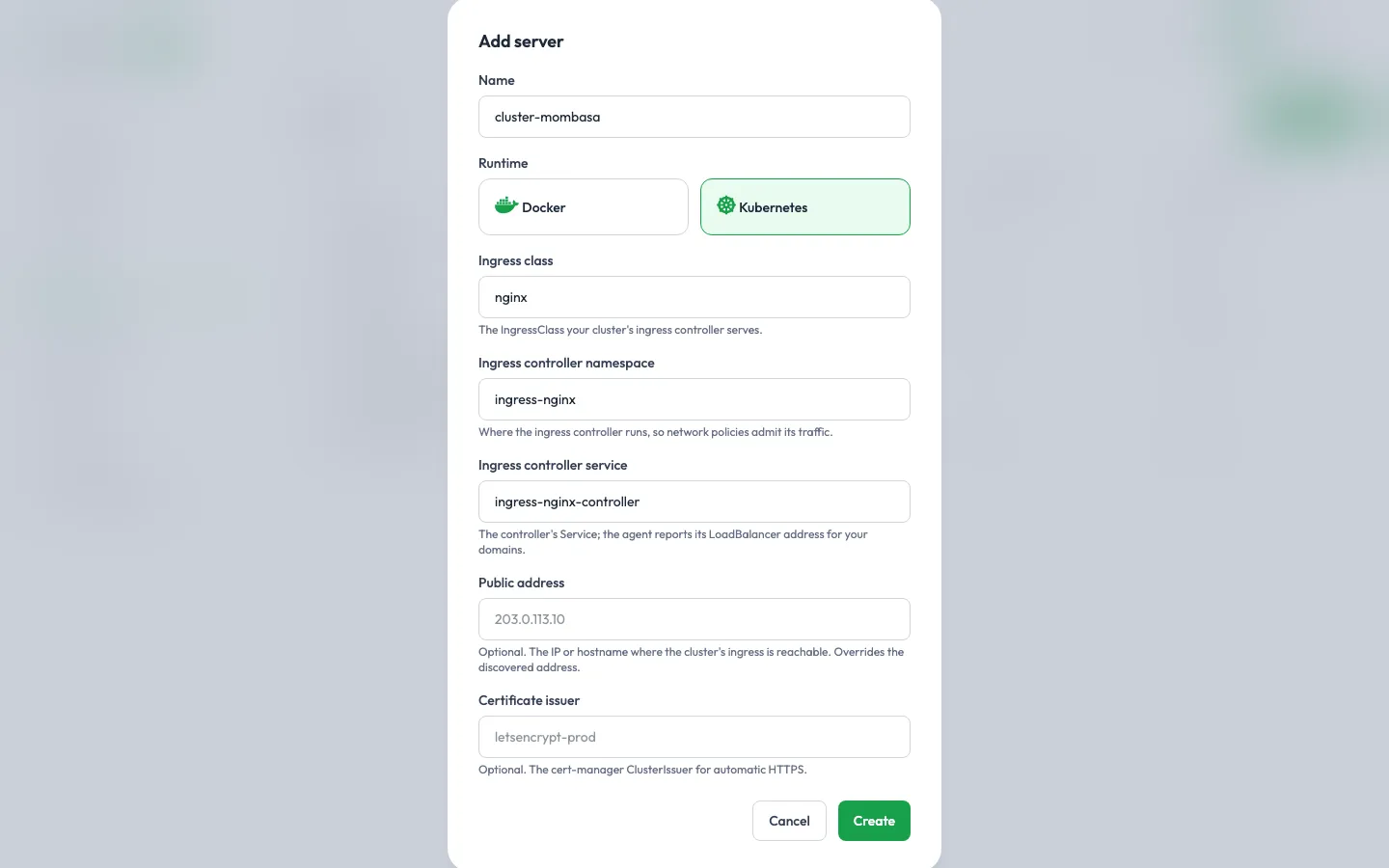
Go to Servers and click Add server.
-
Give it a Name you’ll recognise, such as
cluster-nairobi. -
Choose Kubernetes as the Runtime. There’s no operating system to choose.
-
Check the cluster settings. The portal puts them into the install command:
- Ingress class: your Ingress controller’s class. Default
nginx. - Ingress controller namespace: the namespace your Ingress controller runs in. Default
ingress-nginx. Each installation’s namespace blocks traffic from other namespaces, and this lets your Ingress controller through. - Ingress controller service: your Ingress controller’s Service. Default
ingress-nginx-controller. The agent reports that Service’s load-balancer address as the cluster’s public address, for your domains. - Public address (optional): the IP or hostname where the cluster’s Ingress controller is reachable from outside, such as
203.0.113.10. Set it when the load-balancer address isn’t the one people reach, for example behind NAT. It overrides the discovered address. - Certificate issuer (optional): the cert-manager ClusterIssuer for Let’s Encrypt (automatic HTTPS) domains, such as
letsencrypt. Without one, those domains get no route.
Names can use lowercase letters, digits,
-and.. - Ingress class: your Ingress controller’s class. Default
-
Click Create.
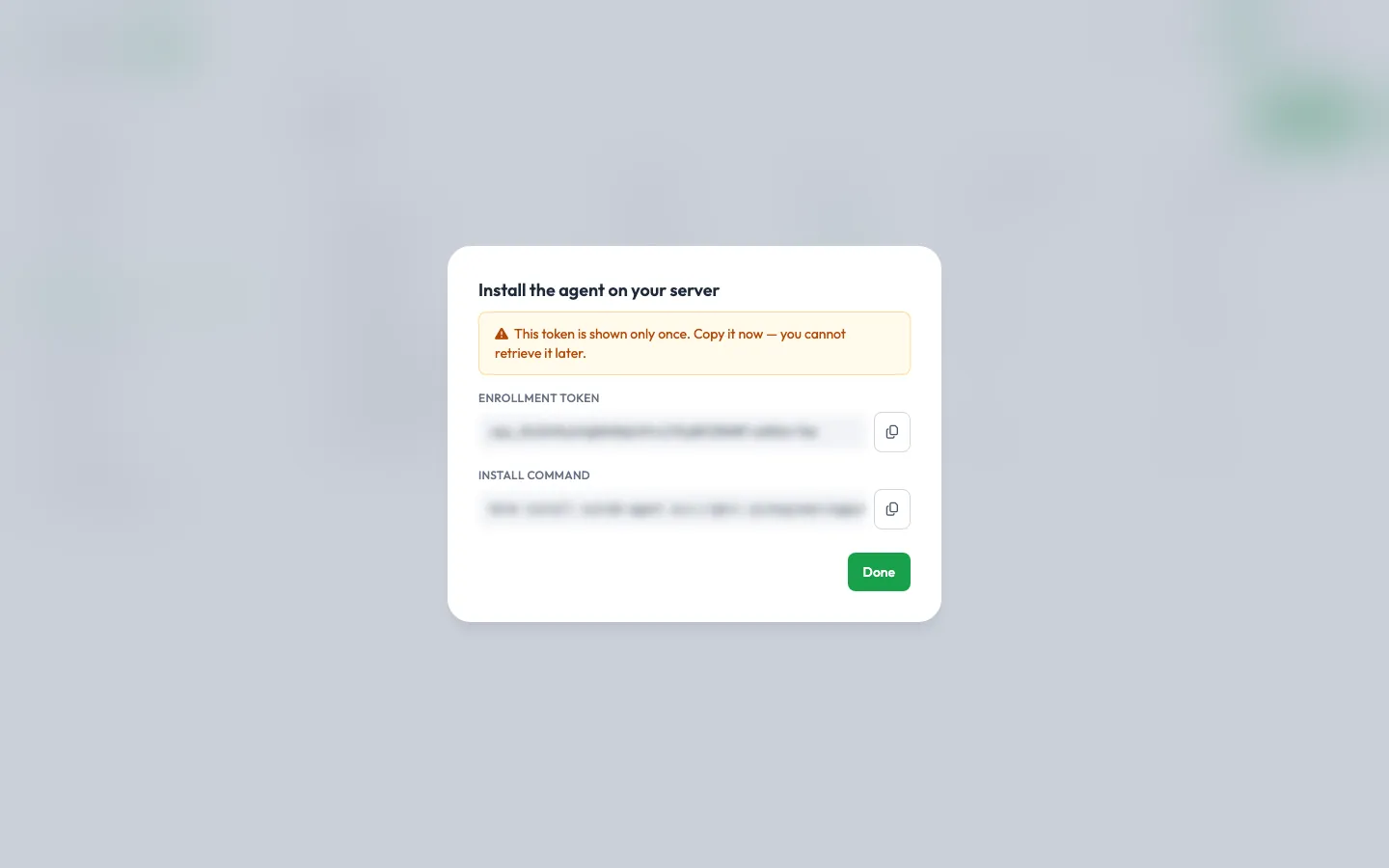
The portal shows an Enrollment token and an Install command.
2. Install the agent and the operator
Section titled “2. Install the agent and the operator”The install command installs both charts in one go. It looks like this:
helm install scolah-agent oci://ghcr.io/engineeringpurple/charts/scolah-agent \ --namespace scolah-system --create-namespace \ --set platformUrl=https://… --set enrollToken=spa_… \ --set ingressService=ingress-nginx/ingress-nginx-controller \&& helm install scolah-operator oci://ghcr.io/engineeringpurple/charts/scolah-operator \ --namespace scolah-system \ --set bundles.pvc=scolah-agent-bundles \ --set platformReleaseKey=… \ --set ingressClassName=nginx \ --set ingressControllerNamespace=ingress-nginx- The agent release creates the
scolah-systemnamespace, the agent itself, and the sharedscolah-agent-bundlesvolume. The token is used once, when the agent enrolls. - The operator release goes into the same namespace.
bundles.pvcpoints it at the volume the agent release created. platformReleaseKeyis the platform’s public signing key. The operator checks every application bundle against it before deploying.ingressService(on the agent) andingressClassNameandingressControllerNamespace(on the operator) come from the cluster settings you chose. A Public address adds--set publicAddress=…to the agent, and a Certificate issuer adds--set certManager.issuerRef.name=…to the operator.
If the cluster doesn’t have cert-manager yet, add --set certManager.install=true to the operator part to install it with the operator. You still need to create the ClusterIssuer yourself.
To change the cluster settings later, open the server and click Regenerate token: it shows the same settings above a new command.
3. Check that it’s connected
Section titled “3. Check that it’s connected”Within a minute, the server’s status in the portal changes from Pending to Connected, and the agent version and the cluster’s resources appear.
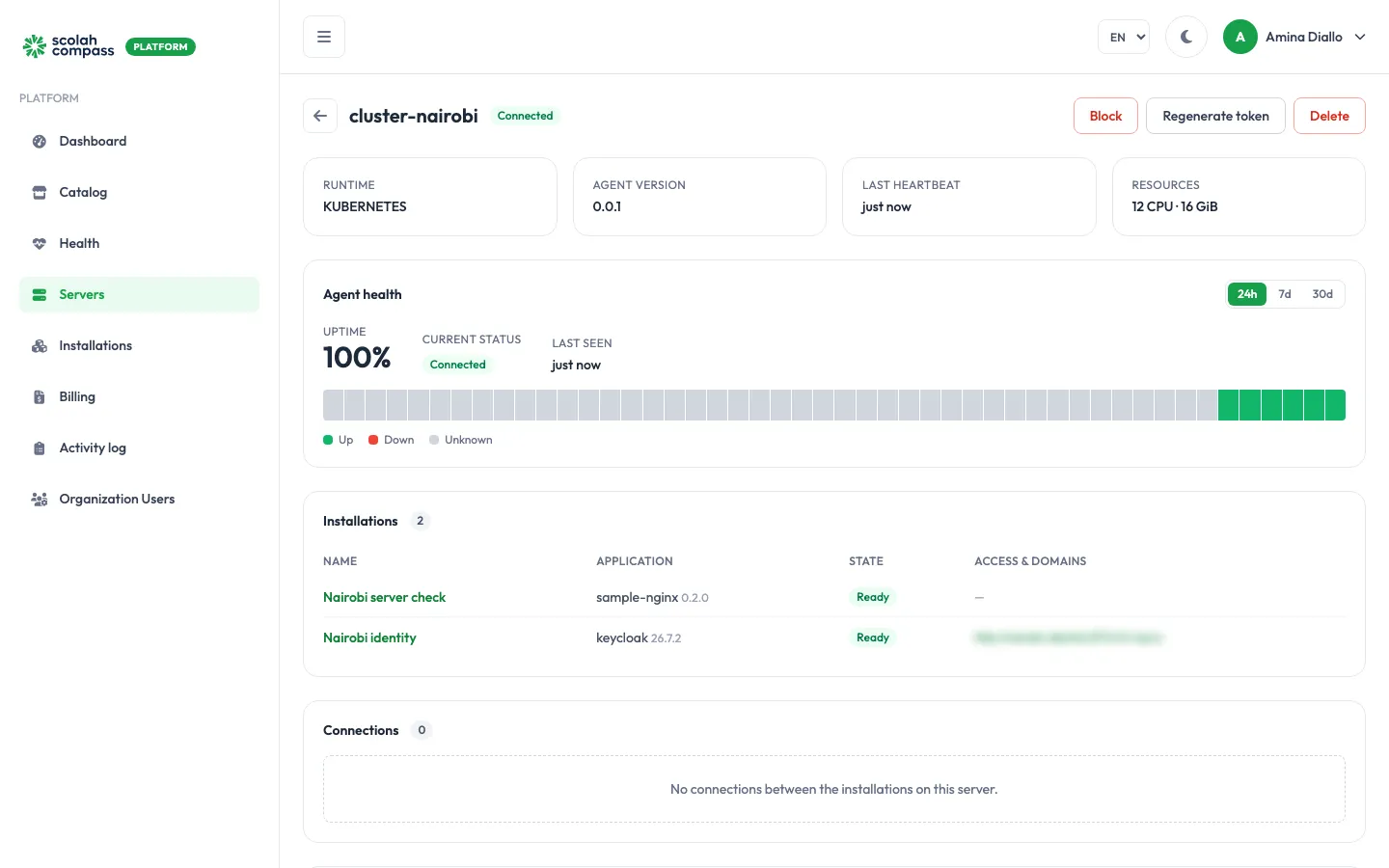
If it doesn’t, check the pods and the agent’s log:
kubectl -n scolah-system get podskubectl -n scolah-system logs statefulset/scolah-agentA working agent logs enrolled, then agent ready. When the operator starts, it logs a PREFLIGHT line for each thing it can’t fix itself, such as a missing release key, no cert-manager, or no registry credential. These don’t stop it from starting, but they tell you what will fail later:
kubectl -n scolah-system logs deploy/scolah-operator | grep PREFLIGHTThe agent keeps its identity on its own volume, so it doesn’t need the token again. An upgrade with helm upgrade needs no token either.
What each installation gets
Section titled “What each installation gets”Create installations on the cluster the same way as on a Docker server: pick the cluster in the wizard’s Server list. For each installation, the cluster gets:
-
A namespace named after the application and the start of the installation’s ID, such as
sample-nginx-21333d29. Everything the installation runs lives there. -
An
Installationresource, named with the installation’s ID. It shows what the operator is doing:Terminal window kubectl get installations -
A Secret
<app>-envwith the application’s settings and passwords. Only the agent can decrypt what the platform sends, so it writes this Secret itself. -
NetworkPolicies that block traffic from other namespaces, except from your Ingress controller.
-
For apps that use Scolah’s private images (Scolah Compass, OpenEWS), a pull secret
scolah-registry-authholding your organisation’s registry credential. The agent writes it and the pods use it automatically, so you don’t set up a registry credential on the cluster yourself. -
When the installation is protected by disaster recovery, a pull secret
scolah-dr-agent-pull: a copy of theimagePullSecretsset on the agent’s chart, so the disaster recovery pods can pull the agent’s image from a private registry. See Private registries on a cluster. -
The application’s own workloads, services and volumes.
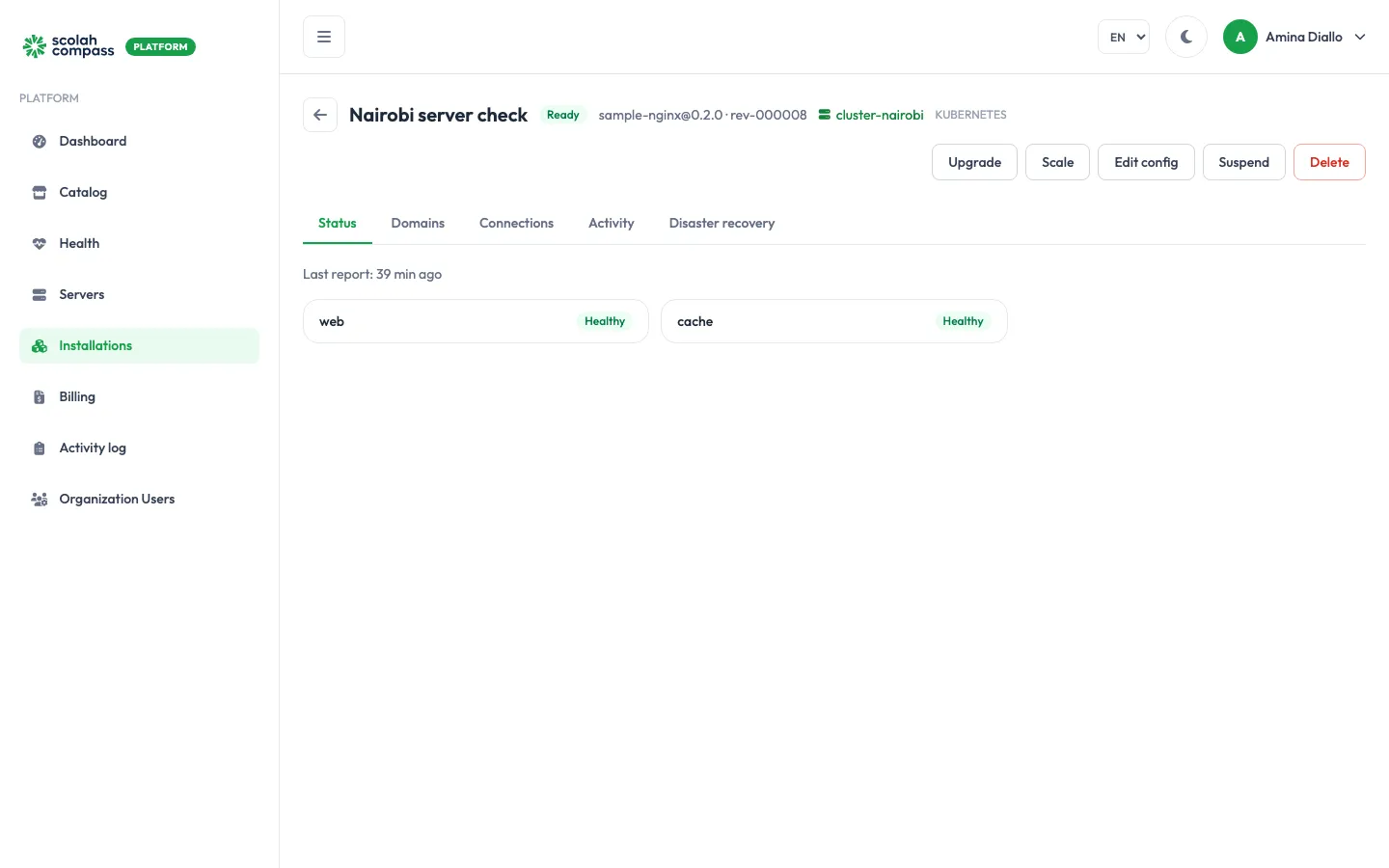
An installation on a cluster has no address until you add a domain. On a Docker server, the portal shows the server’s IP address and a port. A cluster has neither, so the Access & Domains box stays empty.
Connections work on a cluster too. Both installations must be on the same cluster.
Domains and HTTPS
Section titled “Domains and HTTPS”Add a domain from the installation’s Domains tab, as described in Domains and HTTPS. Once the domain is verified, the operator creates an Ingress named scolah-route-<site> in the installation’s namespace, and removes it when you delete the domain.
The cluster’s public address
Section titled “The cluster’s public address”DNS for a cluster’s domains points at wherever your Ingress controller is reachable from outside. The agent reports that address to the portal:
- If you set a Public address (
publicAddresson the agent’s Helm release), that address is used. - Otherwise the agent reads the external IP or hostname of your Ingress controller’s
LoadBalancerService.
The portal then tells you which record to create: an A record when the address is an IP, or a CNAME when it’s a hostname (as cloud load balancers often are). A Scolah subdomain creates that record for you.
If the cluster has no public address yet, for example because its Ingress controller isn’t exposed through a load balancer, the Domains tab says so, and you can’t add a Scolah subdomain until it has one. Expose the Ingress controller through a LoadBalancer Service, or set publicAddress on the agent’s Helm release.
TLS modes on a cluster
Section titled “TLS modes on a cluster”| TLS mode | On a cluster |
|---|---|
| Let’s Encrypt (automatic HTTPS) | cert-manager gets the certificate from the issuer set in certManager.issuerRef.name. |
| Bring your own certificate | Click Add certificate next to the domain and paste the certificate and key. The agent stores them in a Secret scolah-tls-<site>. The domain has no route until the certificate is there. |
| No TLS (behind external proxy) | The site is served over plain HTTP. |
| Terminated by your Gateway (Kubernetes Gateway API) | Only on clusters. The route attaches to a Gateway you already run, which terminates HTTPS. Optionally name the Gateway’s namespace, name and listener; leave them empty to use the operator’s default Gateway. Point the hostname at your Gateway’s external address. |
Is the domain routed?
Section titled “Is the domain routed?”Each domain on the Domains tab shows Routed once the cluster serves it, or Not routed with the reason, for example a missing certificate or issuer. The status updates without a new apply: the operator rechecks a domain as soon as its certificate Secret is added or removed, or its route is changed or deleted, and the agent reports the change on its next poll, usually within 30 seconds. This needs the latest agent. Older agents update the status only when the installation is applied.
Remove an installation
Section titled “Remove an installation”Delete an installation in the portal as usual. On a cluster, the operator removes the workloads and then deletes the installation’s namespace, including its volumes and data. After that, it deletes the Installation resource.
Don’t delete an Installation with kubectl. The platform is the source of truth, so the agent writes it back and the operator starts the application again on its kept volumes.
Disconnect the cluster
Section titled “Disconnect the cluster”-
Delete every installation on the cluster in the portal. The portal won’t delete a server that still has installations.
-
Open the server and click Delete.
-
Uninstall both charts:
Terminal window helm uninstall scolah-operator --namespace scolah-systemhelm uninstall scolah-agent --namespace scolah-system
Helm leaves two things behind: the Installation and Link resource definitions, and the agent’s identity volume (state-scolah-agent-0). Delete them yourself if you won’t connect the cluster again.
Disaster recovery
Section titled “Disaster recovery”A cluster can take part in disaster recovery on either side. Its installations can be protected, and once it’s marked DR-eligible it can host standbys, for installations on a Docker server or on another cluster. Whenever a cluster is involved, you need an artifact store both servers can reach. See Kubernetes clusters for how backups, drills, failover and failback work on a cluster.
At the Continuous tier, a cluster can be the primary or the DR server for PostgreSQL and MariaDB databases, paired with a Docker server or another cluster. Either side needs agent 0.0.2 or later, a default StorageClass, and the agent’s own image pullable: if it’s in a private registry, set imagePullSecrets on the agent’s chart and the agent copies them into each installation’s namespace for the disaster recovery pods. As the primary, it also needs room for the shipper’s volume; for PostgreSQL, a superuser database account, and the agent adds one marked line to pg_hba.conf without restarting the database; for MariaDB, binary logging in row format and the replication grants, with no change to the database. Both sides need the same CPU architecture: on a primary cluster the platform checks the node each database runs on, while on a DR cluster that mixes architectures it can’t know the standby database’s node in advance, so pin the standby database to the primary’s architecture. As the DR server, a PostgreSQL standby needs its data on a volume that isn’t ReadWriteOncePod and is briefly stopped while it’s seeded from a base, while a MariaDB standby keeps running throughout. See Continuous with a primary on a cluster and Continuous with the DR server on a cluster for the full lists.