

Connections
A connection gives one installation access to something another installation provides. For example:
- Metabase reads Moodle training records, or Compass case data, to build dashboards.
- Compass signs people in through Keycloak.
- Compass sends its AI requests through LiteLLM.
- An application sends email through your organisation’s mail relay.
The platform sets up both sides for you. It creates a dedicated account on the provider (for data, a read-only one), gives the credentials to the consumer, and keeps them in step. You never copy passwords between applications.
- Both installations must be on the same server. Single sign-on is the exception: it works across servers.
- A connection can also point at a service you already run, registered on the server as an external service.
- Only Organization admins can create, change or remove connections. Members can see them.
- Your organisation has a connection quota, shown as connections used on the Connections tab. Contact Scolah to raise it.
Connect two installations
Section titled “Connect two installations”- Open the installation that will use the connection (for example Metabase), then open its Connections tab.
- Under Consuming, find what you want to connect, such as Analytics data source.
- Choose an installation… from the list. Only compatible installations on the same server are offered.
- Click Connect.
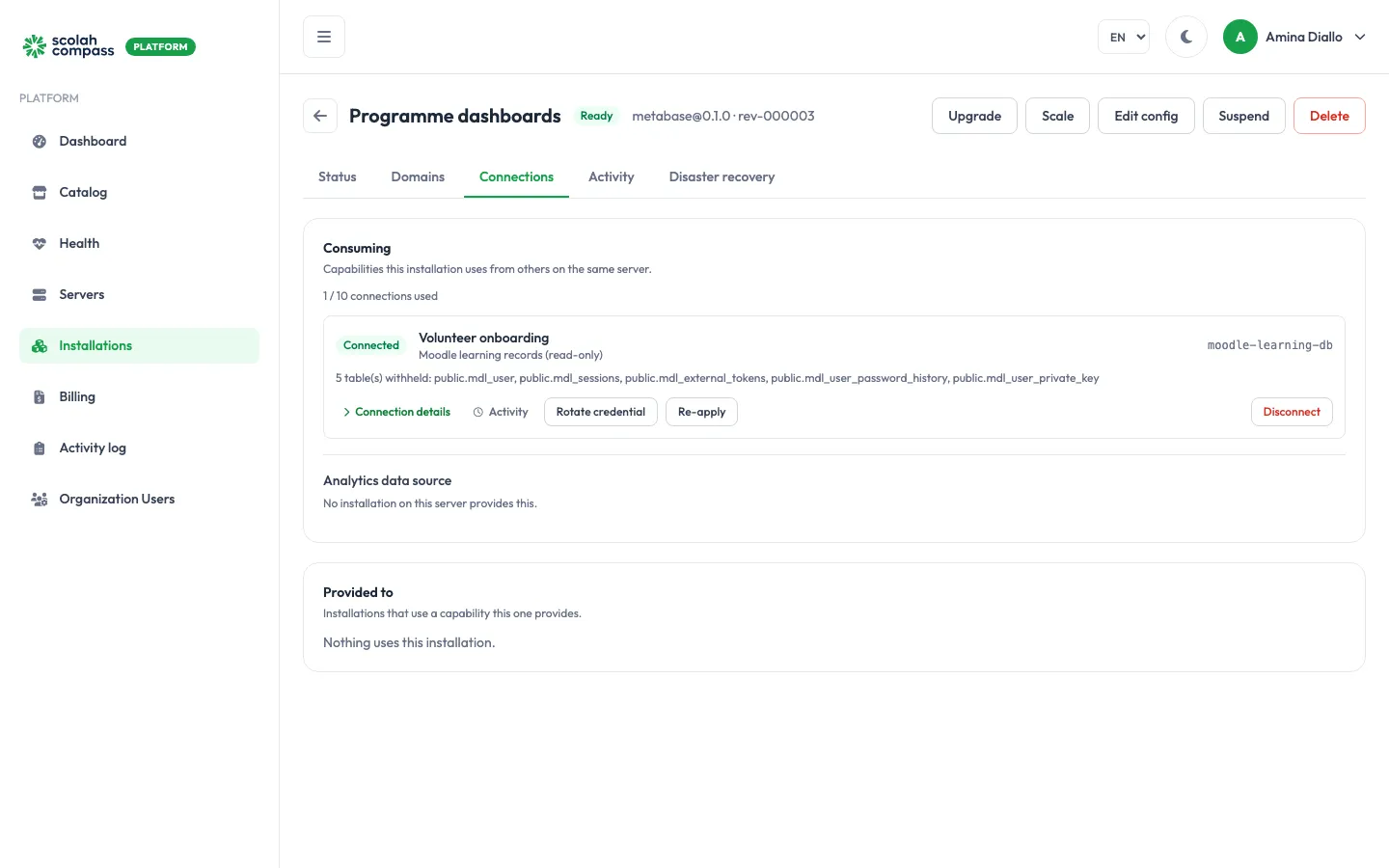
The connection shows Connecting, then Connected once both sides are configured. That usually takes under a minute.
You can also connect from the other side. The provider’s Provided to section lists the installations using it. And you can connect while creating an installation, in the wizard’s Connect step.
What a read-only data connection includes
Section titled “What a read-only data connection includes”A data connection gets its own read-only database user. Tables that hold passwords, tokens and keys are left out, and the connection shows how many tables were withheld. The consuming application can read the rest but can’t change anything.
Manage a connection
Section titled “Manage a connection”| Action | What it does |
|---|---|
| Connection details | Shows the host, database and username the consumer uses. Reveal shows the password. |
| Activity | The steps the agent took to set the connection up, and any errors. |
| Rotate credential | Creates a new password and retires the old one once both sides have switched. An application that reads it from its environment restarts. |
| Re-apply | Asks the agent to set the connection up again from scratch. |
| Retry | Tries again after a connection Failed. |
| Disconnect | Removes the consumer’s access and deletes the account created for it. |
Connection states
Section titled “Connection states”| State | Meaning |
|---|---|
| Pending / Connecting | Being set up. |
| Connected | Working. |
| Degraded | Set up, but the last check failed. The next check may fix it; if not, use Re-apply. |
| Failed | Couldn’t be set up. Activity shows why. Fix the cause, then Retry. |
| Disconnecting / Disconnected | Being removed / removed. |