

Connect a server
Connecting a server takes two steps: register it in the portal, then run the agent on it with the one-time token the portal gives you. You need to be an Organization admin.
Before you start, check the server requirements.
1. Register the server
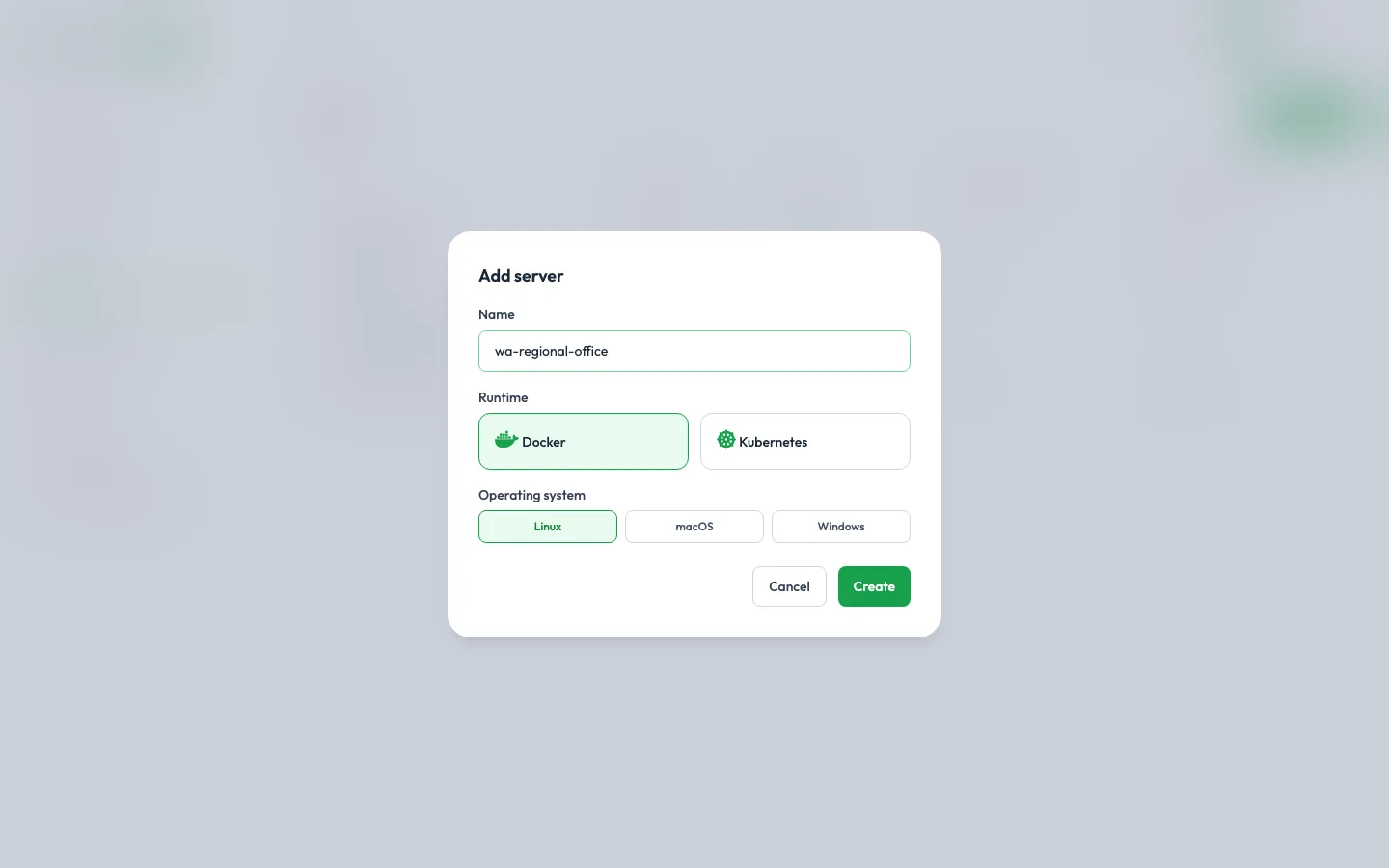
Section titled “1. Register the server”- Go to Servers and click Add server.
- Give it a Name you’ll recognise, such as
field-office-accra. Installations are listed by server name, so it’s worth making it meaningful. - Choose Docker as the runtime and pick the server’s Operating system.
- Click Create.
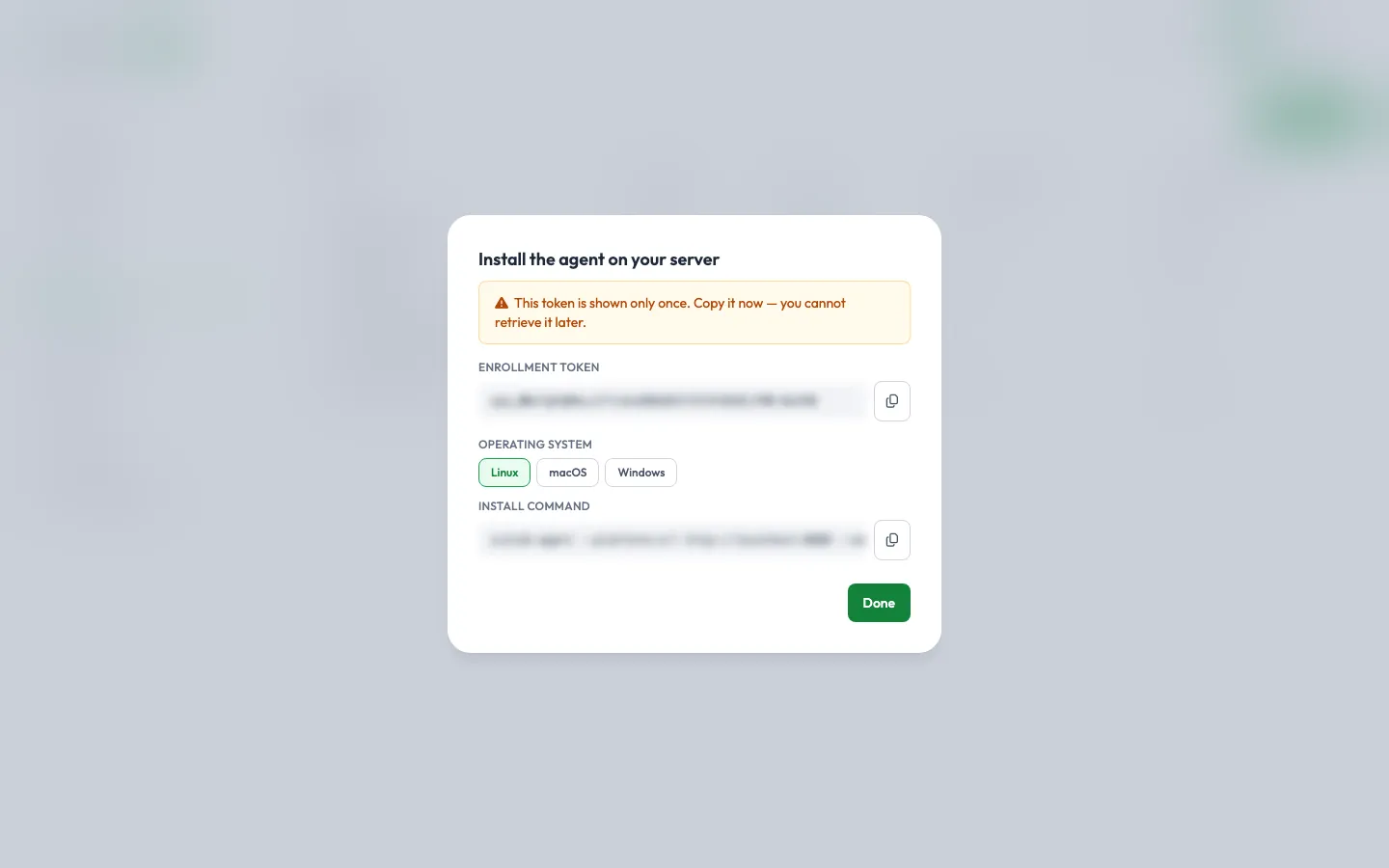
The portal now shows an Enrollment token and an Install command for the operating system you picked.
2. Get the agent
Section titled “2. Get the agent”The agent is a single program called scolah-agent (scolah-agent.exe on Windows). Download it for your server’s operating system and processor, check it against SHA256SUMS, and put it on your PATH. On an Intel/AMD Linux server:
curl -fLO https://docs.scolah.com/downloads/agent/latest/scolah-agent-linux-amd64sudo install -m 0755 scolah-agent-linux-amd64 /usr/local/bin/scolah-agent3. Run the agent
Section titled “3. Run the agent”On the server, paste the install command from the portal. It looks like this:
scolah-agent --platform-url https://… --enroll-token spa_… --state-dir ~/.scolah-agent-field-office-accra --acme-email you@your-organisation.orgOn Windows (PowerShell):
scolah-agent.exe --platform-url https://… --enroll-token spa_… --state-dir $env:USERPROFILE\.scolah-agent-field-office-accra --acme-email you@your-organisation.orgWithin a few seconds the server’s status in the portal changes from Pending to Connected, and the agent version and server resources appear.
- The
--state-dirfolder holds the server’s identity once it’s enrolled. Keep it, and don’t share it between servers: each server needs its own folder. If two agents share one, the second silently runs as the first server. --acme-emailis your email address, filled in by the portal. Let’s Encrypt uses it for certificate notices when you give an installation a domain with automatic HTTPS.- After the first run the token is used up. On later starts, the agent authenticates with the identity stored in its state folder.
4. Keep the agent running (Linux)
Section titled “4. Keep the agent running (Linux)”The command above runs the agent in your terminal, so it stops when you close the session. On a Linux server, run it as a system service so it starts on boot and restarts if it stops.
-
Create
/etc/scolah-agent/env. Use the platform address, token and email from your install command:Terminal window PLATFORM_URL=https://…ENROLL_TOKEN=spa_…STATE_DIR=/var/lib/scolah-agentACME_EMAIL=it@your-organisation.org -
Create
/etc/systemd/system/scolah-agent.service:[Unit]Description=Scolah Compass Platform AgentAfter=network-online.target docker.serviceWants=network-online.target[Service]ExecStart=/usr/local/bin/scolah-agentEnvironmentFile=/etc/scolah-agent/envRestart=alwaysRestartSec=5# Exit code 3 means the platform blocked this server; don't restart-loop on it.RestartPreventExitStatus=3[Install]WantedBy=multi-user.target -
Start it:
Terminal window sudo mkdir -p /var/lib/scolah-agent && sudo chmod 700 /etc/scolah-agent /var/lib/scolah-agentsudo systemctl daemon-reloadsudo systemctl enable --now scolah-agentjournalctl -u scolah-agent -f
What the agent can and can’t do
Section titled “What the agent can and can’t do”- It only makes outbound connections to the platform. The platform can’t open a connection into your network.
- It only deploys signed application bundles. Before running anything, it checks Scolah’s signature and every file in the bundle, and it refuses anything that doesn’t match.
- Secrets such as database passwords are encrypted for that one server and only decrypted on it.
- If Scolah or your admin blocks the server, the agent stops, and the applications already on the server keep running.