

Quickstart
This walkthrough takes you from your first sign-in to a working application. You’ll need:
- an Organization admin account on the platform
- a server that meets the requirements: Docker with Docker Compose, and outbound HTTPS
- a terminal on that server with permission to run
docker
1. Sign in and secure your account
Section titled “1. Sign in and secure your account”Sign in at platform.scolah.com and turn on two-factor authentication from Profile → Security. See Sign in.
2. Connect your server
Section titled “2. Connect your server”- Go to Servers → Add server, name it, choose Docker and your operating system, then click Create.
- Copy the Install command. It’s only shown once.
- On the server, download the agent and run the install command.
- Back in the portal, wait for the server to show Connected.
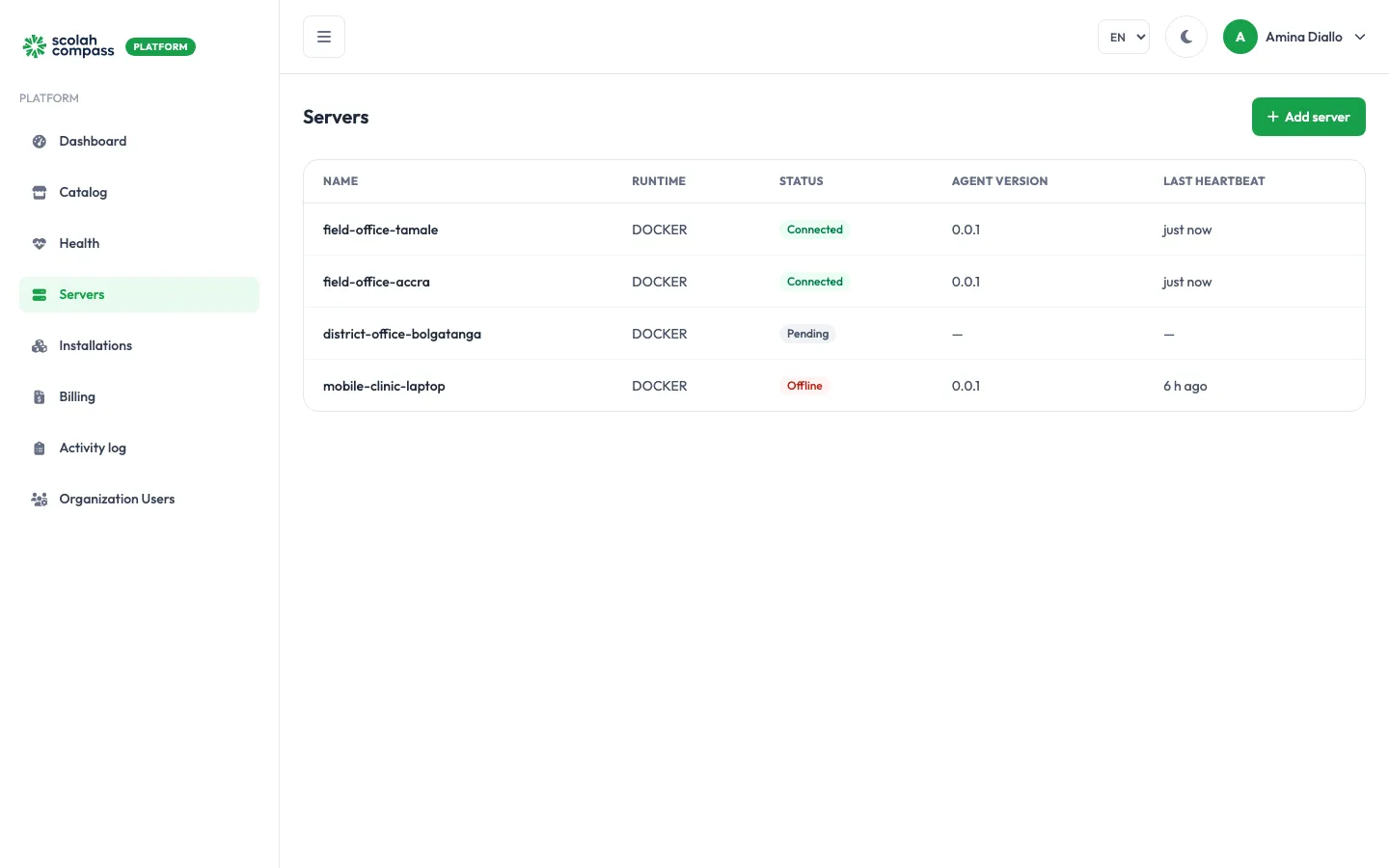
Full details, including how to run the agent as a service: Connect a server.
3. Install an application
Section titled “3. Install an application”- Go to Installations → New installation.
- Pick an application, then a version. Sample (nginx) is the quickest first try: it deploys in seconds and proves the server works end to end.
- Name the installation, choose your server, and click Next through Connect to Review.
- Click Create, and copy the first login credentials shown on the next screen.
- Watch the deployment. After a few minutes the state becomes Ready.
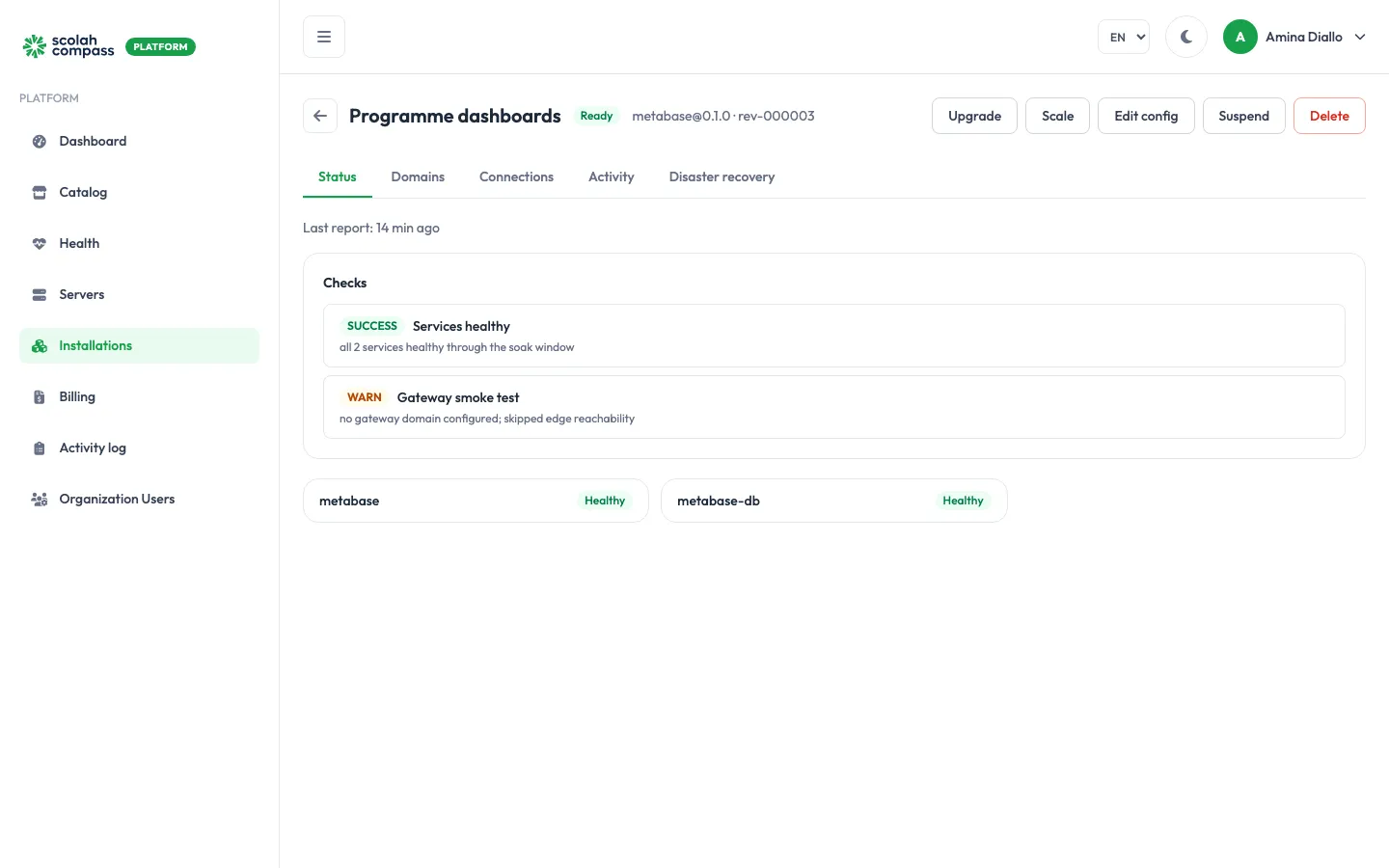
Full details: Create an installation.
4. Open it
Section titled “4. Open it”Until you add a domain, the installation is reachable at the server’s IP address. To give it a proper address with HTTPS, open the installation’s Domains tab. See Domains and HTTPS.
5. Invite your team
Section titled “5. Invite your team”Go to Organization Users → Add user to give colleagues access. Members can run day-to-day operations; admins can also create and delete. See Users and roles.