

Disaster recovery
Disaster recovery (DR) keeps a standby copy of an installation on a second server, ideally in another building or data centre. If the site running the installation is lost, an admin can fail over: the standby becomes the installation people use.
Recovery is asynchronous. The standby is always a little behind, so the most recent writes can be lost in a failover.
How it works
Section titled “How it works”When you turn DR on for an installation, the platform:
- Creates a standby installation on the server you choose, named after the original with (DR) added, for example Programme analytics (DR), with the state Standby. Only the standby’s databases run. The application itself stays stopped and doesn’t serve anyone: the standby has no route, so its web address answers HTTP 404 until it’s promoted.
- Every 15 minutes, has the agent on the original server back up each database the application declares, and upload the backup to your artifact store, an S3-compatible bucket. Each upload is a recovery point. The backups are encrypted with a repository password you choose. At the Continuous tier, PostgreSQL and MariaDB databases also send their changes every couple of minutes.
- Has the agent on the DR server restore each new recovery point into the standby’s databases.
- Once a day, restores the latest recovery point into a temporary database on the DR server and checks it, then deletes the temporary copy. A recovery point that passes is marked VERIFIED.
Failover is never automatic. An admin starts it.
Recovery point objective
Section titled “Recovery point objective”The recovery point objective (RPO) is how much recent data you could lose. DR has two tiers:
| Tier | What is sent to the artifact store | Data you can lose |
|---|---|---|
| Interval (T1) | A logical backup of every database every 15 minutes | Up to 30 minutes |
| Continuous (T2) | For PostgreSQL and MariaDB databases: their changes every 2 minutes or so, on top of a base every 6 hours | Typically 1 to 3 minutes |
Every installation starts at Interval. Once your organisation’s plan includes Continuous and the daily check shows the databases ready, an Organization admin can switch to it from the Disaster recovery tab. See Continuous tier.
At Continuous, only the PostgreSQL and MariaDB databases stream. The application’s other databases, such as MongoDB, and its files keep the 15-minute backup, so they can still lose up to 30 minutes. The headline RPO is the slowest of them.
Before you start
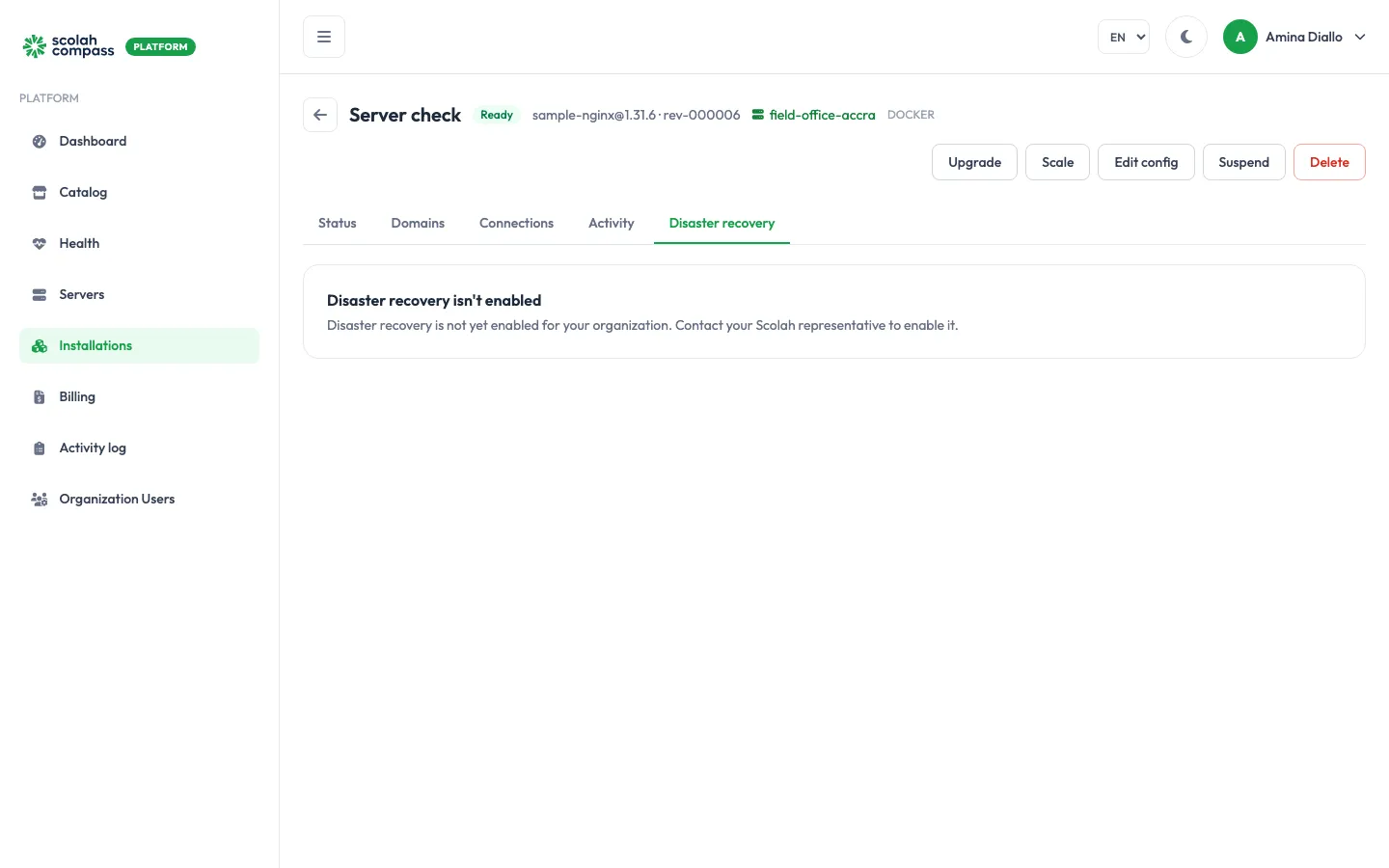
Section titled “Before you start”- Your organisation needs DR enabled. Scolah turns it on per organisation. Until then, the Disaster recovery tab shows Disaster recovery isn’t enabled. Contact your Scolah representative to enable it.
- You need to be an Organization admin to turn DR on or off, run a drill, fail over, fail back and use break-glass. Members can see the tab of a protected installation and use Back up now.
- A second server, a Docker server or a Kubernetes cluster, different from the one the installation runs on, that is:
- connected, with a heartbeat in the last 5 minutes
- marked DR-eligible
- at least as large as the original server: as many CPU cores and 95% of its memory, so the standby can take over the full load
- with at least 10 GiB of free disk (50 GiB or more avoids a warning)
- An S3-compatible bucket that both servers can reach, and an access key for it. Keep it away from the original site, or a site failure takes your recovery points with it. Without a bucket, the DR server has nothing to restore from (see Artifact store).
- A domain on the installation. Failover moves the installation’s domains to the DR server. People who reach the installation by IP address won’t follow it.
The installation and its standby can each run on a Docker server or on a Kubernetes cluster. See Kubernetes clusters.
When the tab shows a notice
Section titled “When the tab shows a notice”If DR isn’t on for the installation and you can’t turn it on, the Disaster recovery tab explains why instead of showing the wizard:
| Notice | Why |
|---|---|
| Disaster recovery isn’t enabled | Scolah hasn’t enabled DR for your organisation yet. |
| Disaster recovery is managed by your organization admins | You’re a member. Only an Organization admin can turn DR on; once it’s on, you can follow its status on the tab. |
| Disaster recovery is temporarily unavailable | Scolah has switched DR off on the platform for now. Installations already protected stay protected. Try again later. |
| Disaster recovery status could not be checked | The portal couldn’t tell whether DR is available. Reload the page. |
Which applications are protected
Section titled “Which applications are protected”The application must describe its data in a backup specification (backup.json). These catalog applications have one:
| Application | Databases backed up | Files |
|---|---|---|
| Scolah Compass | PostgreSQL (4 databases), MongoDB | Media files (MinIO) |
| Scolah Compass Resources | PostgreSQL | Receipt files (MinIO) |
| DHIS2 | PostgreSQL | DHIS2 home folder |
| ERPNext | MariaDB | Sites folder |
| HOPE | PostgreSQL | Data folder |
| Keycloak | PostgreSQL | — |
| KoboToolbox | PostgreSQL (2 databases), MongoDB | — |
| LiteLLM | PostgreSQL | — |
| Metabase | PostgreSQL | — |
| Moodle | PostgreSQL | Moodle data folder |
| OpenEWS | PostgreSQL | — |
| openIMIS | PostgreSQL | Photos folder |
| OpenMRS | MariaDB | Data folder |
Redis caches are skipped, because the application rebuilds them. KoboToolbox’s Redis job queue is backed up and restored with its databases, so queued jobs follow the installation to the standby. Sample (nginx) keeps no data worth protecting.
Turn on disaster recovery
Section titled “Turn on disaster recovery”- Open the installation and click the Disaster recovery tab.
- Follow the six steps of Enable disaster recovery, then click Enable DR.
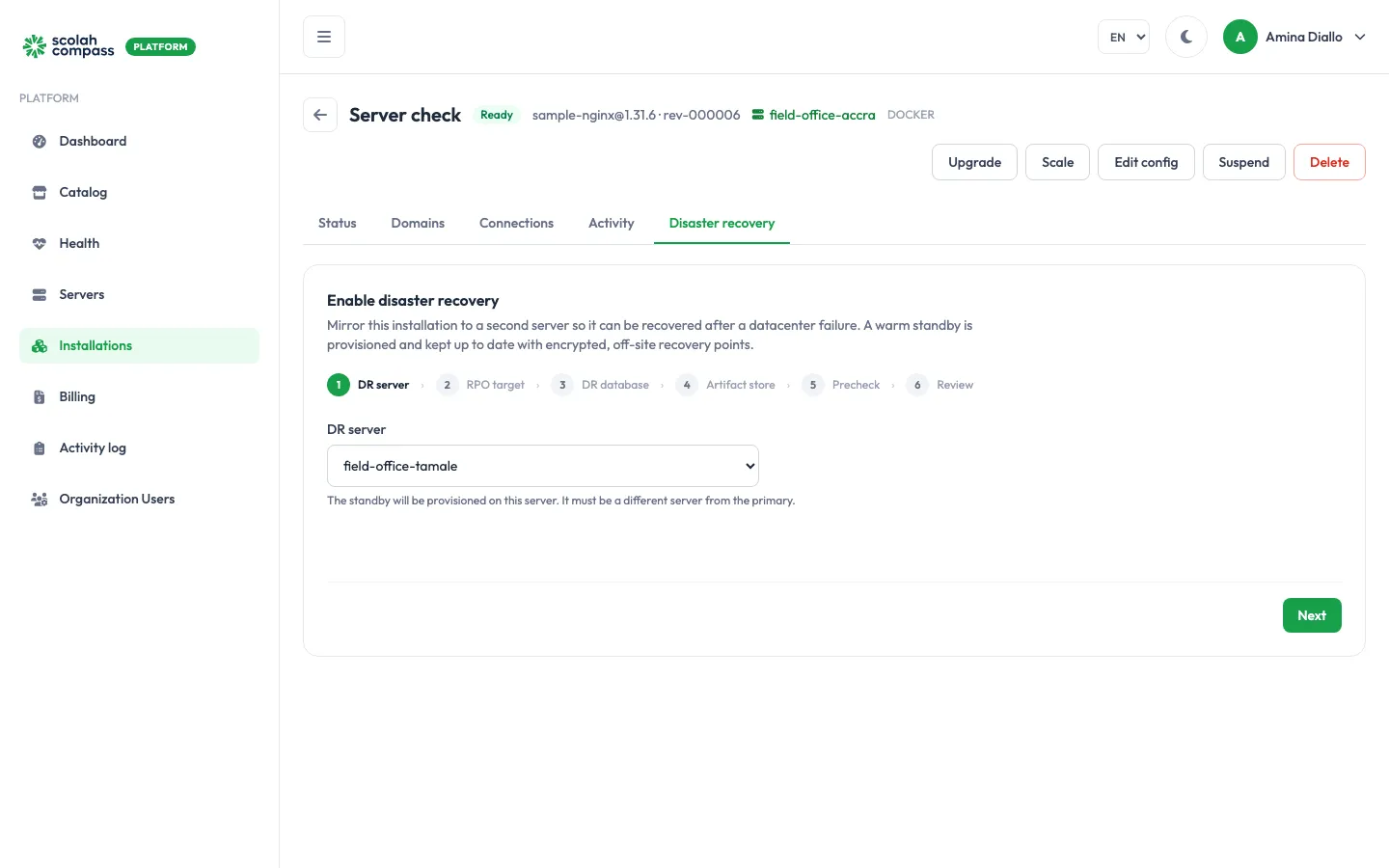
1. DR server
Section titled “1. DR server”Choose the server that will hold the standby. The list shows only DR-eligible servers other than the installation’s own. If it’s empty, you’ll see No DR-eligible servers available: mark a server DR-eligible first.
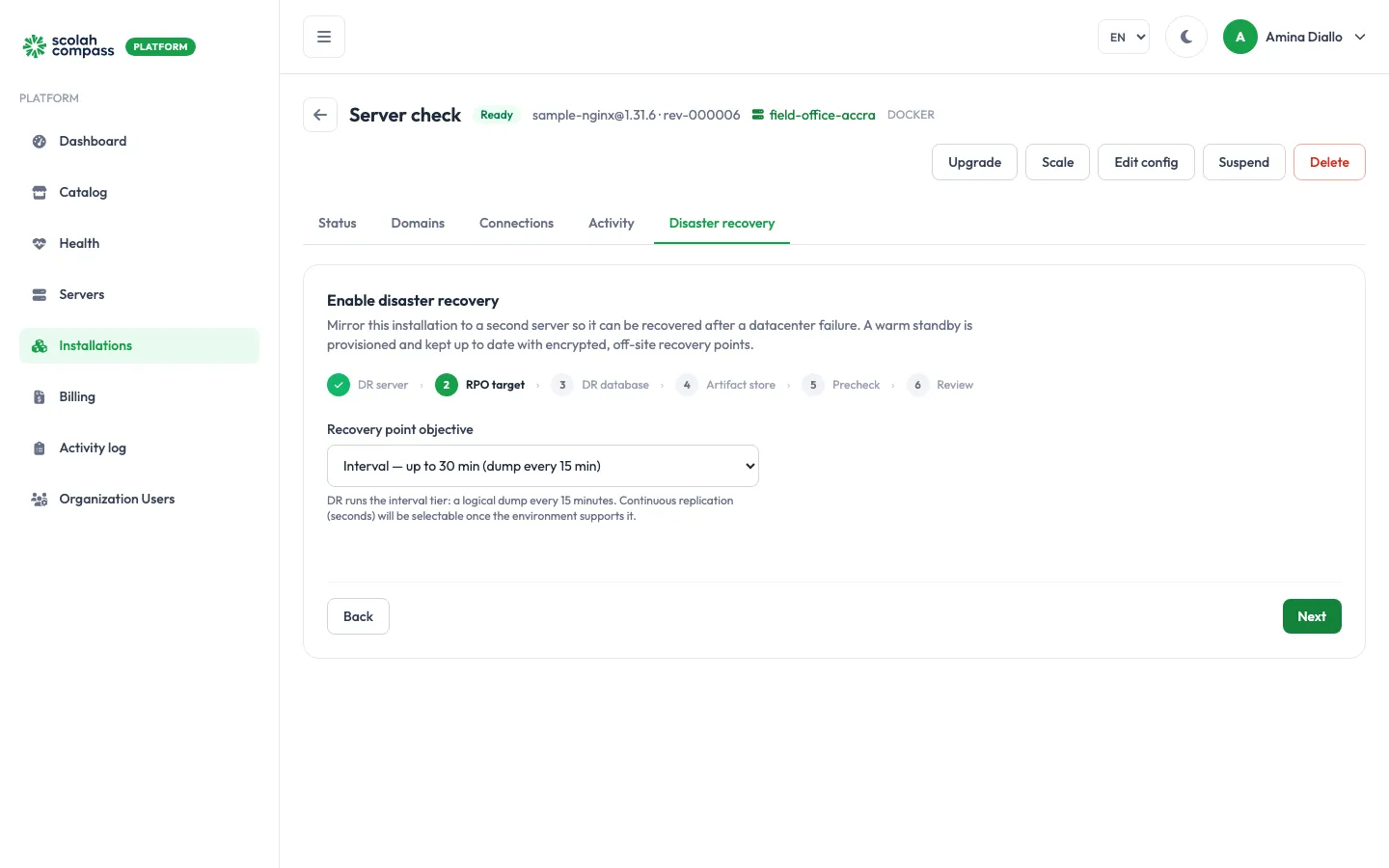
2. RPO target
Section titled “2. RPO target”Recovery point objective offers one option: Interval — up to 30 min (dump every 15 min). DR always starts at Interval. You can switch to Continuous from the Disaster recovery tab afterwards, once it’s available (see Continuous tier).
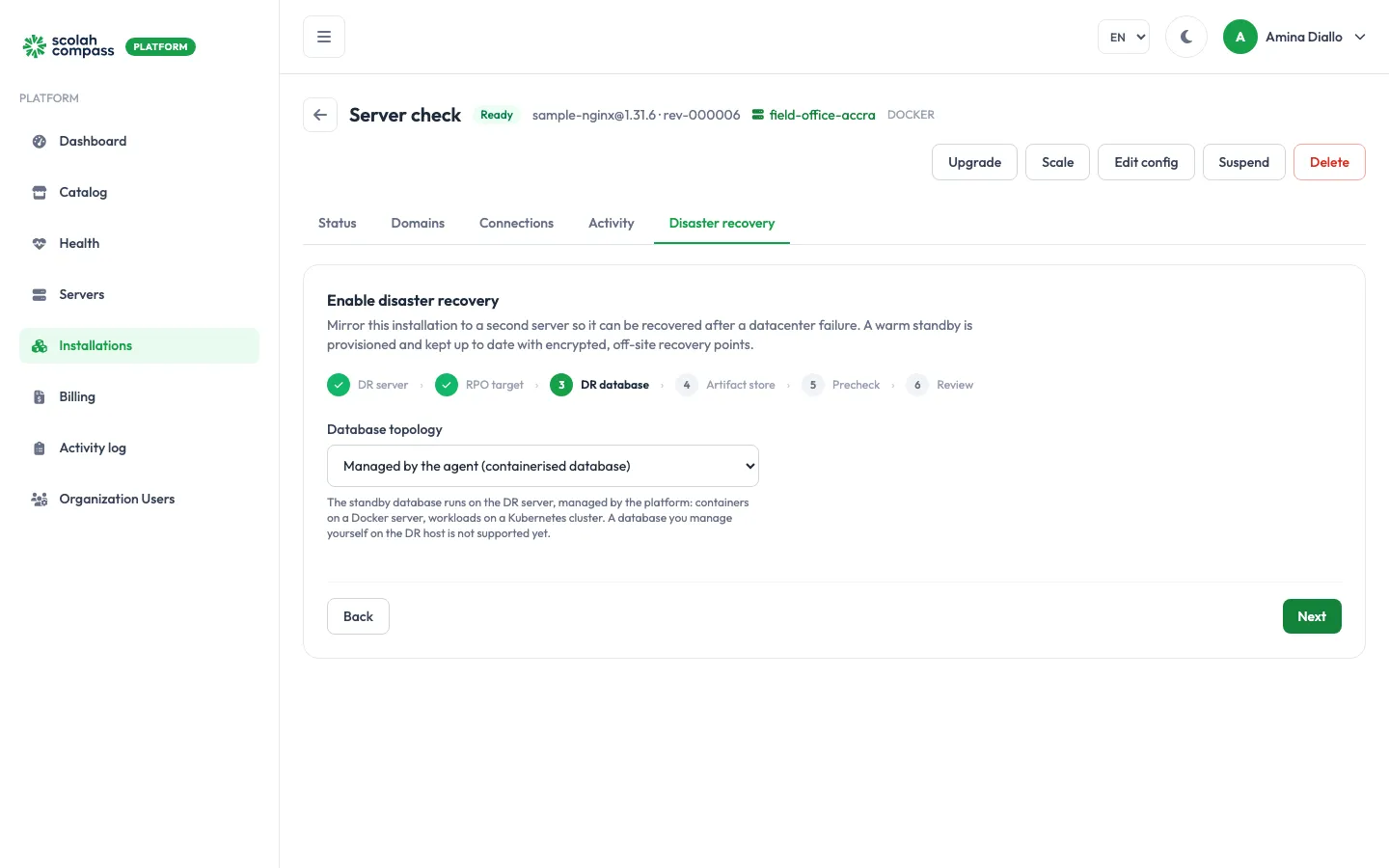
3. DR database
Section titled “3. DR database”Database topology decides where the standby’s databases run:
- Managed by the agent (containerised database), the default. The agent runs the standby’s databases in containers, as it does for any installation.
- Managed by you (your database on the DR server). The standby’s databases go on a database server you already run on the DR server. See A database you manage.
A database you manage
Section titled “A database you manage”Choose Managed by you and a list appears with one field for each of the application’s databases, such as postgres or mongodb. In each, pick one of the databases registered under External services on the DR server, of the same type. If none of that type is registered, the field says so, with a link to the DR server’s page to add one. Next stays disabled until every database has one.
If the option is greyed out, the application has no database that can be placed on a server you manage. Caches and object storage, such as Redis and MinIO, always stay with the agent.
Before you choose it, make sure that:
- the database server is registered under External services on the DR server
- Docker on the DR server can reach it: it must accept connections from Docker’s network, not only from
localhost - the account you registered has the rights to set up the application’s databases:
- PostgreSQL:
CREATEDB,CREATEROLEand membership ofpg_signal_backend, or superuser - MySQL / MariaDB:
CREATE,DROP,ALTERandGRANT OPTIONon the application’s databases, plusCREATE USER - MongoDB: an account that can create users and databases
- PostgreSQL:
- for an application that uses PostGIS (DHIS2, HOPE, KoboToolbox), the account is a superuser, or PostGIS is installed in the
template1database so every new database has it. The application’s own account can’t install the extension - for MySQL with binary logging on,
log_bin_trust_function_creatorsis set, or restored triggers and functions fail - its major version is at least the one the application runs, for example PostgreSQL 16 or later for an application on PostgreSQL 16
- both servers are Docker servers. Clusters aren’t supported with a database you manage
- the DR server runs the latest version of the agent
When you turn DR on, the platform creates the application’s databases and an owner account for it on your database server, as it would for an installation using that server. Each restore replaces those databases, and everything restored is owned by the application’s account. On PostgreSQL, the account you registered is made a member of the application’s account so it can manage those databases, and it stays a member.
No rollback copy of the previous data is kept on your server. The recovery points in your artifact store are the rollback: to go back, restore an earlier one. If you turn DR off, the databases stay on your server; remove them yourself when you no longer need them.
After you turn DR on, and before the first backup, the DR server’s agent checks the database: that it can reach it, the rights of the account you registered and its version. The Disaster recovery tab shows the result of each check under Checks on the database you manage. If a check fails, the installation shows Not protected with the reason. Fix the database and click Run the check again.
4. Artifact store
Section titled “4. Artifact store”Where the encrypted recovery points are written:
| Field | What to enter |
|---|---|
| Endpoint URL | The address of the S3-compatible service, such as https://s3.eu-west-1.amazonaws.com or your MinIO address. |
| Bucket / path | The bucket, optionally with a folder, such as dr-backups/this-org. Use a different folder for each protected installation. |
| Access key ID / Secret access key | A key that can read and write that bucket. |
| Repository password | Encrypts the recovery points. Store it somewhere safe: without it, nobody can read them. |
| Recovery key (optional) | A second password that can also open the recovery points. Keep it somewhere safe outside both servers, so the backups stay readable if the DR server is lost. |
| Object Lock is enabled on this bucket | Tick it only if the bucket was created with Object Lock (WORM), so recovery points can’t be deleted or overwritten. |
| Lock period (days) | Appears when you tick Object Lock, and is then required: the bucket’s Object Lock retention period, a whole number from 1 to 3650. Recovery points younger than this are never removed. See How long recovery points are kept. |
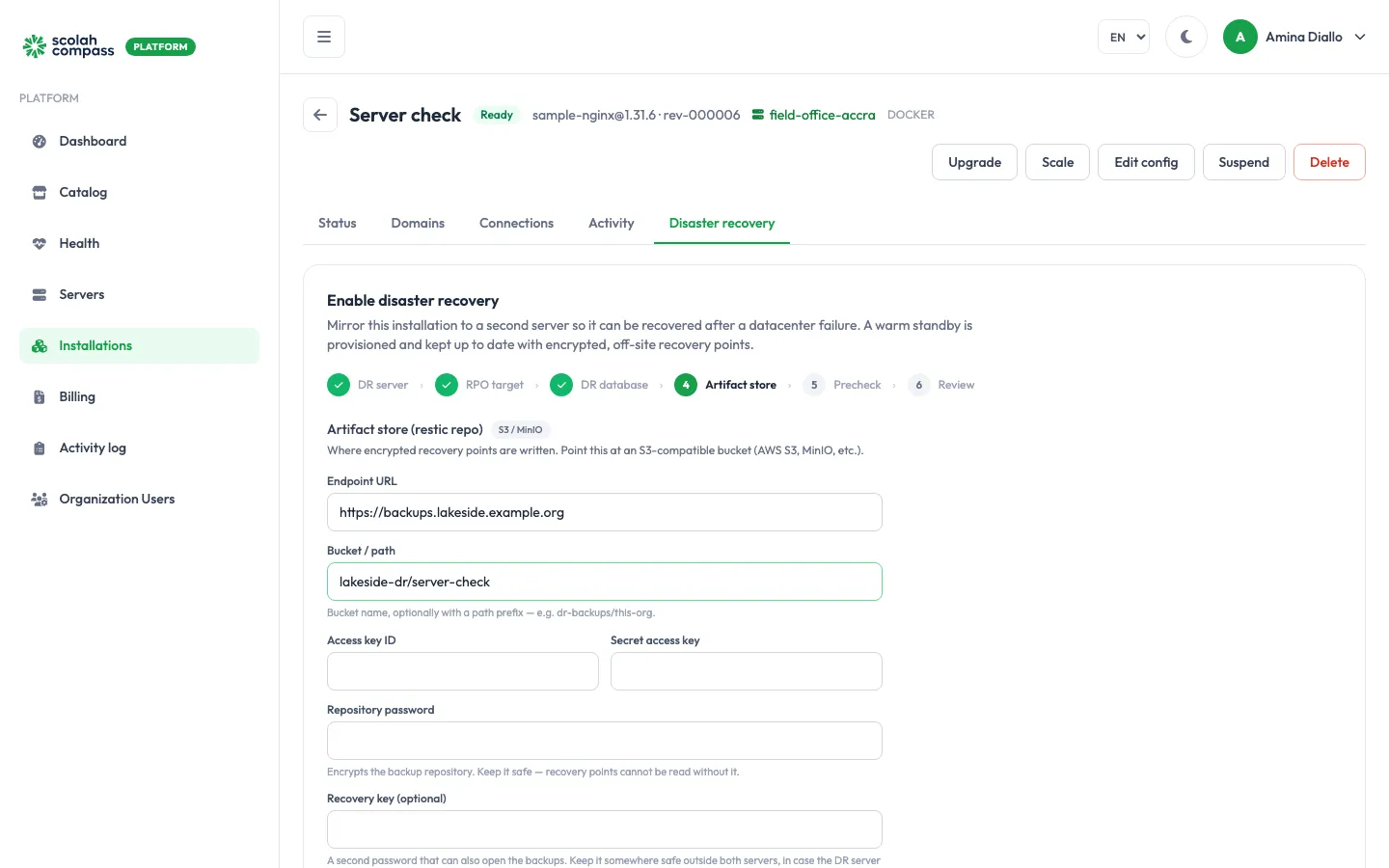
If you leave the endpoint and bucket blank, the recovery points are kept in a local repository on the installation’s own server, and Review shows Local repo (development). The DR server can’t restore from that repository, so the standby is never brought up to date, and the recovery points are lost with the server. Use it for testing only: to protect an installation, set an artifact store. If either server is a Kubernetes cluster, you must set one.
5. Precheck
Section titled “5. Precheck”The platform checks that DR can work and lists each result. A red cross blocks you; fix it, then click Run prechecks again. A warning doesn’t block you.
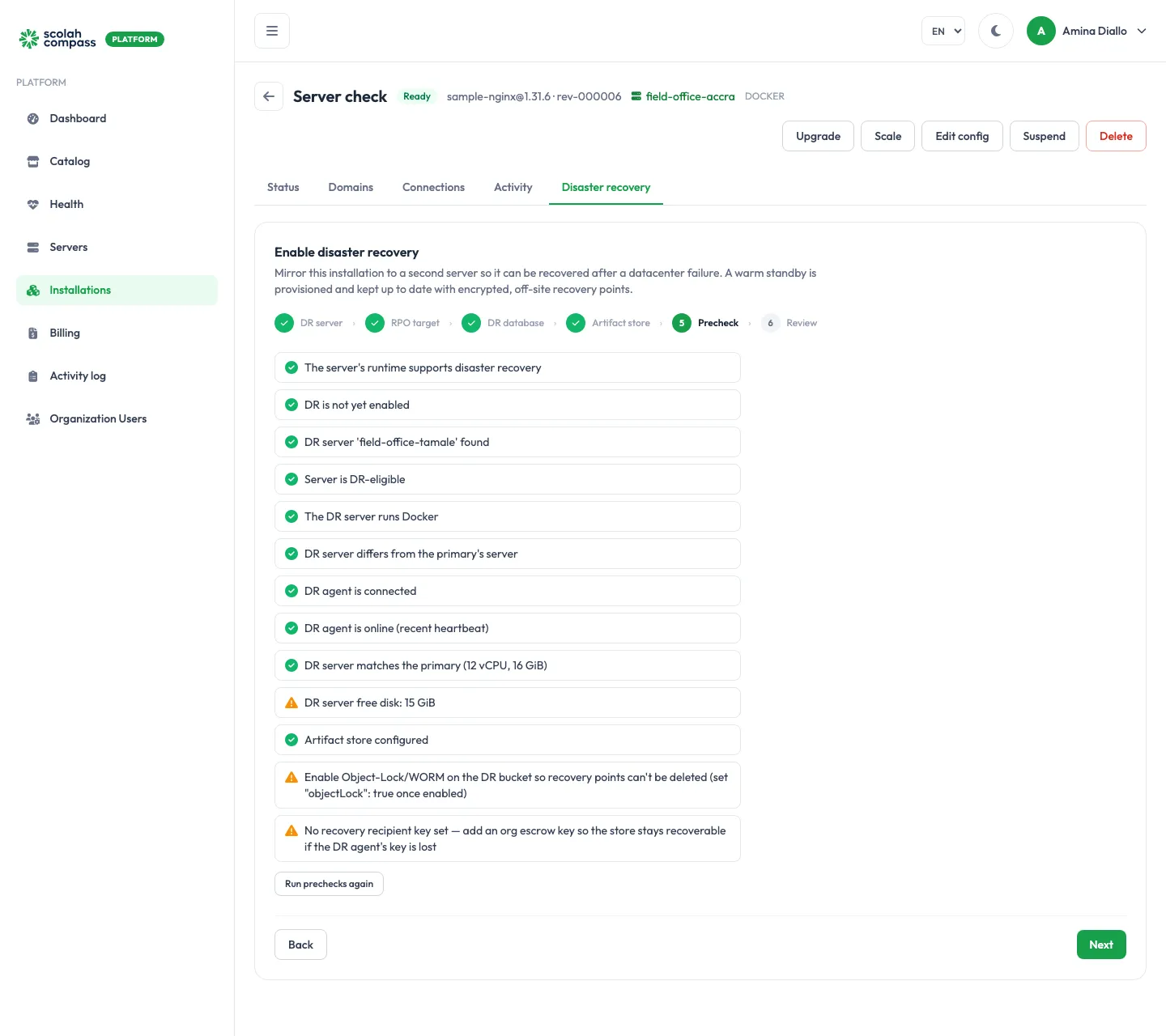
| Check | Fails or warns when |
|---|---|
| Already enabled | DR is already on for this installation. |
| DR server | The server isn’t found, isn’t DR-eligible, or is the installation’s own server. |
| DR agent | No agent is enrolled on the DR server, or it hasn’t reported a heartbeat in the last 5 minutes. |
| Capacity | The DR server has fewer CPU cores or less memory than the installation’s server. It warns instead when a server hasn’t reported its resources yet. |
| Disk | Less than 10 GiB free fails; less than 50 GiB warns. |
| Artifact store | Warns when none is set, because the DR server can’t restore from a local repository. Fails instead when either server is a Kubernetes cluster. When a store is set, also warns when Object Lock is enabled on this bucket isn’t ticked, and when no Recovery key (optional) is entered. |
| Database you manage | Only with Managed by you. Fails when either server is a Kubernetes cluster, when the DR server’s agent is too old, or when a database has no registered database of the right type chosen for it. |
| Database you manage on the original server | The installation itself uses a database you manage (see Limitations). |
| Connections | Warns when the installation has connections. They move with it on failover, but installations left on the original server lose them until they follow. |
Tick Object Lock is enabled on this bucket and enter a Recovery key (optional), and those two warnings disappear on the next precheck. They don’t stop you enabling DR either way. The recovery key is added to the repository as a second key when DR is turned on.
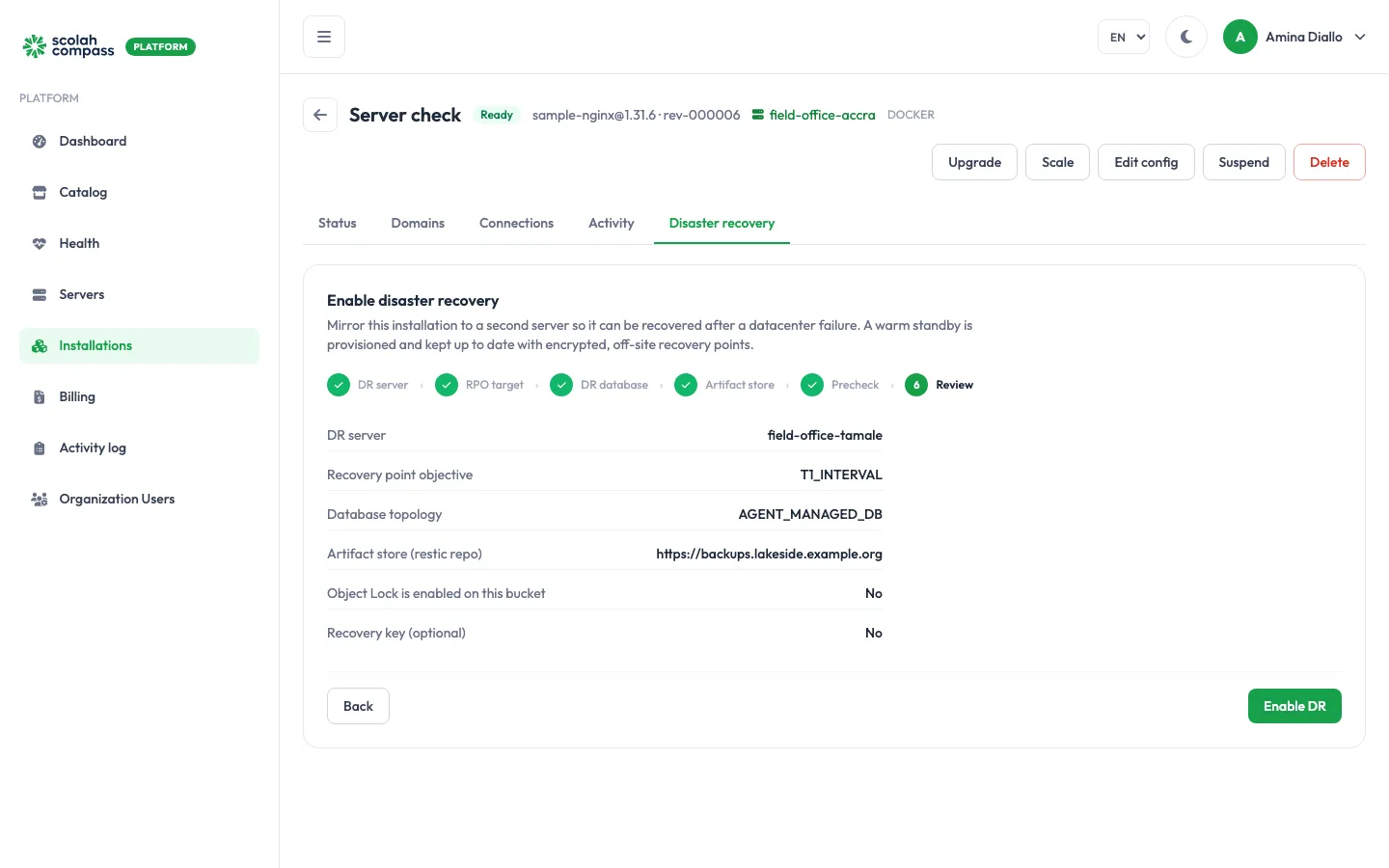
6. Review
Section titled “6. Review”Check the summary and click Enable DR. With Object Lock ticked, the summary also shows the Lock period (days).
What happens next
Section titled “What happens next”The standby appears in Installations on the DR server, for example Programme analytics (DR). It shows Standby: its databases run and wait to be healthy, and the application itself doesn’t run there.
The Disaster recovery tab shows Syncing. The first backup runs within a minute or two. Once it’s uploaded, the state changes to In sync and the headline to Protected. A minute later the DR server restores it into the standby, and the first daily check runs.
Monitor protection
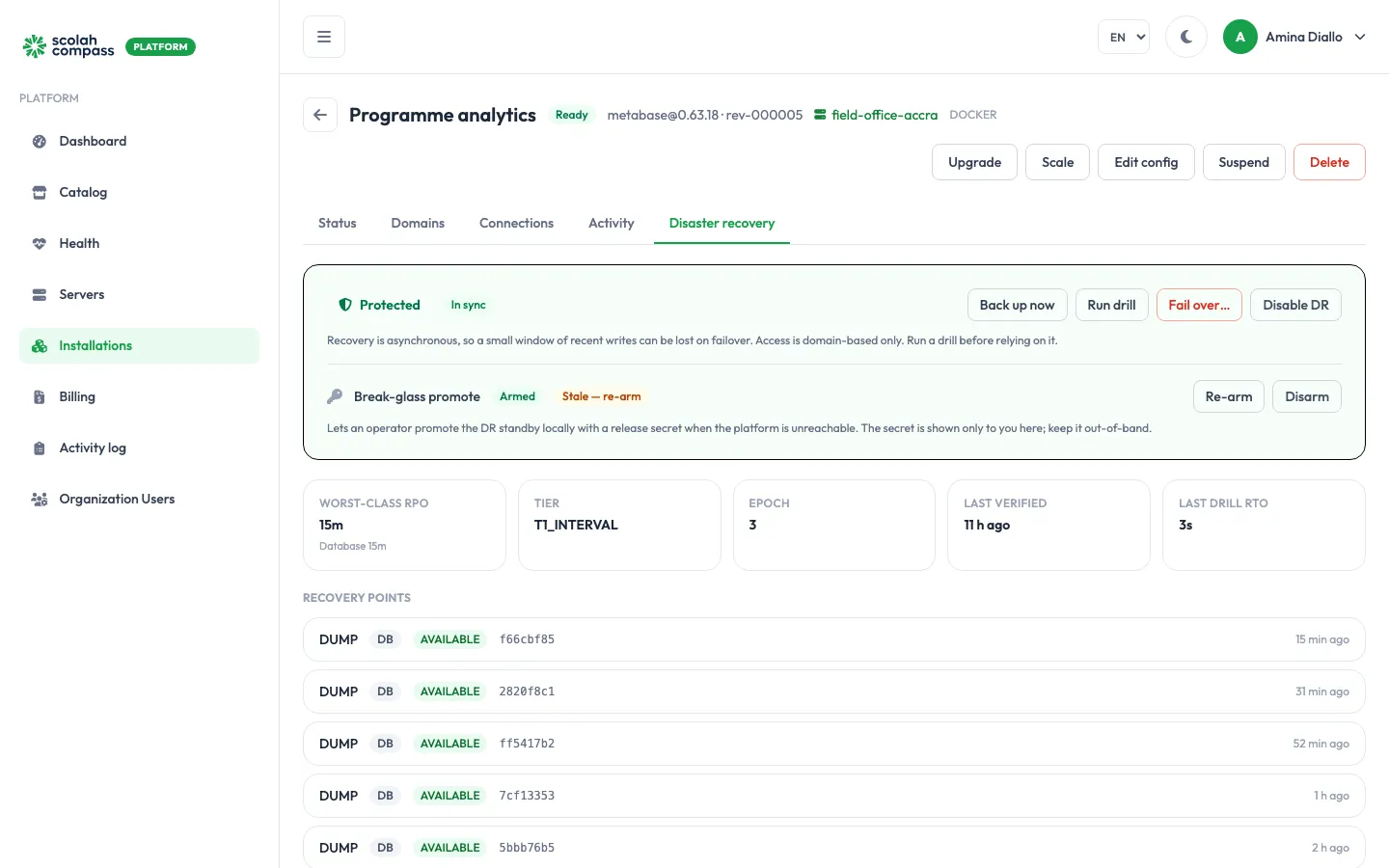
Section titled “Monitor protection”The Disaster recovery tab of the protected installation shows:
- A headline: Protected (green) when the state is In sync or Promoted, otherwise Not protected (red).
- Worst-class RPO: how old the newest recovery point is, with a breakdown by Database and, if the application has files, Files. At Continuous, it’s the slowest database.
- Tier (Interval or Continuous), and Epoch (a counter that goes up with each failover and failback).
- Last verified: when the daily check last passed.
- Last drill RTO: how long the last drill took to restore, in seconds.
- The Tier control and the Database check. See Continuous tier.
- Recovery points, newest first, with their type (DUMP for databases, FILES for files, SNAPSHOT_BASE for a Continuous base), state and age.
| State | Meaning |
|---|---|
| Syncing | Turned on, waiting for the first recovery point. |
| In sync | Recovery points are arriving. |
| Stale | The daily check of the latest recovery point failed. It returns to In sync when a later check passes. Don’t rely on the standby until then. |
| Failing over | A failover is running. |
| Promoted | The standby is now the live installation. |
| Failing back | Service is being moved back to the original installation. |
| Failed | A failover couldn’t bring the standby up. The original installation still serves. |
A recovery point is AVAILABLE when uploaded, VERIFIED once the daily check restores it successfully, and CORRUPT if that check fails.
How long recovery points are kept
Section titled “How long recovery points are kept”Once a day, the agent on the original server removes the recovery points you no longer need, then frees the space they used in the bucket:
- Every backup from the last 48 hours is kept.
- After that, one backup a day is kept for 30 days.
- Backups older than 30 days are removed.
Database and file recovery points are counted separately, and the newest one is never removed. A removed recovery point disappears from Recovery points.
At Continuous, the physical bases and the changes shipped since them are kept for 7 days, plus whatever the oldest kept base still needs to be replayed. That’s the window a drill to a point in time can reach: about the last 7 days. The daily backups are kept as above.
If the bucket uses Object Lock, the clean-up never removes a recovery point younger than the Lock period (days) you entered in step 4, even when the rules above would. A recovery point the bucket still refuses to delete stays in the list, and a later run removes it once the lock has expired. Enter the bucket’s real retention period: the platform doesn’t read it from the bucket.
The daily clean-up waits while a backup or a restore is running, and doesn’t run during a failover or a fail back.
The Health page also lists every protected installation, and raises an alert when protection is failing or recovery points stop arriving.
Continuous tier
Section titled “Continuous tier”At Continuous (T2), the agent on the original server streams each database’s changes and uploads them to the artifact store about every 2 minutes. Every 6 hours it also uploads a base: a copy of the whole database that the changes are replayed onto. The DR server replays each new batch into the standby, which stays a warm copy just behind the original. You typically lose 1 to 3 minutes of data.
| Engine | Changes streamed | Base |
|---|---|---|
| PostgreSQL | Its write-ahead log (WAL), read from a replication slot | A physical copy of the database |
| MariaDB | Its binary log (binlog) | A logical dump that records the binlog position it was taken at |
On MariaDB, the DR server applies the binlogs to the standby’s running database. Drills to a point in time and failover work the same way as for PostgreSQL.
Nothing is sent from one site to the other directly: both agents only talk to the artifact store, as at Interval. Switching to Continuous restarts nothing on the original server. On PostgreSQL, the only database setting changed is the replication-slot cap described below. On a cluster, the agent also adds one replication line to PostgreSQL’s pg_hba.conf, which needs no restart either. MariaDB needs no such change on either kind of server.
Before you switch to Continuous
Section titled “Before you switch to Continuous”-
Your organisation’s plan includes it. Scolah grants Continuous per organisation, and a billing uplift applies to the DR share of an installation that runs it (see Billing). Until then, the tab says Your organisation’s plan doesn’t include Continuous. Contact your Scolah representative.
-
The daily check shows every streamed database ready. Once a day, the agent on the original server checks each database the application streams. For PostgreSQL:
wal_levelisreplicaorlogical(the default for the bundled databases)- a replication slot and a WAL sender are free (
max_replication_slots,max_wal_senders) - its account has
REPLICATIONor is a superuser - a replication connection works
On a Docker server, the agent connects over the database’s own container network, so the bundled databases need no
pg_hba.confchange. On a cluster, the agent adds one line to it: see Continuous with a primary on a cluster.For MariaDB:
- binary logging is on (
log_bin) - the binlog format is row-based (
binlog_formatisROW) - its account has the
REPLICATION SLAVEgrant andREPLICATION CLIENT(BINLOG MONITORon newer MariaDB versions)
The bundled ERPNext and OpenMRS databases have all of this. On an installation created before binary logging was added to them, upgrading the installation turns it on, which restarts its database once.
-
The server is MariaDB. Oracle MySQL servers can’t use Continuous, and stay at Interval.
-
Either server can be a Kubernetes cluster, for PostgreSQL and MariaDB alike. The original installation and the DR server can each run Docker or be a cluster: see Continuous with a primary on a cluster and Continuous with the DR server on a cluster.
-
The standby’s databases are managed by the agent. Continuous isn’t available with a database you manage on the DR server.
-
Both servers run the latest agent.
Switch to Continuous
Section titled “Switch to Continuous”- Open the Disaster recovery tab of the protected installation.
- Under Tier, click Continuous (T2). If it’s greyed out, the reasons are listed below it: the plan, a database you manage, a problem with either server’s cluster (for example The Continuous tier can’t run on this pairing’s cluster yet: The DR cluster has no default StorageClass for the standby’s work volumes), or the exact problem the daily check found for each database, for example wal_level is minimal; replica or logical is needed.
- Confirm. The platform takes a physical base first, then starts shipping changes.
To go back, click Interval (T1) and confirm. Shipping stops. For PostgreSQL, the replication slot is removed from the original server’s database and, on a cluster, the agent also removes its pg_hba.conf line. On a cluster, the shipper pod and its volume are deleted for both PostgreSQL and MariaDB.
What the tab shows at Continuous
Section titled “What the tab shows at Continuous”- Worst-class RPO is the slowest database.
- A table with one row per database: its tier (Continuous for a streaming database, Interval for the others), its RPO, and:
- for PostgreSQL, the Slot lag, that is how much WAL the original server is holding for the slot, shown as x of 10 GB, and the slot’s WAL status:
reservedis normal,extendedmeans it’s past the usual WAL size, andunreservedorlostmeans the primary is dropping WAL the standby still needs. - for MariaDB, how much binlog hasn’t been shipped yet, shown as x not yet shipped. There’s no slot, so there’s no cap and no WAL status. The only badge is a red Binlog purged on the primary when the original server deleted a binlog before it was shipped.
- for PostgreSQL, the Slot lag, that is how much WAL the original server is holding for the slot, shown as x of 10 GB, and the slot’s WAL status:
- Database check: when the daily check last ran, and for each database its engine and version, its size, and either Ready for Continuous, Stays at Interval (databases the application doesn’t stream, such as MongoDB), or the problem found. Amber notes below it point out things that don’t block Continuous, for example that the CPU architecture of a standby database on a mixed-architecture DR cluster couldn’t be checked.
- A warning when the last 1 or 2 shipments failed.
Falling back to Interval
Section titled “Falling back to Interval”Continuous falls back to Interval by itself, and the tab says Continuous fell back to Interval with the reason, when:
- 3 shipments in a row fail
- the replication slot is lost on the original server
- a MariaDB binlog is purged on the original server before it’s shipped (see MariaDB binlogs)
- your organisation’s plan no longer includes Continuous
- the daily check no longer shows every database ready
Backups carry on at Interval, so the installation stays protected, with the Interval RPO. While the platform removes the replication slot from the original server’s database, the tab shows Cleaning up the replication slot on the primary…. Fix the cause, then switch to Continuous again. If the clean-up fails, the platform retries it, waiting longer each time (up to an hour), and the note adds how many times it failed, when the next attempt is and the last error, word for word. After 3 failed attempts, Health raises dr-cleanup-pending with the count and the last error, until the clean-up succeeds. The Health page raises dr-demoted until you choose a tier.
The replication slot and the primary’s disk
Section titled “The replication slot and the primary’s disk”A replication slot makes the original server’s database keep the WAL the agent hasn’t shipped yet. If shipping stops, that WAL would grow until the disk is full. To protect the disk, the platform caps the slot at 10 GB (max_slot_wal_keep_size). Past the cap, the database drops the oldest WAL: the slot is lost and Continuous falls back to Interval, but the original installation keeps running.
Health warns with dr-slot-lag once the slot holds half of the cap, and raises dr-slot-at-risk when its WAL status is unreserved or lost. Make sure the original server’s disk has at least 10 GB free beyond what the database needs.
MariaDB binlogs
Section titled “MariaDB binlogs”MariaDB has no replication slot, so nothing makes the original server keep a binlog until it’s shipped. The bundled databases keep their binlogs for 2 days (binlog_expire_logs_seconds). If shipping stops for longer than that, for example while the original server’s agent is offline, the database deletes a binlog the standby still needs. Continuous then falls back to Interval at once, and switching back to Continuous takes a new base.
Health raises dr-slot-at-risk when that happens. It never raises dr-slot-lag for MariaDB, because there’s no cap to fill.
Back up now
Section titled “Back up now”Back up now takes a recovery point immediately instead of waiting for the next 15-minute backup. Use it before planned maintenance on the original server.
Run a drill
Section titled “Run a drill”A drill tests that you can recover without touching anything live. Run drill restores the newest recovery point into a temporary database on the DR server, checks it, deletes it, and records how long the restore took under Last drill RTO. The standby and the original installation carry on as normal.
A drill uses the newest recovery point, whether or not it’s VERIFIED yet. If there’s none at all, for example just after turning DR on, the drill is refused with No recovery point available to drill yet: click Back up now, wait a minute, and run the drill again.
Run a drill after turning DR on, and again whenever the installation’s data grows a lot, so you know how long a real recovery would take.
Drill to a point in time
Section titled “Drill to a point in time”At Continuous, Run drill asks what to recover to:
- Latest: everything shipped so far.
- A point in time: a date and time, in your browser’s time zone, inside the window shown under the picker. The window runs from the oldest kept physical base to the last shipment, about the last 7 days. The drill replays the changes up to that moment, checks the database and records the time under Last drill RTO.
A time in the future or outside the window is refused with the reason. Before the first physical base, only Latest is offered. At Interval, a drill always uses the newest recovery point.
On a Docker DR server, the drill’s temporary database runs in the same database image as the DR installation’s own database, with the same preloaded libraries. So applications that use PostGIS (DHIS2, HOPE, KoboToolbox), databases with preloaded libraries such as pg_stat_statements, and openIMIS’s PostgreSQL 13 recover exactly as the standby runs. This needs the latest agent.
Fail over
Section titled “Fail over”Fail over only when the original installation can’t be brought back quickly.
- On the Disaster recovery tab, click Fail over…. It’s available when the state is In sync or Stale.
- Read the warning. From Stale, the standby may be missing more recent data than usual.
- Type
FAILOVERand confirm.
The platform stops the application on the original server, if it can still reach that server’s agent, and starts the full application on the standby. When the standby is up, the platform:
- moves the installation’s domains to it, and has the DR server serve them, with HTTPS in the domain’s TLS mode
- points the DNS records it manages (Scolah subdomains) at the DR server’s public IP address
- turns the original installation into the standby: it shows Standby, its application stays stopped and its domains are removed from its server, so its web address answers HTTP 404, even if that server comes back online later
The state becomes Promoted. If the standby fails to start, the state becomes Failed and the original installation keeps serving.
At Continuous, the DR server first replays everything up to the last shipment, then promotes the standby’s databases. Failover always recovers to the latest shipment: you can’t fail over to an earlier point in time.
If you use your own domain, check that its A record points at the DR server’s public IP address, and change it at your DNS provider if not. The promoted installation’s Domains tab shows each domain as Routed once the DR server serves it.
Fail back
Section titled “Fail back”After a failover, once the original server is healthy again, you can move service back.
- Click Fail back…. It’s shown only when the state is Promoted.
- Type
FAILBACKand confirm.
The platform then, one step at a time:
- backs up the original installation as it is, as a safety copy
- backs up the promoted standby’s current data
- restores that data onto the original installation, overwriting its database
- starts the original installation, and stops the application on the standby
- moves the domains and DNS back, and returns the standby to its standby role
The state is Failing back while this runs, then In sync. If any step fails, it stops, the state returns to Promoted, and the standby keeps serving.
Fail back always copies the data with a logical backup, even at Continuous. Afterwards, a Continuous installation takes a new physical base and starts shipping again, so the window for a drill to a point in time starts again from then.
Break-glass promote
Section titled “Break-glass promote”A normal failover needs the platform. Break-glass lets someone on the DR server promote the standby even when the platform can’t be reached.
-
While everything is working, click Arm under Break-glass promote and set a Release secret. Keep the secret somewhere your operators can reach during an outage, not only in the portal.
-
The DR server’s agent keeps a signed promotion token, valid for 90 days from when you arm it. If the standby changes, the status shows Stale — re-arm: click Re-arm.
-
In an emergency, on the DR server, run:
Terminal window scolah-agent break-glass promote --secret <release secret>The agent checks the token and secret, then starts the full application on the standby. When the platform can reach the agent again, it completes the failover as if you had started it from the portal: it moves the domains, turns the original installation into the standby, and the state becomes Promoted.
Until then, nothing stops the original installation or changes DNS. Make sure the original is really down, and point your domain at the DR server yourself if people need it before the platform is back.
Disarm withdraws the token from the DR server.
Turn off disaster recovery
Section titled “Turn off disaster recovery”Click Disable DR and confirm. The standby is removed from the DR server, with its data, and the list of recovery points is cleared. If the standby used a database you manage, its databases on your server are kept. The original installation isn’t affected. The backups already uploaded stay in your bucket until you delete them.
At Continuous, turning DR off also cleans up the original server: the replication slot is removed from its database and, on a cluster, the pg_hba.conf line and the shipper pod and its volume too. If the original server is offline, this happens automatically once its agent is back online. Until then, the slot keeps making the database hold WAL, up to the cap. If the clean-up fails, the platform keeps retrying it. Health raises dr-cleanup-pending after 3 failed attempts, with the count and the last error, or 10 minutes after DR was turned off while the original server’s agent is still offline, and clears it once the clean-up succeeds.
Until that clean-up has finished, Continuous can’t be switched on for a new DR pairing of an installation on the same original server: the tier is refused with a message naming the replication slot of the earlier pairing that still has to be cleaned up. Interval works as usual in the meantime.
You can’t turn DR off while a failover or failback is running, or while the standby is promoted.
Billing
Section titled “Billing”The standby counts as its own installation, with active days like any other. On Billing → Usage, its line is marked DR. Scolah charges its days at a reduced share of the application’s rate, with no implementation fee, and a free application stays free.
At Continuous, a percentage uplift is added to the DR share.
The reduced share always applies to whichever side isn’t serving. After a failover, the promoted installation is charged at the full rate and the original, now the standby, at the reduced share, until you fail back. See Billing.
Kubernetes clusters
Section titled “Kubernetes clusters”A Kubernetes cluster can take part in disaster recovery on either side. An installation on a cluster can be protected, and a cluster can host standbys once it’s marked DR-eligible. You can pair a Docker server with a cluster in either direction, or one cluster with another.
Turn DR on as for any installation. When a cluster is involved:
- An artifact store is required. Whenever either server is a cluster, the artifact store is the only thing the two servers share, so the precheck fails without one.
- Backups run in the cluster. Every 15 minutes, a short-lived pod in the installation’s namespace backs up the databases and the file volumes, such as Moodle’s data folder, and uploads them in the same format as a Docker server. A recovery point taken on a cluster can be restored on a Docker standby, and the other way round.
- A standby on a cluster keeps its databases running while the application’s workloads are scaled to zero, and it has no route. Its
Installationresource shows the phaseStandby. - Continuous works for PostgreSQL and MariaDB on either side. A Docker primary with a cluster standby, a cluster with a Docker standby, and one cluster with another all work. See Continuous with a primary on a cluster and Continuous with the DR server on a cluster.
- Drills and the daily check run on the standby, wherever it is. On a cluster, they run in the standby’s namespace and clean up after themselves, and the drill’s restore time appears under Last drill RTO, as on a Docker server.
Failover and fail back work as described above, on a cluster as on a Docker server. The installation taking over gets the domains; the one giving way loses its route, so its web address answers HTTP 404. On fail back to a cluster, the original installation is brought back without routes, backed up as a safety copy, loaded with the DR server’s data, and its application pods are restarted before the domains move back to it.
Continuous with a primary on a cluster
Section titled “Continuous with a primary on a cluster”An installation on a Kubernetes cluster can run at Continuous, whether its DR server runs Docker or is a cluster too. Its PostgreSQL databases stream their WAL and its MariaDB databases their binlog as on a Docker server, and the DR server replays them into the standby the same way. Uploads, bases, drills to a point in time, failover and the tab all work as on a Docker server.
Before you switch, the original installation’s cluster needs:
- Agent 0.0.2 or later on the cluster.
- The agent’s own image pullable from the installation’s namespace. Some Continuous steps run in short-lived pods that use the agent’s image: see Private registries on a cluster.
- A default StorageClass with room for the shipper’s volume: the slot cap (10 GB) plus 2 GB for each streamed database.
- The same CPU architecture as the DR server. The platform checks the node each database actually runs on, so the check is exact even on a cluster that mixes architectures. A mismatch blocks Continuous, for example The database of store db runs on an arm64 node and the DR server on amd64.
For PostgreSQL, also:
- A database account that’s a superuser. The bundled databases use one.
pg_hba.confin the database’s data directory, as in the official PostgreSQL images.- A catch-all
host all all allrule inpg_hba.conf. The agent reuses its authentication method. - A database volume that isn’t
ReadWriteOncePod. Continuous mounts it from a second pod on the same node.
For MariaDB, also:
- Binary logging on, in row format, and an account with the
REPLICATION SLAVEgrant andREPLICATION CLIENT(orBINLOG MONITOR), as listed under Before you switch to Continuous. The bundled ERPNext and OpenMRS databases have them.
When one of these is missing, Continuous (T2) stays greyed out and the reason is listed under it, for example The Continuous tier can’t run on this pairing’s cluster yet: The cluster has no default StorageClass for the WAL shipper’s volume, or The cluster’s agent is 0.0.1; streaming MariaDB on a cluster needs agent 0.0.2 or later.
For PostgreSQL, the agent adds two things to the cluster:
- One line in
pg_hba.conf. The stock PostgreSQL images refuse replication connections from other pods, so the agent appends one line that lets the database account replicate, for examplehost replication "postgres" all scram-sha-256 # scolah-dr 1a2b3c4d. The method is the one your catch-all rule uses, and the comment marks the line as the platform’s. The agent writes it over SQL and reloads the configuration, so the database isn’t restarted. If PostgreSQL reports an error in the file afterwards, the agent puts the original back. The line allows replication for that one account from anywhere that can reach the database’s Service, with the authentication method the application already uses, so it’s no wider than the application’s own access. When you switch back to Interval or turn DR off, the agent removes the line and reloads again, still without a restart. Every addition and removal is recorded in the activity log asdr.pg_hba.line_addedordr.pg_hba.line_removed, on the original installation, with the database and the file’s checksum before and after the change. When a removal’s checksum after matches its addition’s checksum before, the file was put back byte for byte. - A shipper pod,
scolah-drship-<database>, in the installation’s namespace. It receives the WAL and holds it until the next upload, on its own volume from the default StorageClass, sized at the slot cap plus 2 GB. The pod, its volume and its secret are deleted when Continuous is turned off.
For MariaDB, the agent adds only a shipper pod, scolah-drship-<database>, with its own volume (the slot cap plus 2 GB, from the default StorageClass) and secret. It reads the binlog from the database’s Service, as a replica would, and holds it until the next upload. Nothing changes in the database: the replication grants already allow remote binlog reads, so there’s no pg_hba.conf-style edit and no restart. The pod, its volume and its secret are deleted when Continuous is turned off.
Private registries on a cluster
Section titled “Private registries on a cluster”Disaster recovery runs its work in short-lived pods in the installation’s namespace: backups, restores, seeding, drills to a point in time and the Continuous shipper. They use the agent’s own image and the application’s database images, and each pulls with these two Secrets when they exist:
scolah-registry-auth, the installation’s registry credential, which the agent already writes for applications with private images.scolah-dr-agent-pull, a copy of theimagePullSecretsset on the agent’s Helm chart. A pod can’t use a Secret from another namespace, so the agent copies the chart’s pull secrets into each installation’s namespace before it starts one of these pods, and leaves the copy there.
If the agent’s image is in a private registry, set imagePullSecrets on the agent’s chart, for example --set 'imagePullSecrets[0].name=my-registry', with that Secret in scolah-system. If the copy fails, the agent logs it and starts the pod without it, so a public image still works.
Continuous with the DR server on a cluster
Section titled “Continuous with the DR server on a cluster”A standby on a Kubernetes cluster can run at Continuous for PostgreSQL and MariaDB, whether the original installation runs on a Docker server or on a cluster. The standby replays the shipped WAL or binlog as on a Docker server, and drills to a point in time, promotion at failover and the tab work the same way.
Before you switch, the DR cluster needs:
- Agent 0.0.2 or later on the DR cluster.
- The agent’s own image pullable from the standby’s namespace, as on the primary’s side.
- A default StorageClass. The standby’s seeding and drills use short-lived work volumes from it.
- The same CPU architecture as the original server. When all the DR cluster’s nodes share one architecture, the platform compares that. On a cluster that mixes architectures, it can’t know which node the standby database will run on until it runs, so it compares the node the DR agent runs on and the tab keeps an amber note: pin the standby database to the original database’s architecture, for example with a
kubernetes.io/archnode selector. - For PostgreSQL, the standby database’s data directory on a volume, mounted without
subPath. The bundled databases are. - For PostgreSQL, a standby database volume that isn’t
ReadWriteOncePod. Each update mounts it from a second pod on the same node.
When one of these is missing, Continuous (T2) stays greyed out and the reason is listed under it, for example The Continuous tier can’t run on this pairing’s cluster yet: The DR cluster has no default StorageClass for the standby’s work volumes, or The DR cluster’s agent is 0.0.1; a MariaDB standby on a cluster needs agent 0.0.2 or later.
What happens on the DR cluster for PostgreSQL:
- Seeding. The first time, and again whenever the standby has to be rebuilt from a different base (for example after a failback or a new timeline), the agent briefly holds the standby’s database down: its pod is scaled to zero while a short-lived pod restores the database’s data directory from the physical base. The database then starts again as a hot standby and replays the shipped WAL. The standby’s application stays scaled to zero throughout, as it always is on a standby.
- Updates. After seeding, each update only pulls the WAL shipped since the last one into the running standby database. Nothing is restarted.
- Drills to a point in time run in a disposable pod,
scolah-drpitr-…, in the standby’s namespace. It builds its own copy of the database on a temporary volume, listens on no network port, and is deleted when the drill ends. The standby carries on replaying. - Failover first pulls the last shipment, waits for the standby to replay it, then promotes the database and starts the application.
If a seed fails after the standby’s data directory was cleared, or the agent stops in the middle of one (for example because its pod is restarted), the standby’s database stays scaled down, because its data directory is incomplete. Until it’s seeded again:
- Failover and break-glass promote are refused, with a message that the standby’s database is incomplete and has to be seeded again first.
- The next update at Continuous seeds it again from a base, then starts the database.
- An update at Interval rebuilds it: the agent wipes the incomplete database, lets it start again as a fresh, empty one, and refills it from the latest Interval backup. For that short window, the standby has no data, and failover stays refused until the refill has finished. The update’s result lists the databases it rebuilt (
reinitialised=…).
What happens on the DR cluster for MariaDB:
- The standby’s database keeps running. Unlike PostgreSQL, it’s never stopped, not even for seeding: short-lived pods load the base and replay the shipped binlog into it over the database’s Service. If a replay fails, the next update seeds it again from the base.
- Drills to a point in time run in a disposable
scolah-drpitr-…pod that builds its own copy of the database, listens on no network port, and is deleted when the drill ends. - Failover first replays everything up to the last shipment, then starts the application.
Limitations
Section titled “Limitations”- Continuous is for PostgreSQL and MariaDB databases, on Docker servers and Kubernetes clusters alike. MongoDB and files always keep the 15-minute backup.
- Oracle MySQL servers aren’t supported for Continuous; MariaDB is.
- Continuous isn’t available with a database you manage on the DR server.
- Failover is one-way until you fail back. There is no undo once the domains have moved.
- In sync means recovery points are being uploaded. It doesn’t prove the standby can be restored: rely on Last verified and on drills.
- An application without a backup specification can show In sync with nothing in its recovery points.
- Only PostgreSQL databases are restored into a temporary copy and checked before replacing the standby’s data. Other databases are restored directly.
- Retention is fixed: every backup for 48 hours, then one a day for 30 days, and at Continuous the physical bases and shipped changes for 7 days. You can’t change it per installation, except that an Object Lock period longer than that keeps recovery points longer.
- An installation that uses a database you manage yourself (a registered external service) can’t be protected yet. The precheck refuses it, because the standby would have no copy of that database.