

Metabase
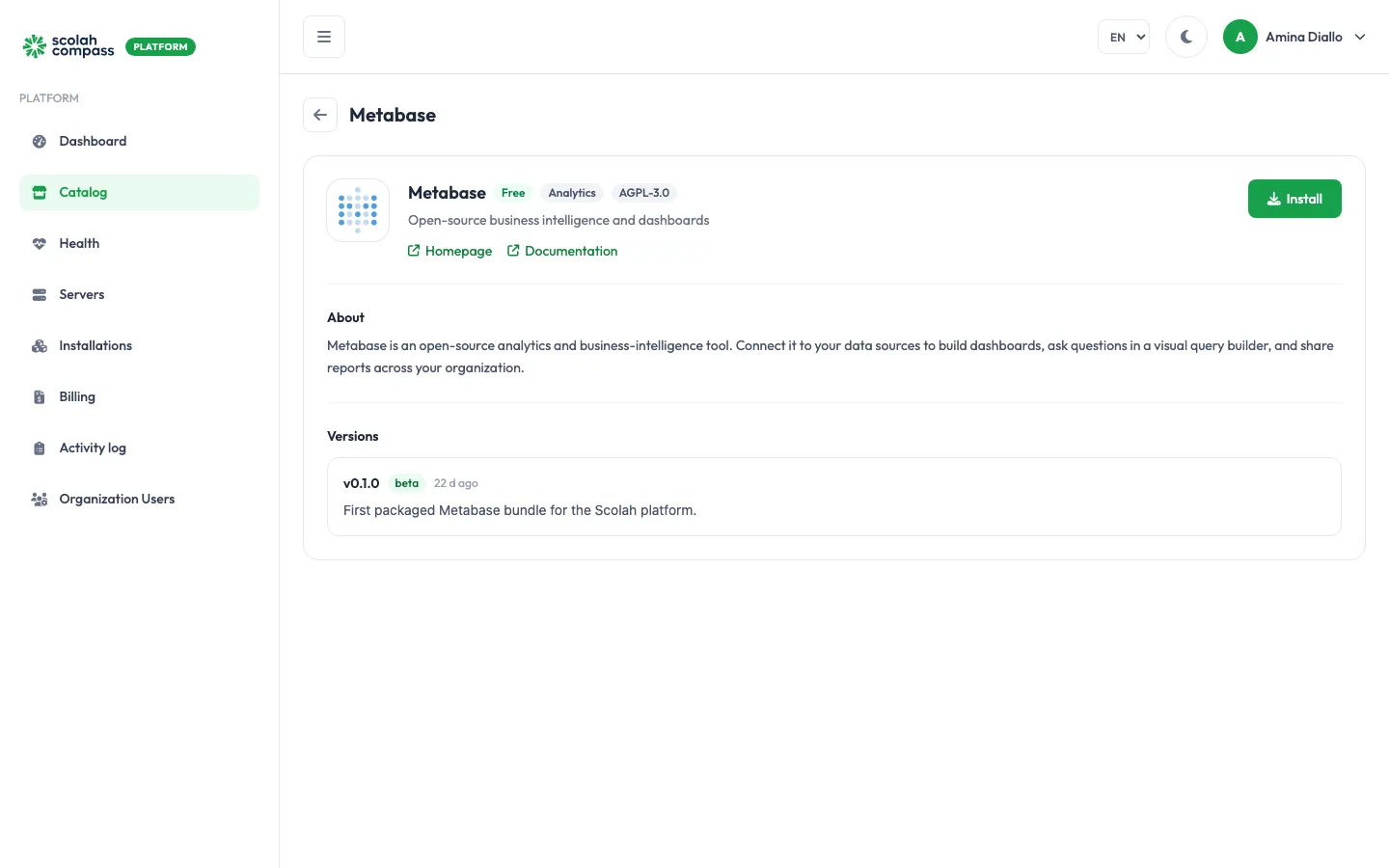
Metabase is an open-source analytics and business-intelligence tool. Connect it to your data sources to build dashboards, ask questions in a visual query builder, and share reports across your organisation.
Metabase is licensed under AGPL-3.0. Free to run — not billed.
What gets installed
Section titled “What gets installed”- Metabase (open-source edition, v0.50.8): the Metabase web application.
- Database: a PostgreSQL database that holds Metabase’s own settings, questions and dashboards. It’s used only by this installation. Your reporting data stays in the systems you connect.
Metabase is served from one web address: the installation’s main address. You can reach it on the server’s IP address, or give it a domain.
Before you install
Section titled “Before you install”Choose a Deployment size:
- small: Metabase gets 2 GiB of memory, 1 GiB of it for its Java heap. The server needs about 2 CPU cores, 3 GiB of memory and 10 GiB of disk.
- medium: 4 GiB of memory with a 3 GiB heap, for larger dashboards and more people using it at once. The server needs about 4 CPU cores, 6 GiB of memory and 20 GiB of disk.
The wizard’s Server fit check tells you whether your server is big enough for the size you pick. You can change size later with Scale; Metabase restarts with the new memory limit.
Options
Section titled “Options”| Field | What it does |
|---|---|
| Site name | The name shown in the Metabase header and the browser title. Defaults to Metabase. |
| Deployment size | small or medium, as above. |
| First administrator’s email | The email address of the Metabase administrator account the platform creates. It’s filled in with your own email address; click Change to use a different one. |
Advanced holds Report timezone (the timezone Metabase uses for scheduled reports and time-based questions, such as Africa/Accra; defaults to UTC), JVM options (extra Java settings, such as -Xmx2g; leave blank for the defaults), and the option to use a PostgreSQL server you already run instead of the bundled database. See external services.
First sign-in
Section titled “First sign-in”Metabase normally asks you to create the first account in a setup wizard in the browser. The platform completes that step for you, using:
- the email address from First administrator’s email, and
- a password the platform generates.
When you click Create, the portal shows the password once, under First login credentials, labelled Metabase admin password. Copy it before you leave the page: it can’t be shown again.
Open the installation’s address and sign in with that email address and password.
The database password and Metabase’s encryption key are also generated by the platform and sealed. You never need to type them.
Connections
Section titled “Connections”Metabase doesn’t offer anything to other installations.
It can use from another installation:
- Analytics data source: read-only access to another installation’s database, added to Metabase as a data source you can query. Optional, and you can connect several. PostgreSQL, MySQL and MongoDB sources are supported, for example:
- Scolah Compass: Compass service databases (read-only) and Compass case data (read-only)
- KoboToolbox: KoboToolbox form data (read-only) and KoboToolbox submissions (read-only)
- Moodle: Moodle learning records (read-only)
- DHIS2: DHIS2 programme data (read-only)
- Scolah Compass Resources: Resources workspaces, budget, stock and procurement data (read-only)
To add each data source, the platform signs in to Metabase as the first administrator, with the generated password. If you change that account’s password or remove it, new data sources can’t be added.
See connections.